
Overview
What is Brand Kit?
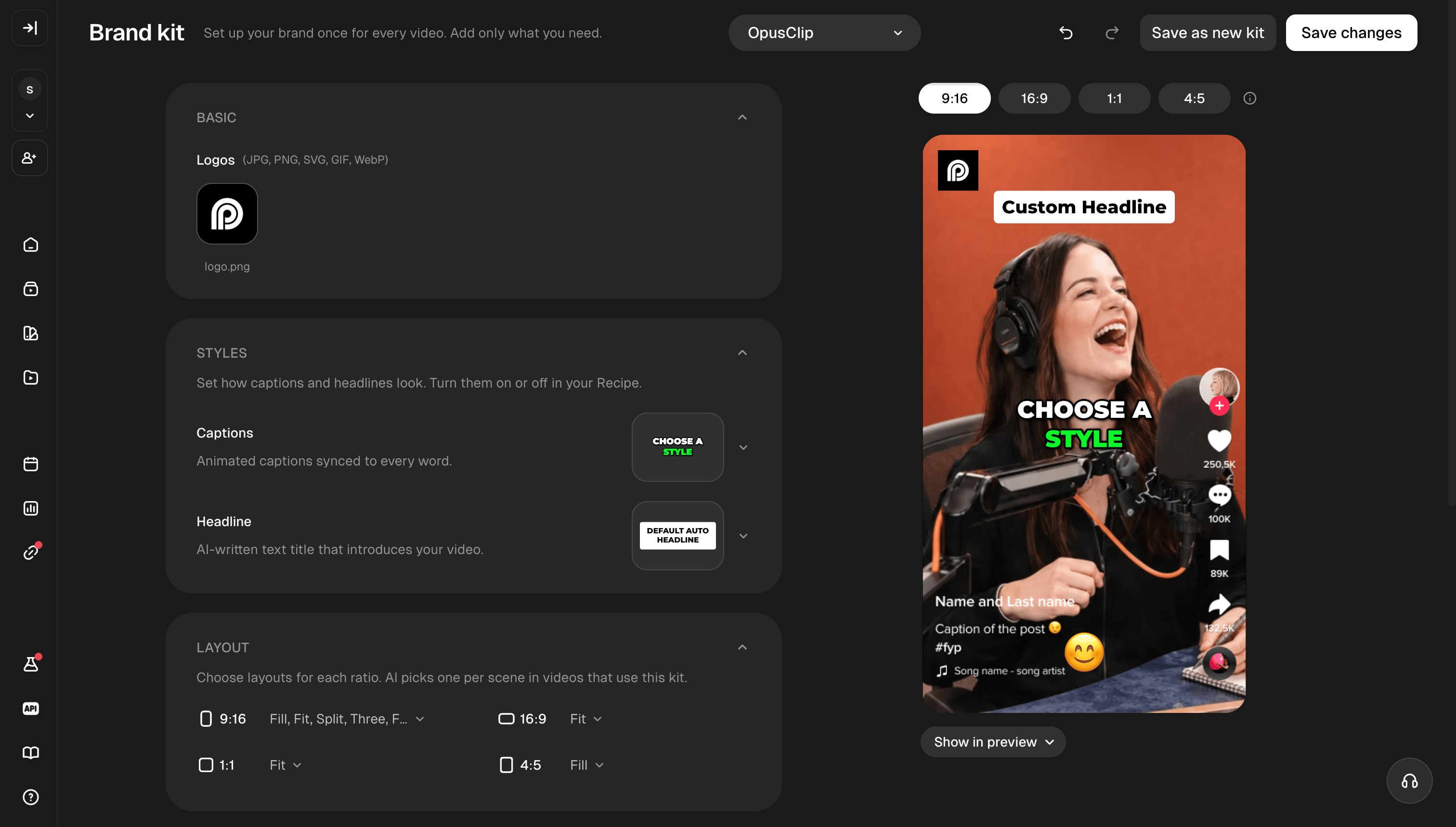
Brand Kit controls how your videos look. Set up your brand once, then reuse it across videos. You can save things like:- Logo
- Caption style
- Headline style
- Layout
- Intro and outro
- Music
How do I apply a Brand Kit?
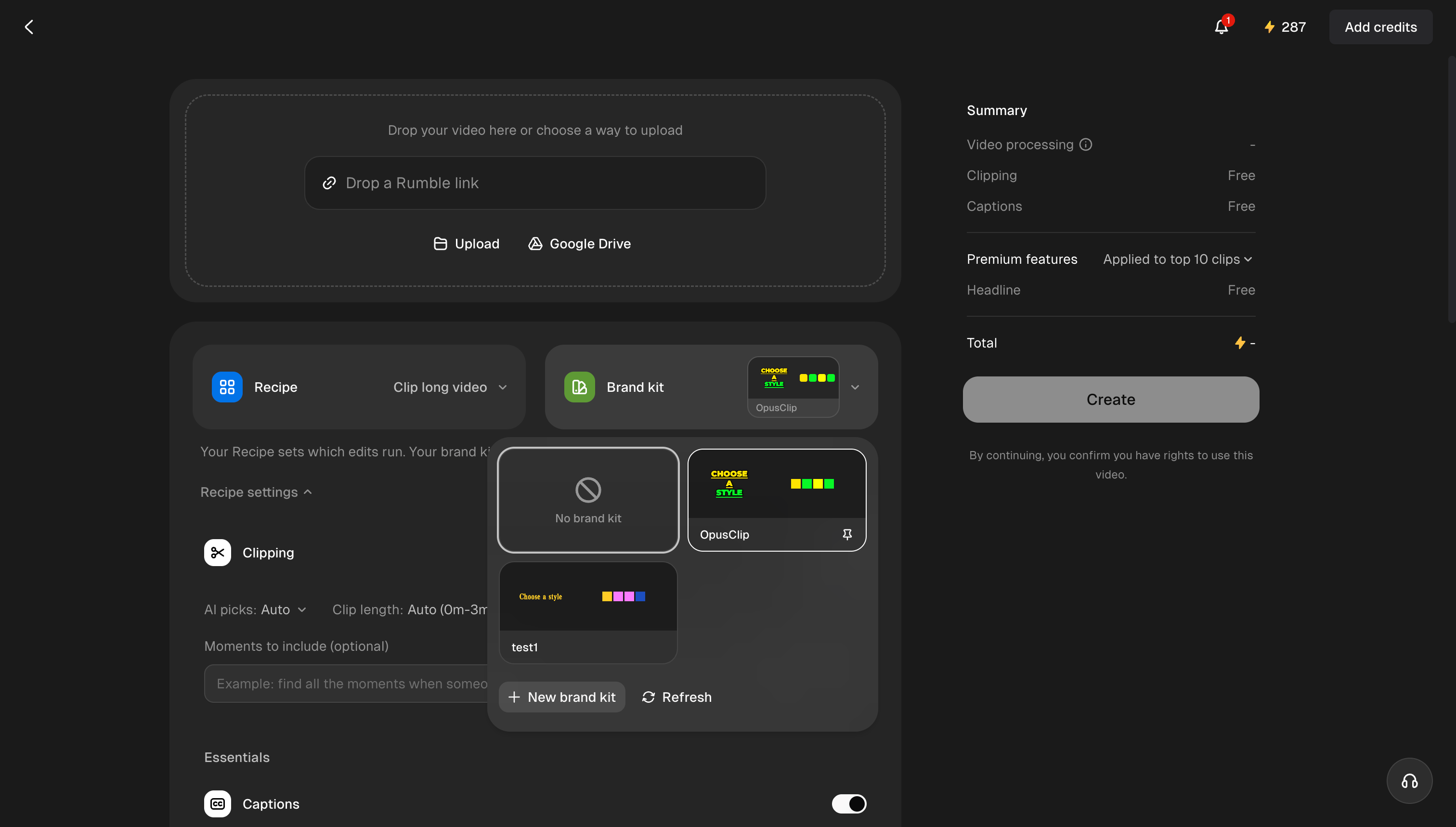
You can apply a Brand Kit in two places:- When submitting a project with a Recipe
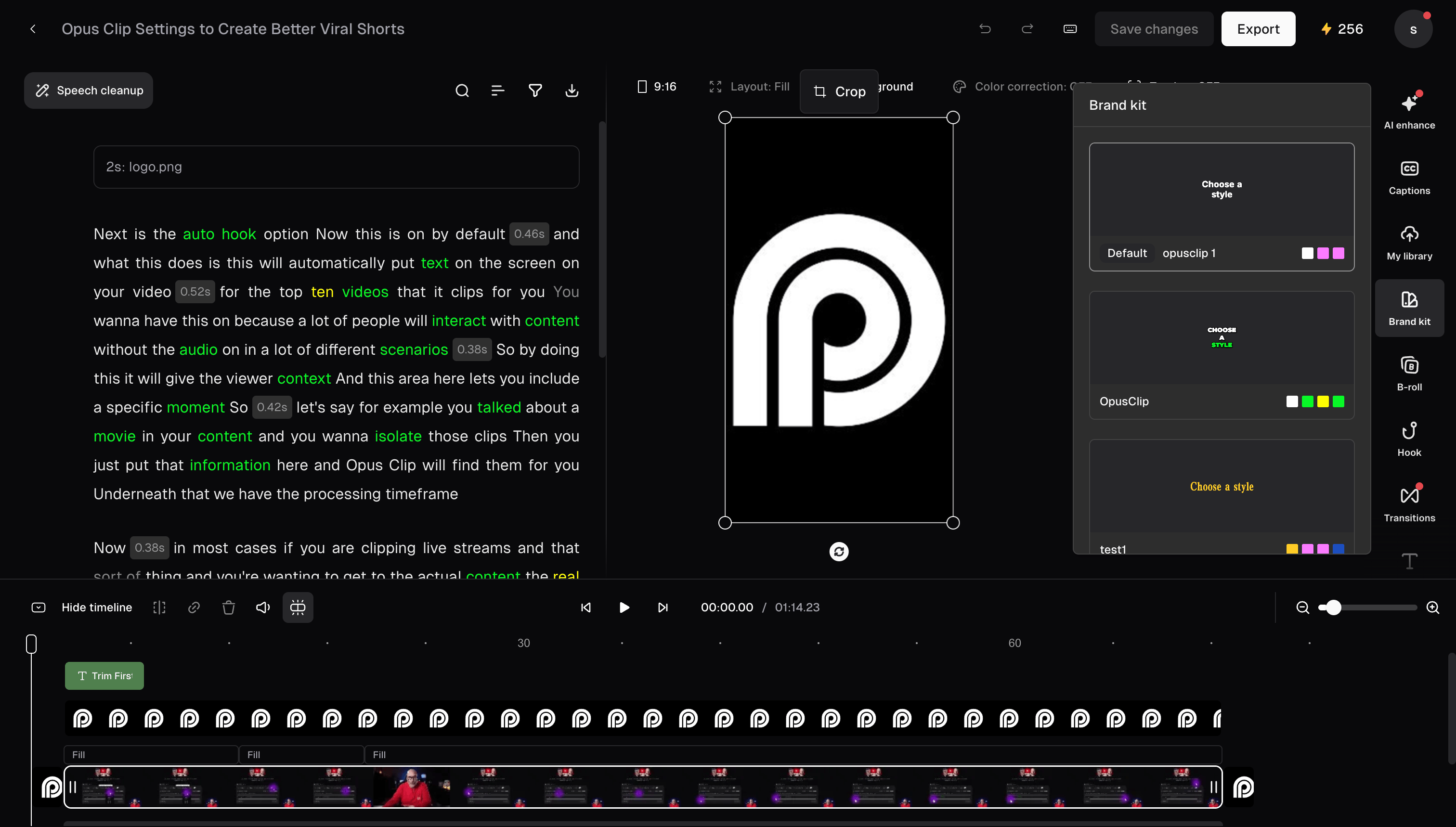
- In the Brand Kit section inside the Editor
How do I manage my Brand Kits?
You can manage all your Brand Kits from the Brand Kit page on the homepage sidebar.- Create a new kit: Open the Brand Kit dropdown at the top and select New Brand Kit.
- Save changes: Click Save changes to update your current Brand Kit.
- Save as a new kit: Click Save as new kit to create a separate Brand Kit with your current settings.
- Switch kits: Use the Brand Kit dropdown at the top.
- Rename, delete, or set as default: Select a Brand Kit, then open the ••• menu.
Multi-ratio
How does multi-ratio work?
One Brand Kit supports four aspect ratios: 9:16, 16:9, 1:1, and 4:5. Your styles stay consistent across ratios, while the size and position of elements can be adjusted separately for each ratio. Switch between the ratio tabs to preview and customize each version. When you save, all four ratios are saved inside the same Brand Kit.How do I change the preview?
Click Show Settings under the preview to choose what you want to see. You can show or hide:- Safe zones
- Captions
- Headlines
- Emojis
What can I adjust in the preview?
For each aspect ratio, you can adjust:- Logo: position and size
- Captions: position and size
- Emojis: position and size
- Layout
- Intro / Outro
- Music
Logo
How do I add a logo?
Under Basic → Logos, upload a logo from your computer or choose one from your Asset Library. Your logo will appear in the preview. Drag it to move it, or drag a corner to resize it. Supported formats:- JPG
- PNG
- SVG
- GIF
- WebP
Styles
How do I customize captions?
Go to Styles → Caption.- Choose a caption preset.
- Customize the size, weight, alignment, highlight color, and other style settings.
- Preview your changes live.
- Save the style when you’re done.
How do I customize headlines?
Go to Styles → Auto Headline.- Choose a headline style.
- Customize the style.
- Save your changes.
Headline position is automatically decided by AI based on the video layout and face position, so it can’t be saved as a fixed position in Brand Kit.
Layouts
How do layouts work?
Layout controls how your video frame is presented. You can select more than one layout. If you do, AI can choose the best layout for each scene. Available layouts include:- 9:16: Fill, Fit, Split, Three, Four, ScreenShare, Gameplay
- 16:9 / 1:1 / 4:5: Fill, Fit
How does crop work?
Crop only applies to the Fit layout. When AI uses Fit for a scene, Crop sets the shape of the framed footage, and the rest of the canvas is filled with a blurred background. Unlike Layout, Crop is single-select. Original lets AI pick the best framing; 4:3 and 1:1 (9:16 only) lock the shape.Intro / Outro
How do I add an intro or outro?
Each aspect ratio can have its own intro and outro. Go to Intro & Outro, choose a ratio, then:- Click Intro or Outro.
- Upload a file or choose one from Asset Library.
- Use More to access 1:1 and 4:5.
Music
How do I add music?
Go to Media → Music and choose a track. The selected music will be used on videos created with that Brand Kit.Pricing
How many Brand Kits can I have?
On Starter, custom uploads such as logos, fonts, intros, and outros require Pro.
Trial users can upload logos and fonts. Intros and outros require Pro.
When your trial ends, uploaded assets are paused rather than deleted. Upgrade to Pro to use them again.
Why can’t I edit or create a Brand Kit?
There are a few common reasons.- You have more Brand Kits than your plan allows. Your default Brand Kit and your most recently edited kits stay editable. Other kits may become locked. You can still use or delete a locked kit. Delete unused kits or add more Brand Kit capacity to unlock more.
- You downgraded from Pro. Your uploaded logos, fonts, intros, and outros are hidden, not deleted. Upgrade to Pro and they will become available again.
- You’re out of storage. Pro includes 100 GB of storage. Your Asset Library, saved projects, and Brand Kit uploads share the same storage. Free up space before uploading more assets.
How do Brand Kit and Asset Library work together?
Asset Library stores your files. Brand Kit decides which files to use. When you upload an asset through Brand Kit, it is also saved to Asset Library. This includes:- Logos
- Custom fonts
- Intros
- Outros
Can I use Brand Kit in the Editor?
Yes. In the Editor, open Brand → Brand Kit in the right sidebar. From there, you can:- Apply an existing Brand Kit
- Update some Brand Kit styles
- Save supported changes back to Brand Kit
- Create a new Brand Kit
- Save feature on/off settings such as captions
- Save some layout settings
What are the current limitations?
Brand Kit is still being expanded across OpusClip. Currently:- iOS and Android: The new Brand Kit experience is desktop-only. Mobile apps still use the classic Brand Template experience.
- Mobile browser: The new Brand Kit experience is not supported yet.
- MCP / API: Existing Brand Kits can’t currently be used through MCP or API workflows. These still use classic Brand Templates.
- Editor: You can apply and edit some Brand Kit settings, but not every setting can be saved back to the kit.
What’s coming next?
We’re continuing to expand Brand Kit with:- Brand colors
- Custom background styles
- Custom music uploads
- More headline / viral hook styles
- …