
How to apply auto SFX
From the recipe page
Turn on Auto SFX in your recipe to apply it once, or save it to a custom recipe to apply it automatically every time.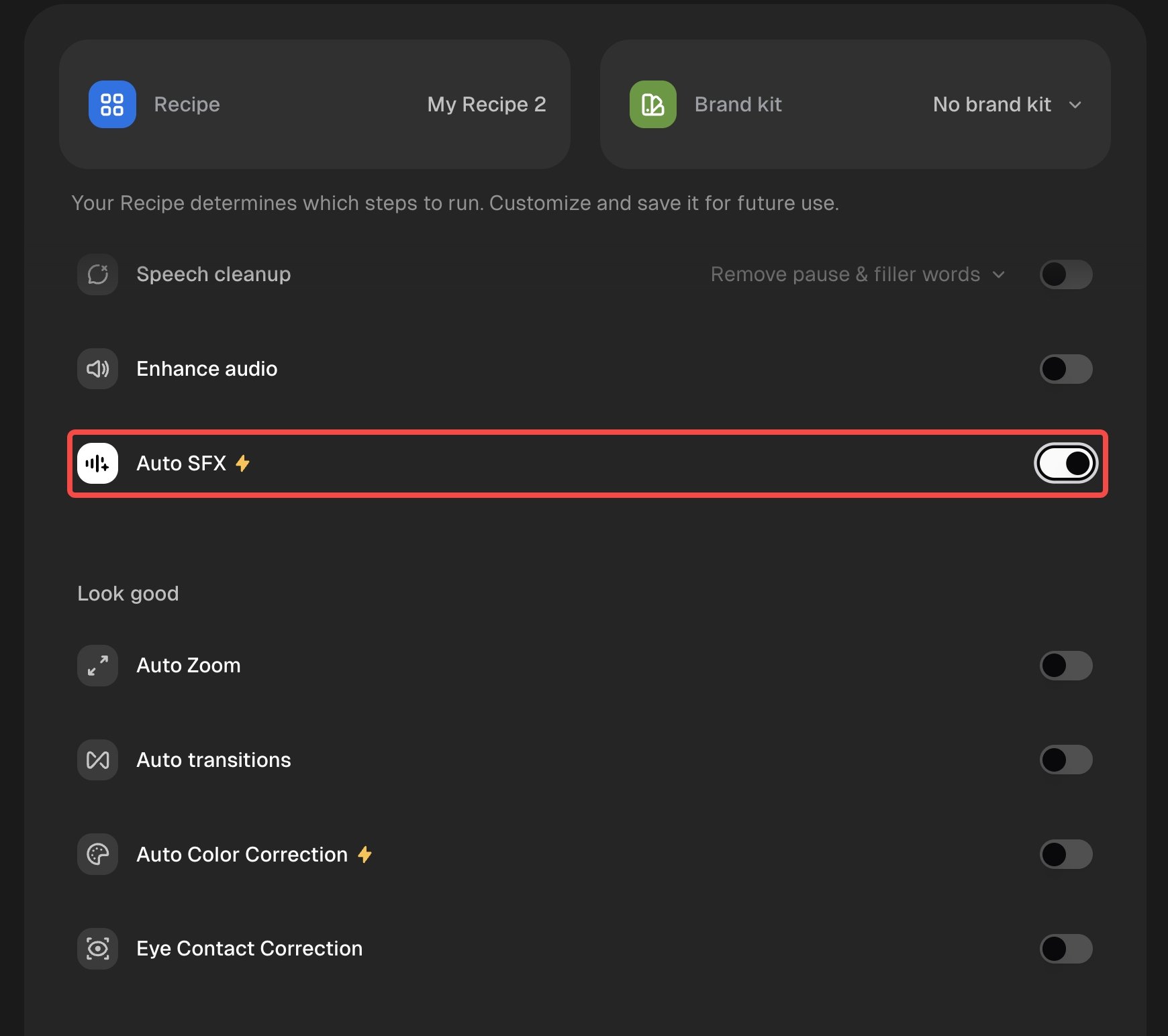
From the editor
- Open a clip in the editor and click AI enhance in the right sidebar, then click Auto sound effects. You can also click Audio in the right sidebar and open the Sound effects tab.
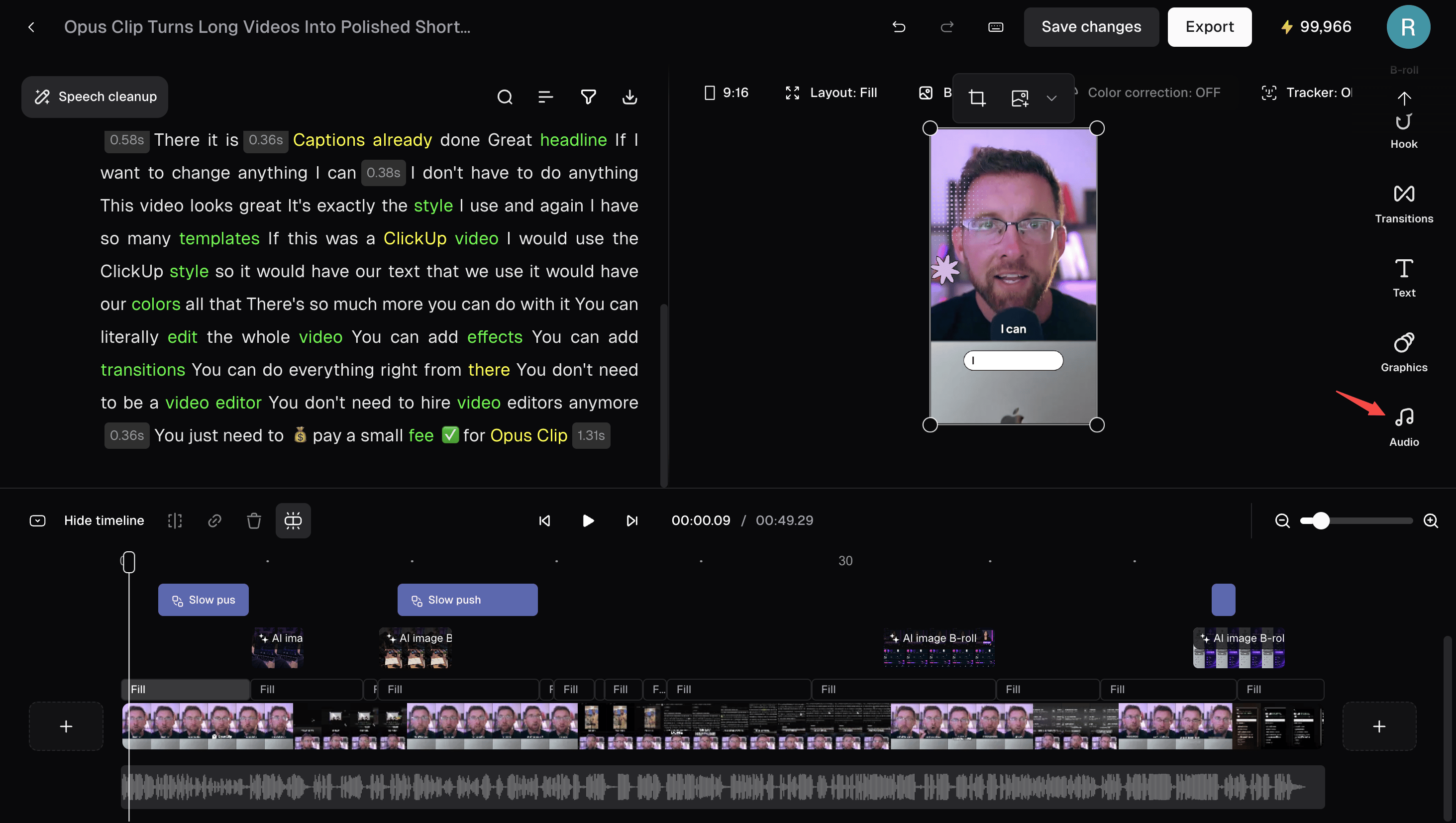
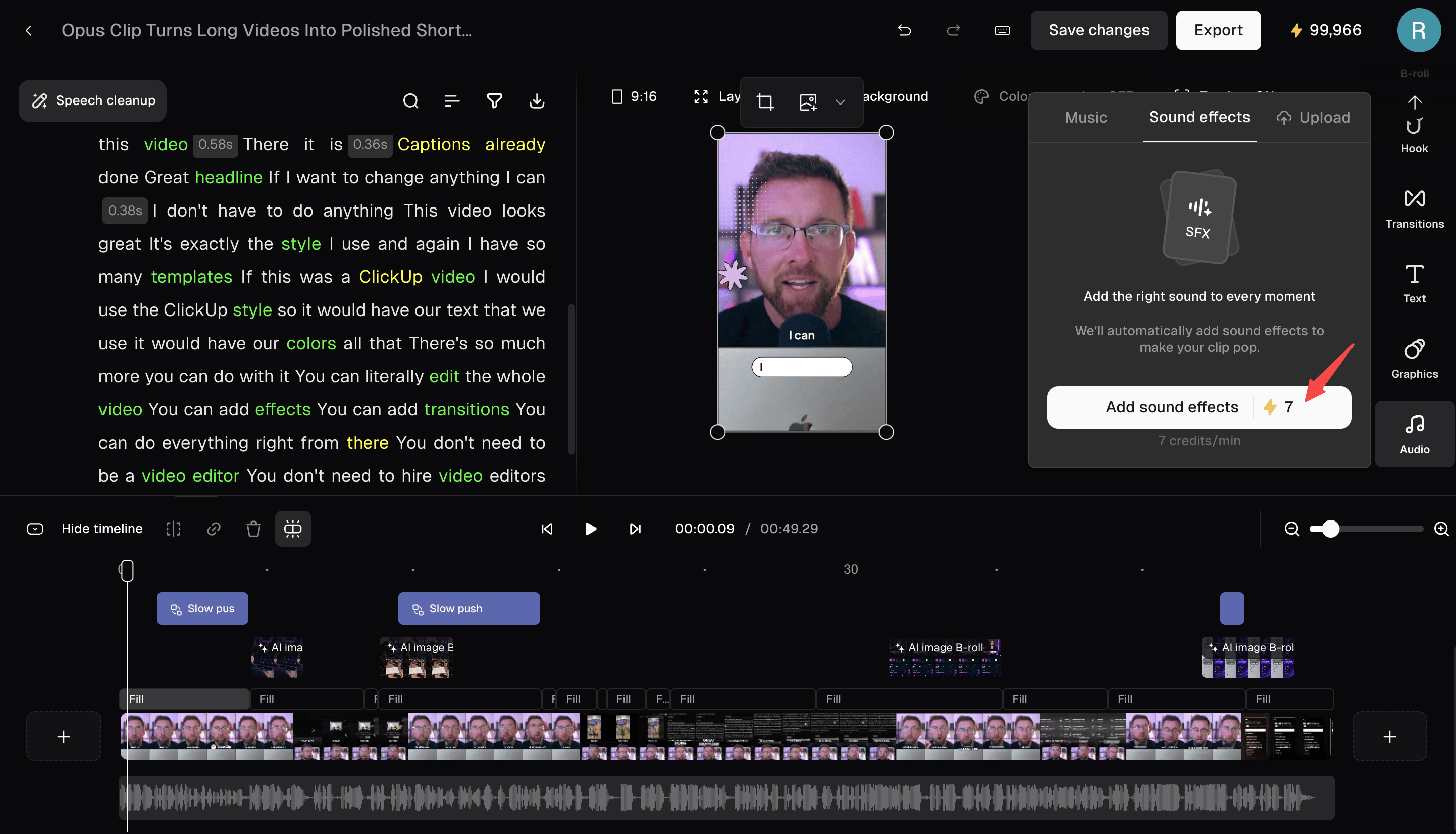
- Click Add sound effects. The number of credits it uses is shown on the button. It takes about 30 seconds for most clips.
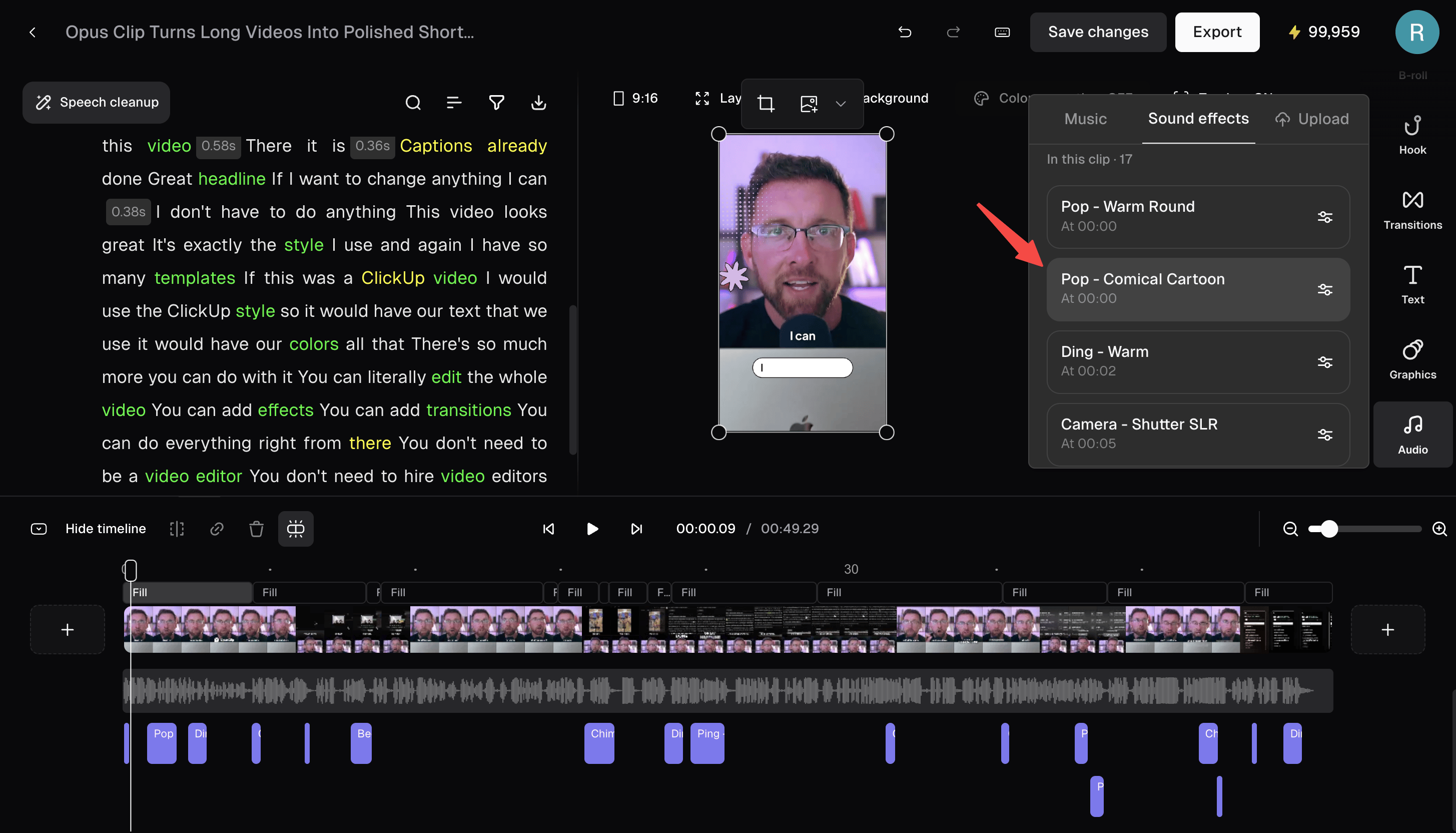
- Your sound effects appear on the timeline and in the Sound effects tab. Click any sound in the list to play your clip from just before it.
Edit your sound effects
Every sound effect is a block on your timeline. You can:- Move a sound by dragging it
- Change its volume by clicking it
- Split or delete a sound like any other block
How many credits does Auto SFX use?
7 credits per minute of clip, rounded up to the next minute. You will not be charged if Auto SFX fails or doesn’t add any sounds.Plan availability
Auto SFX is also available during a free trial.