Edit your clips
You can add custom text overlays as visual cues, calls-to-action, lower thirds, name tags, or headlines by clicking the Text tab in the right sidebar.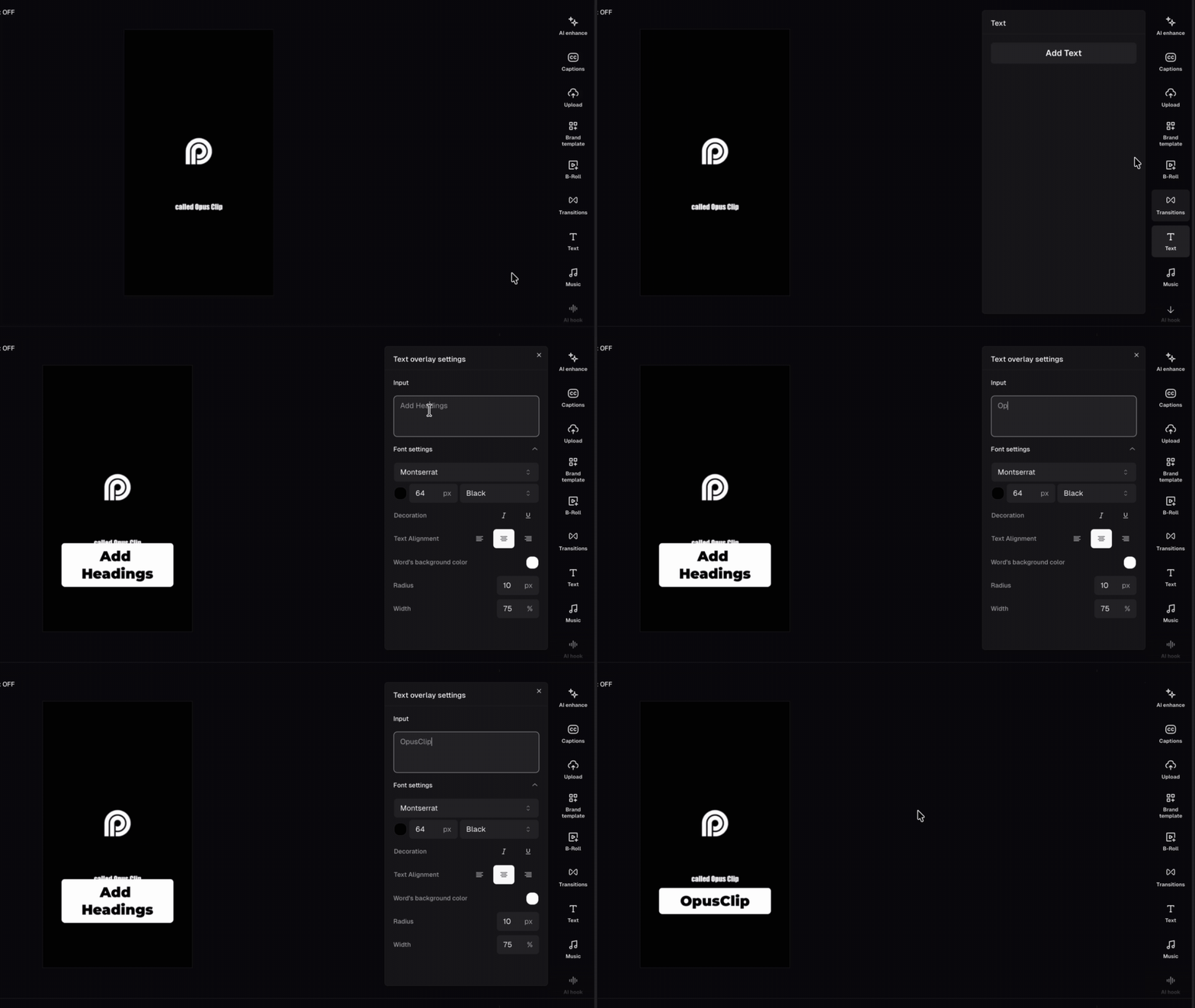
Stack up to 5 text layers
You can add up to 5 text overlays at the same time. Each overlay gets its own track in the timeline. OpusClip automatically places a new overlay on a free track. If all tracks are occupied at that moment, it places the overlay on the last available track.Customize, move, and resize a text overlay
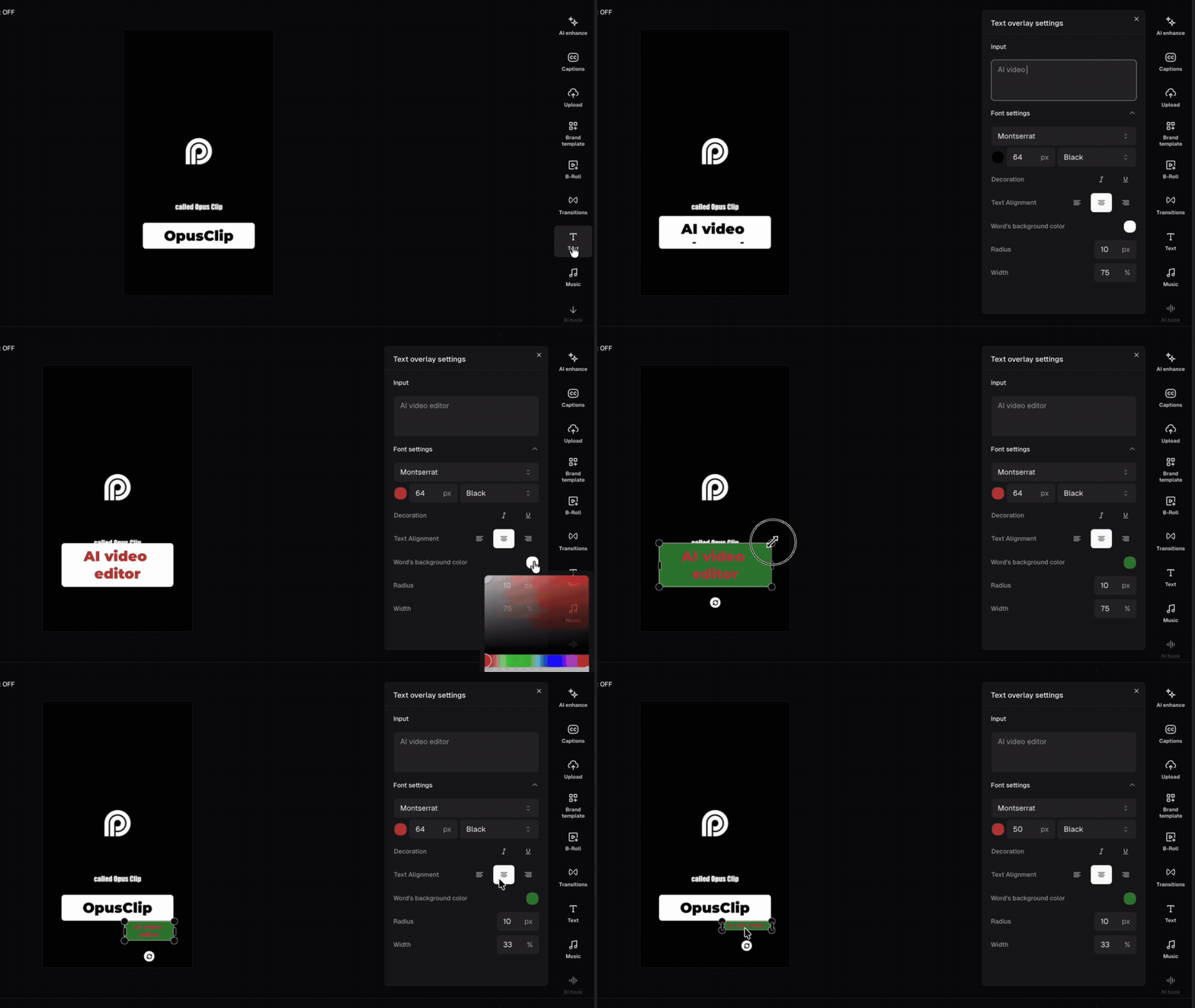
Click a text overlay on the canvas or timeline to open its settings panel in the right sidebar. Under Font settings you can adjust:- Words background color — sets the fill color of the text box
- Text box radius — controls the corner shape, from sharp (0 px) to fully rounded (up to 80 px)
- Text box width — sets how wide the box is as a percentage of the frame (1%–100%)