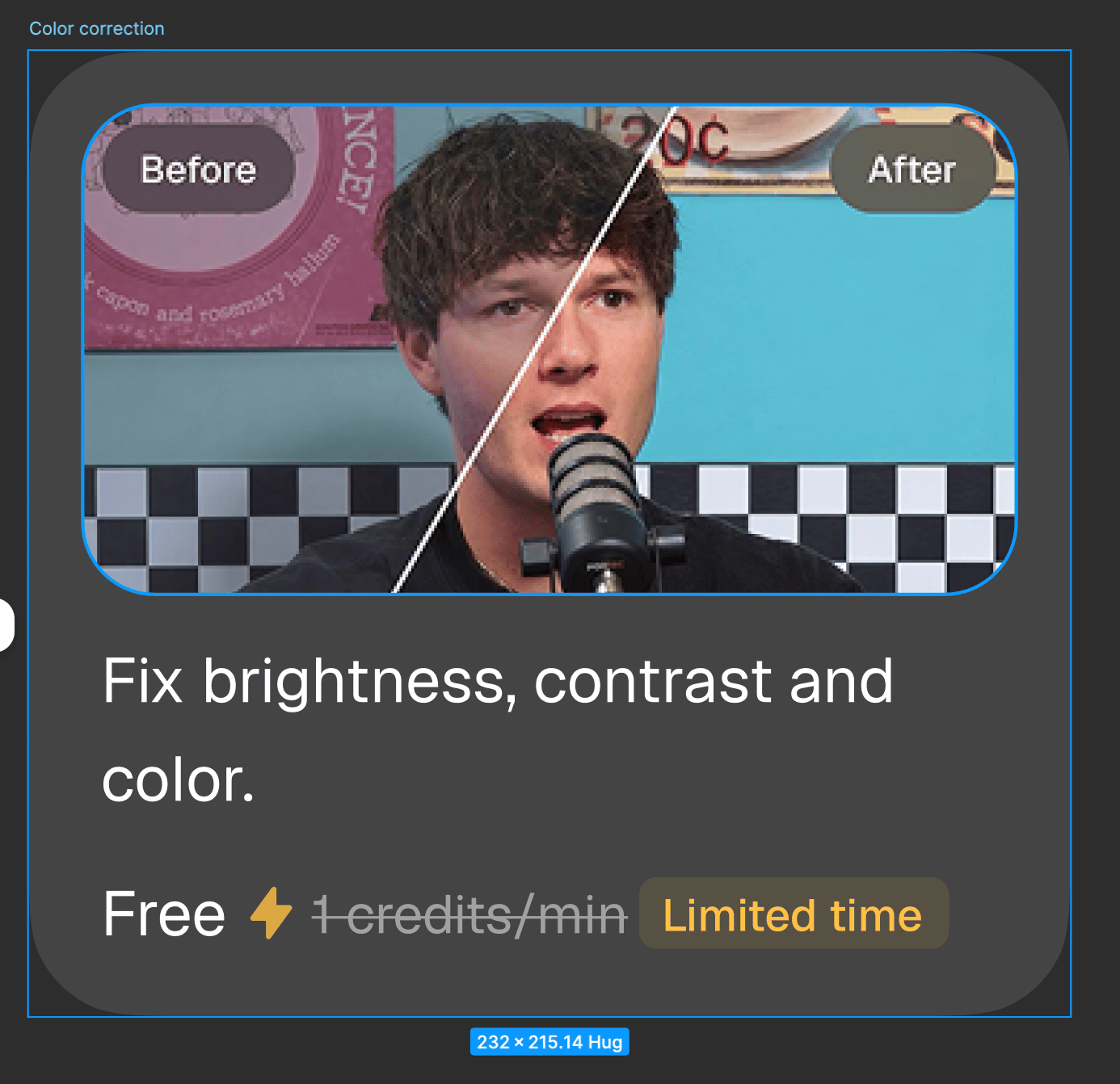
💡 Image placeholder: Side-by-side before/after of a talking-head video with Auto color correction applied.
Before you start
- Plans: Available on Trial, Pro, Max, and Business plans.
- Cost: 1 credit.
- Best results: Talking-head videos with dim, uneven, or off-color lighting.
Turn on Auto color correction
You can turn it on in three places: when you set up your Recipe workflow, in the editor sidebar, or above the preview in the editor.When you set up your workflow
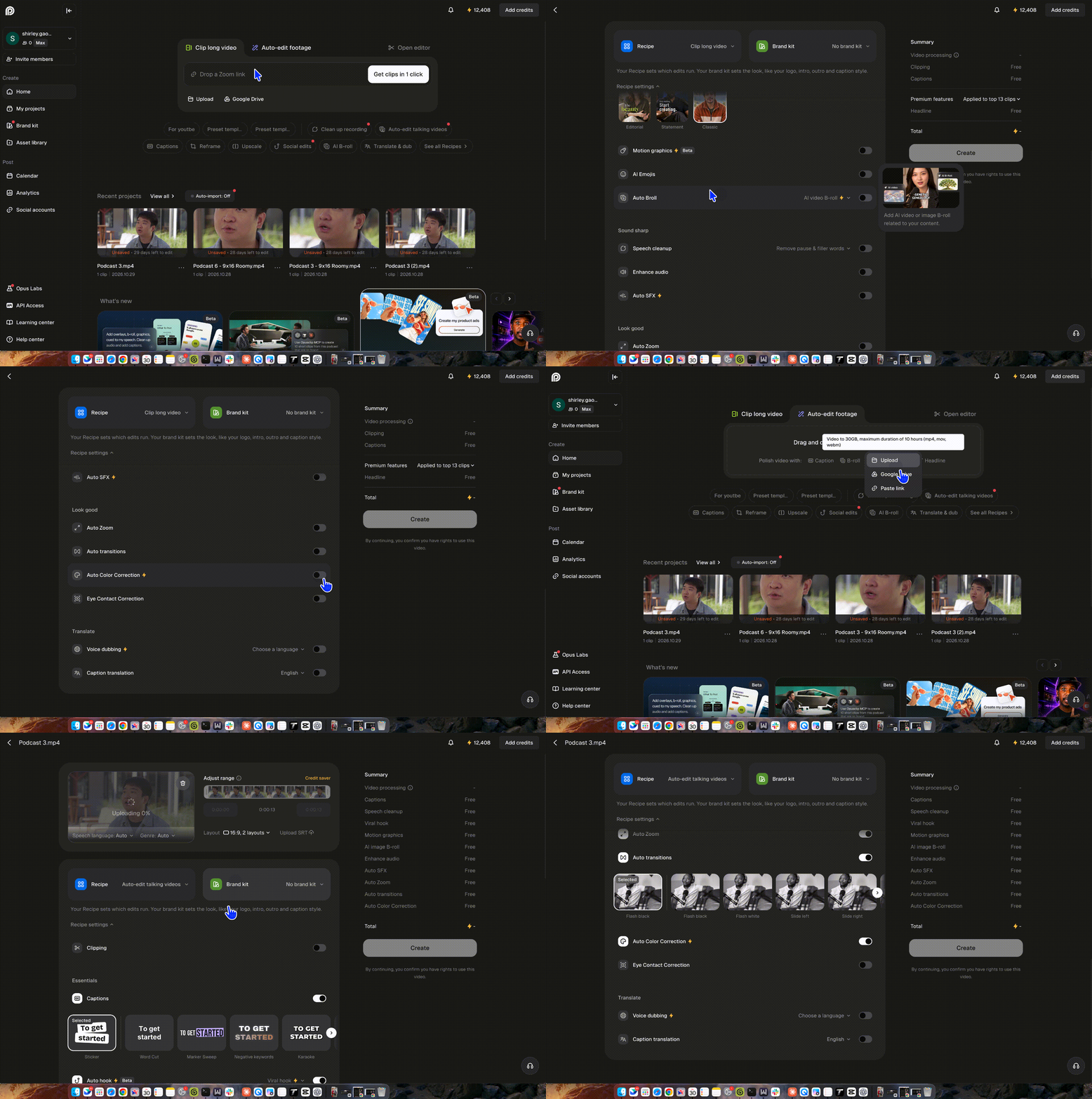
- Upload your video and choose Auto Edit or “Get clips in 1 click”.
- In the workflow settings, turn on Auto color correction.
- Start processing.
💡 Image placeholder: Workflow settings with the Auto color correction toggle highlighted.
In the editor sidebar
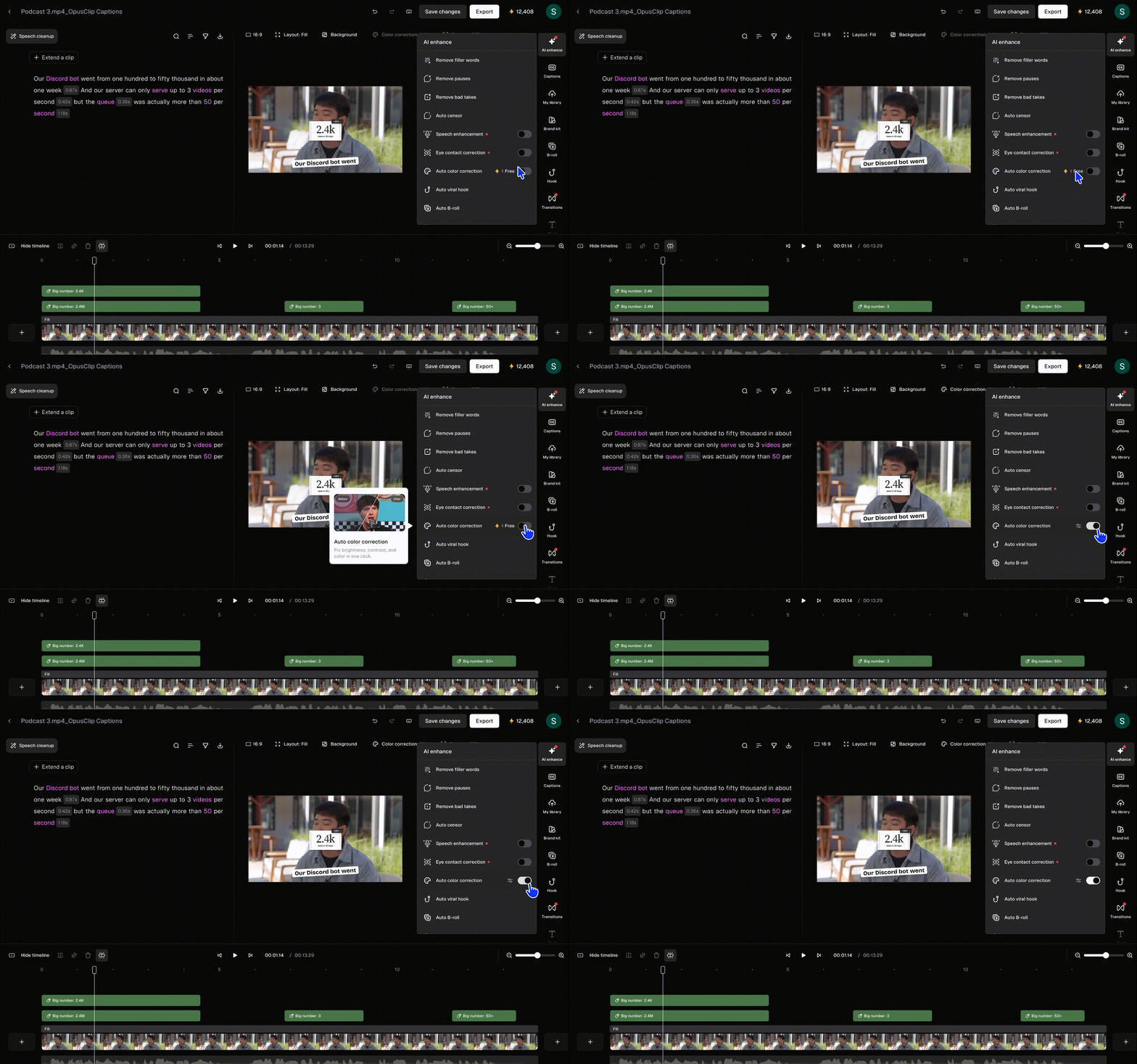
- Open your video or clip in the editor.
- In the right sidebar, click AI enhance.
- Turn on Auto color correction.
💡 Image placeholder: Editor AI enhance panel with the Auto color correction toggle.
Adjust the intensity
If the result looks too strong, dial it back for a more natural look.- In the editor, click AI enhance.
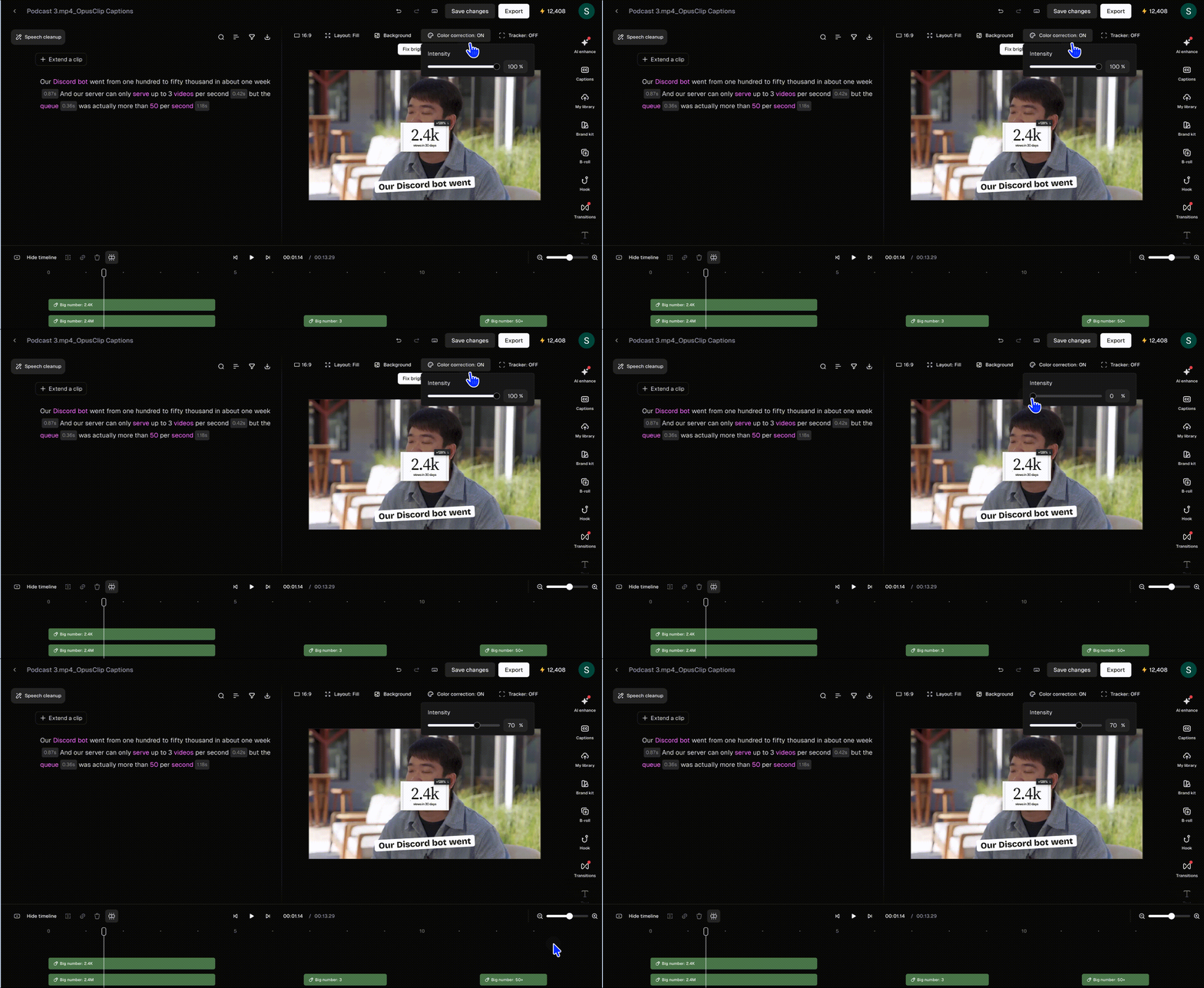
- Under Auto color correction, drag the Intensity slider. The default is 100%.
- Preview your video and adjust until you’re happy with it.
💡 Image placeholder: Intensity slider under Auto color correction.
You can also adjust the intensity directly from the editor preview: