
💡 Image placeholder: Before/after GIF of a video opening with a viral hook applied.
Before you start
- Plans: Available on Trial, Pro, Max, and Business plans.
- Credits: Each hook uses credits. See How credits work below.
- Best results: Talking-head videos with a single speaker and a clear opening line. Hooks work best when the first few seconds are one continuous shot.
Add a hook in a Recipe
In any Recipe, you can turn on viral hook.- Upload your video and choose a Recipe.
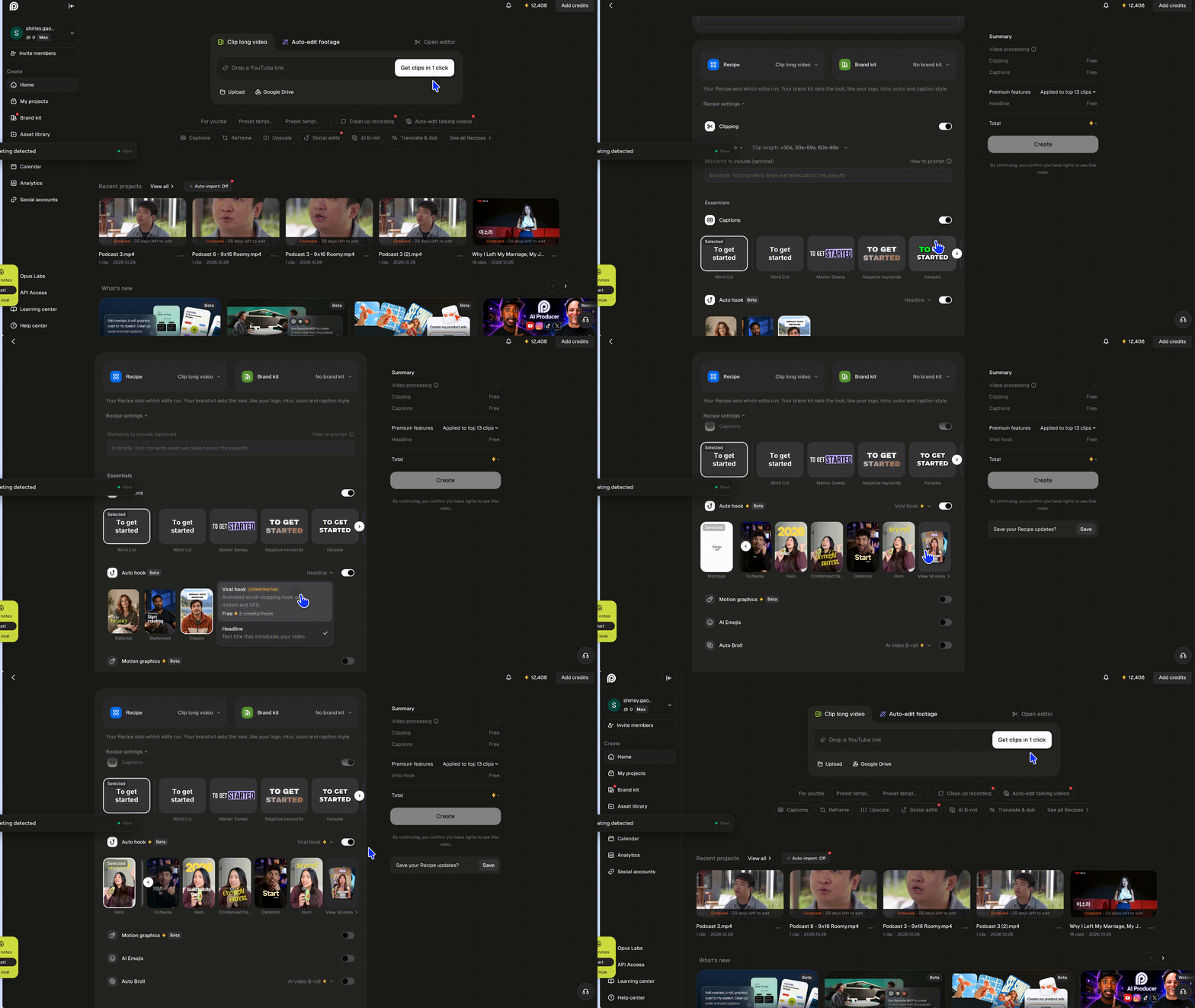
- In the recipe settings, find Auto hook and make sure the Viral hook toggle is on.
- Browse the templates and hover over one to preview it.
- Select the template you want, then start processing.
💡 Screenshot needed: Auto Edit workflow settings with the Viral hook toggle on and the template picker open.
Add hooks when clipping
When clipping, viral hook is off by default.- Upload your video and choose Get clips in 1 click.
- In the clipping settings, turn on Auto hook > Viral hook.
- Choose a template.
- Choose how many of your top clips get a hook.
- Click Get clips.
💡 Screenshot needed: Clipping settings with the Auto hook option highlighted.
Add or replace a hook in the editor
- Open your clip or video in the editor.
- In the right sidebar, click Hook, then select the viral hook tab.
- Filter templates by style, for example Clean & corporate or High-energy, and select one.
- Click Apply hook. If your video already has a hook, click Replace hook instead.
💡 Screenshot needed: Editor Hook panel showing the viral hook tab, style filters, and the Apply hook button.
Customize your hook
Select the hook on the timeline or in the preview to open Hook settings. You can:- Edit the text: Change any word, for example “lunch” to “Lunch menu”.
- Style the text: Change the color, highlight color, and weight, or apply bold, italic, or underline.
- Resize and reposition: Adjust the size and position of the headline.
- Swap images: If the template includes pictures, replace them with your own.
- Hide captions: Turn off your captions while the hook plays so the two don’t overlap.
- Turn off sound effects: Keep the visuals and remove the hook’s sound.
💡 Screenshot needed: Hook settings panel with text, color, size, Hide captions, and Sound effects controls.
Remove a hook
- Open your clip or video in the editor.
- Select the hook on the timeline.
- Press Delete, or click the delete icon in Hook settings.