What it snaps to
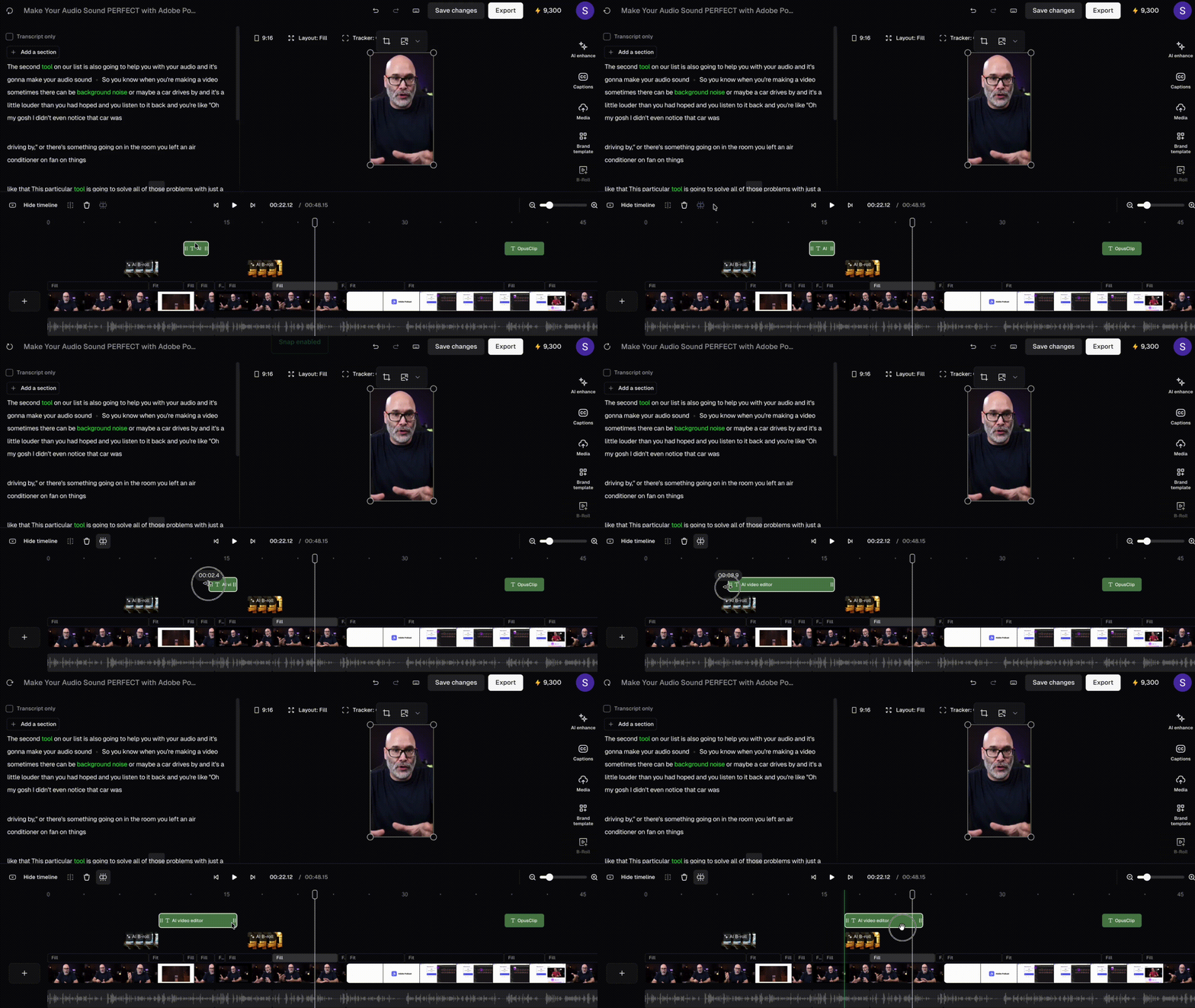
When snapping is on, clips and overlays will snap to:- Start and end of main video segments
- Start and end of layout blocks
- Current playhead position
- Start and end of other timeline layers
How to turn it on or off
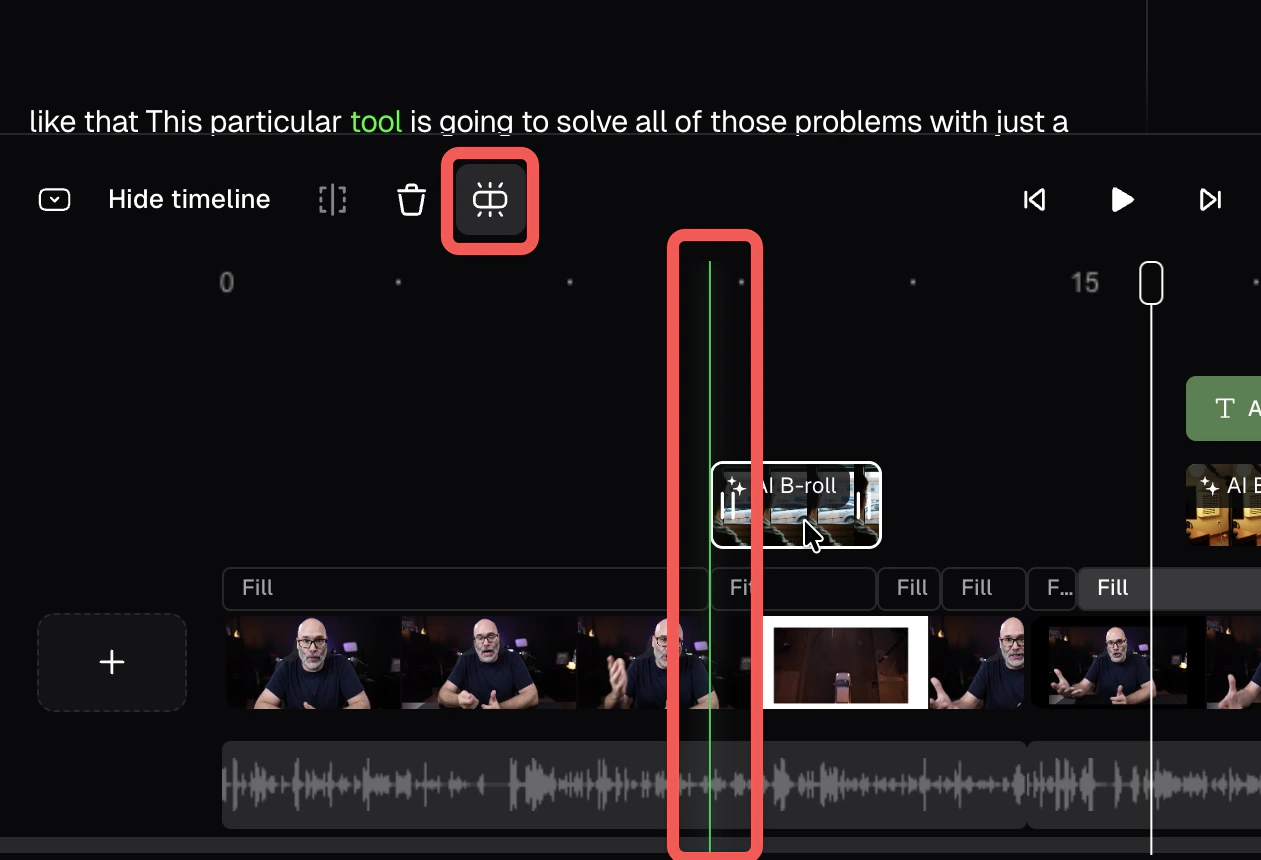
Click the Snap Editing icon in the timeline toolbar, or press S on your keyboard to toggle it on or off anytime.How it works
Drag any clip or overlay and it locks into alignment when it gets close enough to a snap point. The same applies when trimming — drag the left or right edge of any clip and it snaps to nearby alignment points. A vertical guideline appears across the timeline to confirm the snap.