
💡 Image placeholder: Example clip with a “2.4M views in 30 days” stat card animating in next to the speaker.
Before you start
- Plans: Available on Trial, Pro, Max, and Business plans.
- Credits: Automatic motion graphics use credits based on video length. See How credits work below.
- Best results: Talking-head videos with clear speech and specific details, such as names, numbers, and dates.
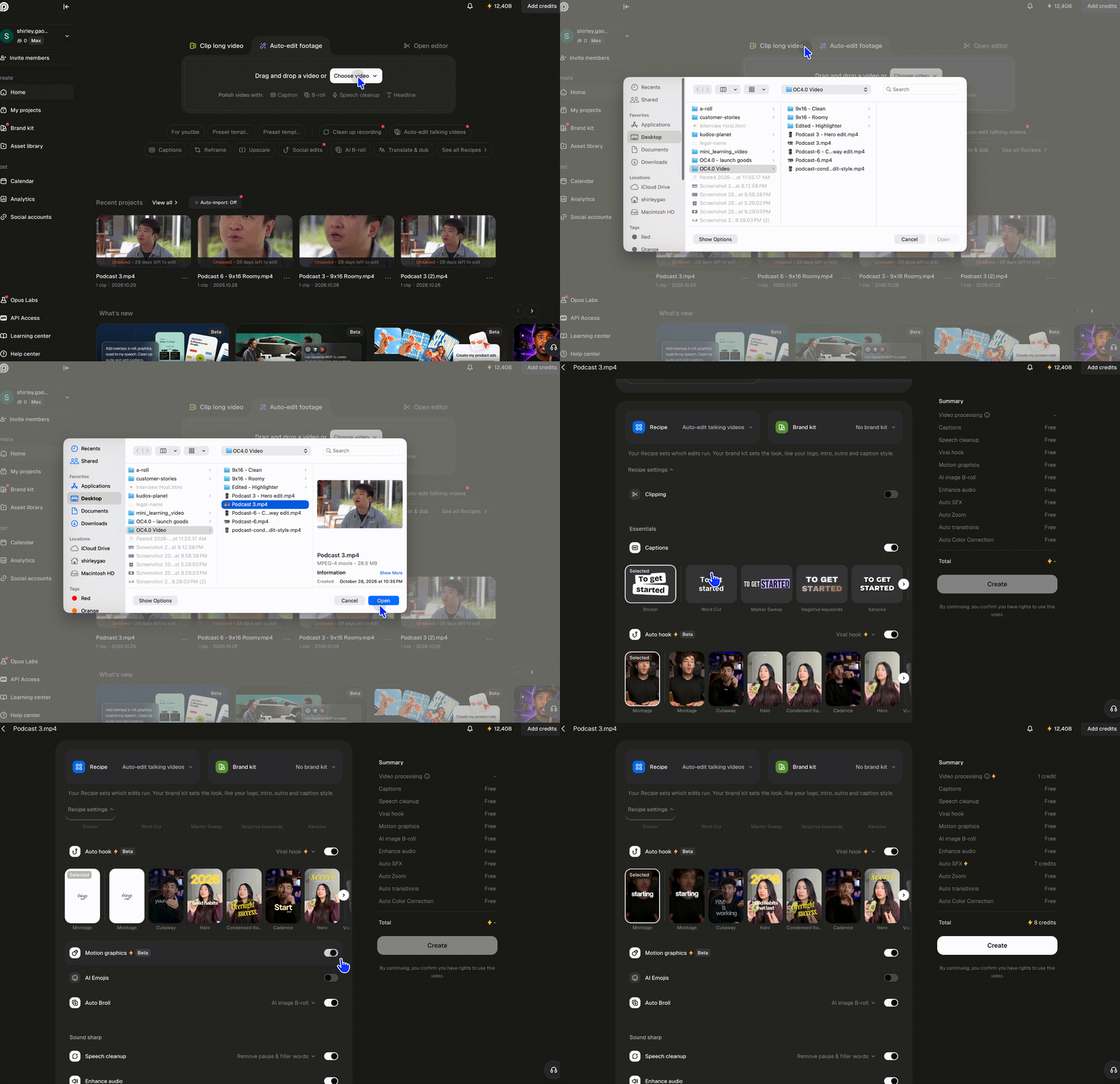
Turn on motion graphics in Auto Edit
- Upload your video and choose the Auto Edit recipe.
- In the recipe settings, turn on Motion graphics.
- Start processing.
💡 Image placeholder: Auto Edit workflow settings with the Motion graphics toggle on.
Add a motion graphic in the editor
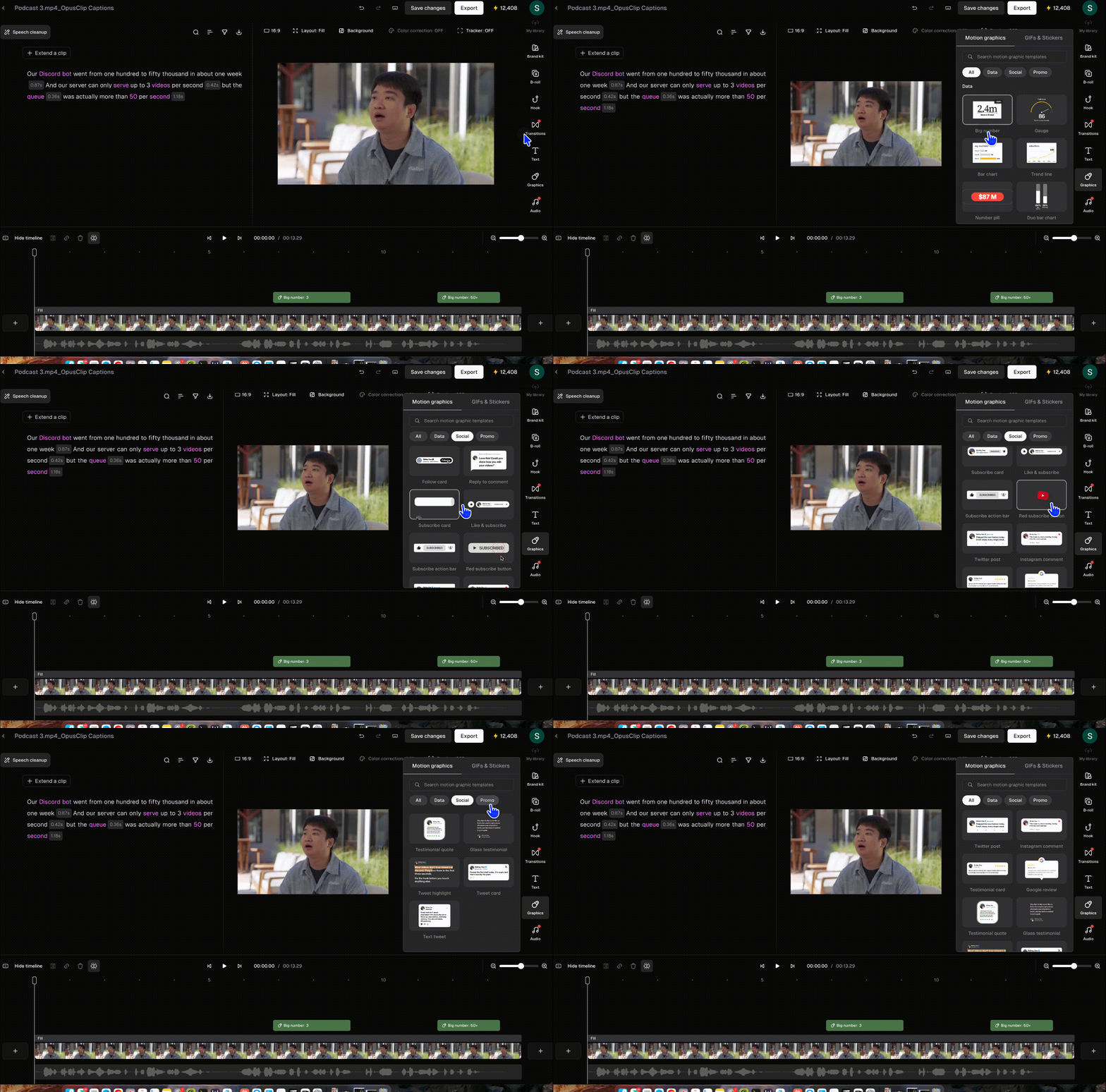
- Open your video in the editor.
- Move the playhead to where you want the graphic to appear.
- In the right sidebar, click Graphics.
- Browse by category, or search for a template.
- Click a template to add it.
Looking for animated text, like name tags and keyword pop-ups? You’ll find them under Text.
💡 Image placeholder: Editor Motion panel showing the All, Data, Social, and Promo filters.
Edit a motion graphic
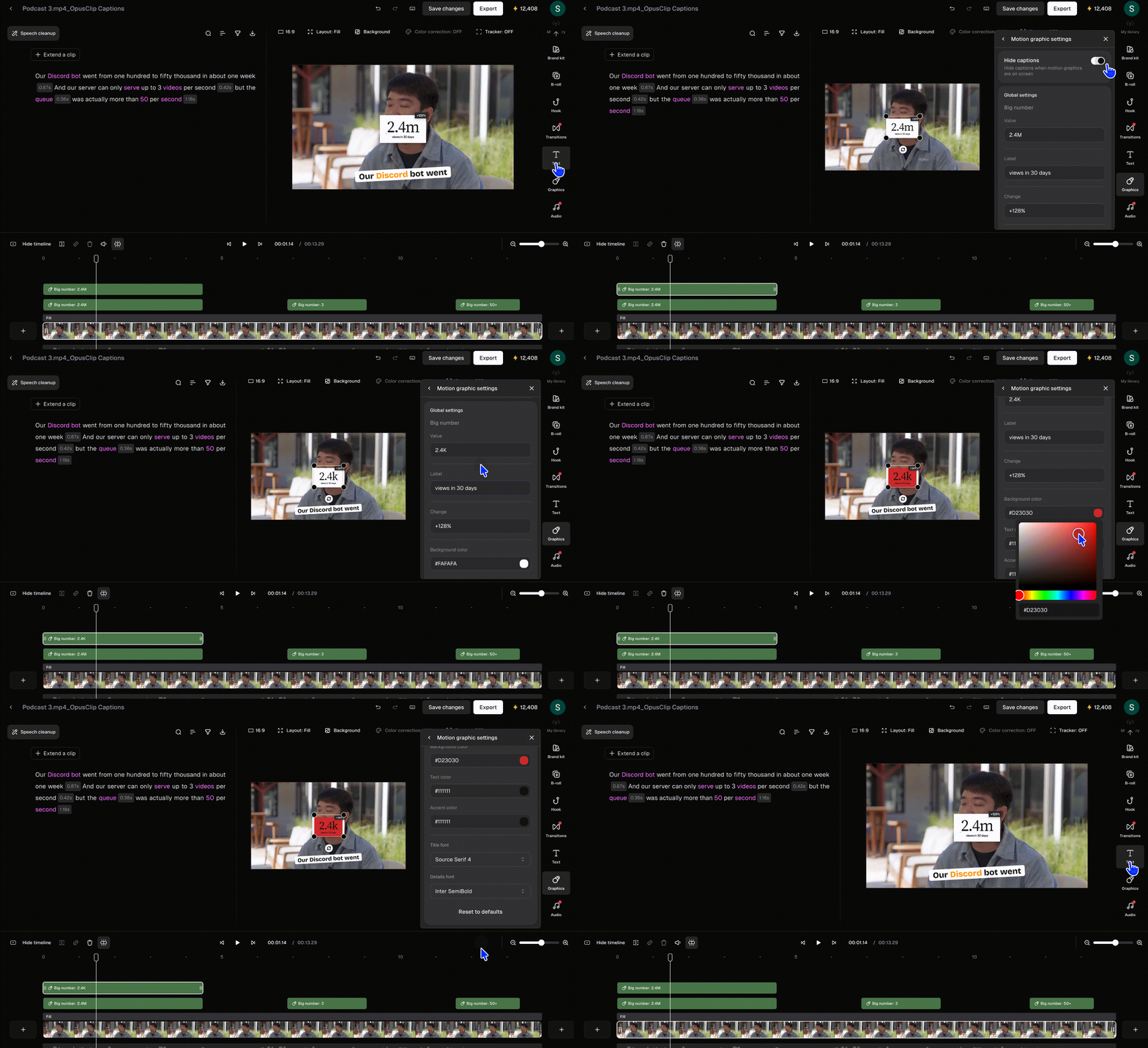
Select a graphic in the preview or on the timeline to open Motion graphic settings. You can:- Edit the content: Change the text, number, or label.
- Style it: Change the font, text color, and background color, or apply bold, italic, or underline.
- Resize and move it: Drag the corners to resize, or drag the graphic to reposition it.
- Change the timing: Drag the edges of the graphic on the timeline. A shorter graphic animates faster; a longer one animates slower.
- Hide captions: Turn off captions while the graphic is on screen.
💡 Image placeholder: Motion graphic settings panel for a “Big number” graphic with Label, Background color, and Text color fields.
Delete a motion graphic
- Select the graphic on the timeline.
- Press Delete, or click the delete icon.