
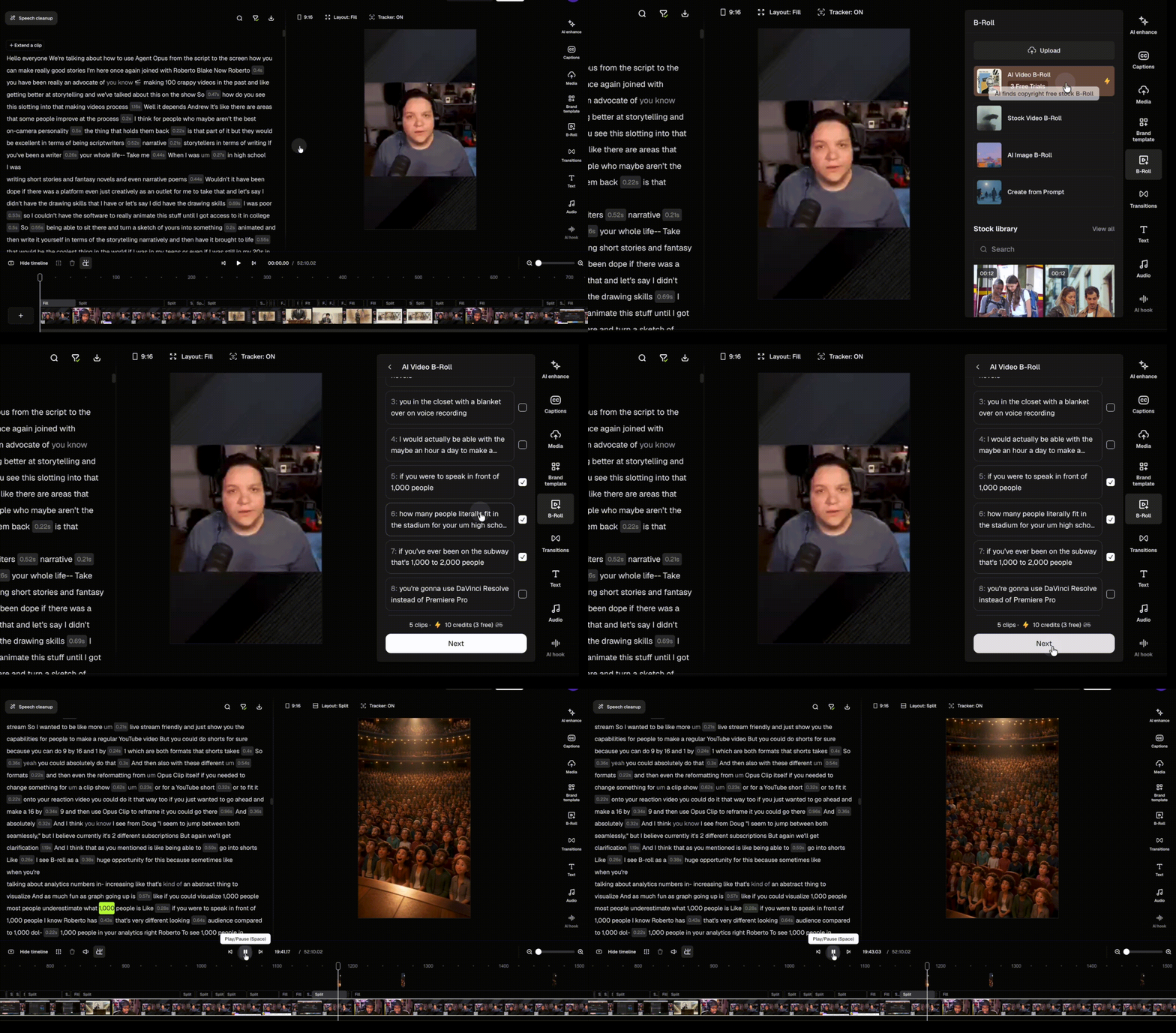
How to add AI Video B-Roll?
To add AI Video B-Roll:- Open your project in the OpusClip editor.
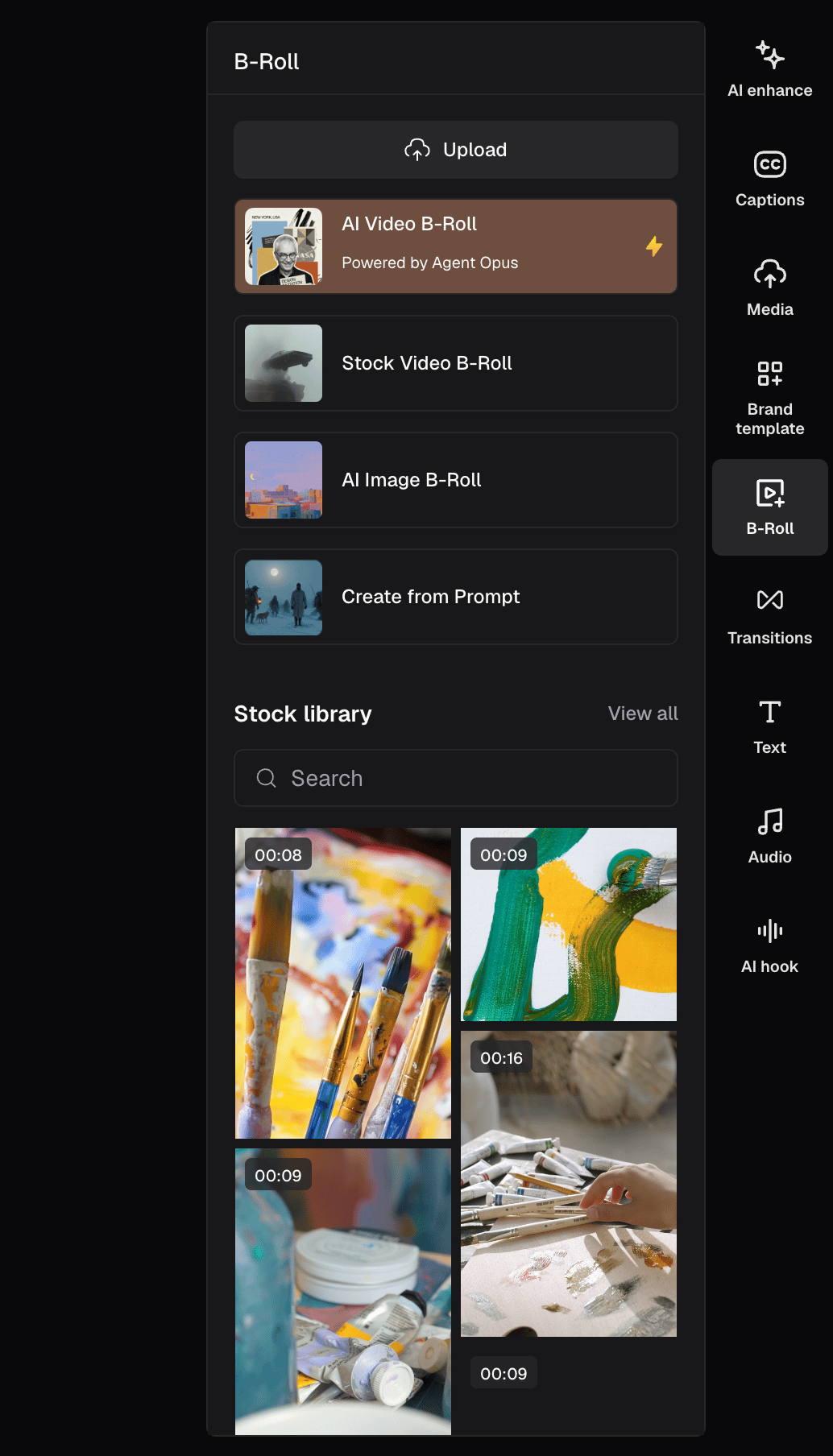
- Click B-Roll → AI Video B-Roll from the right-side panel.
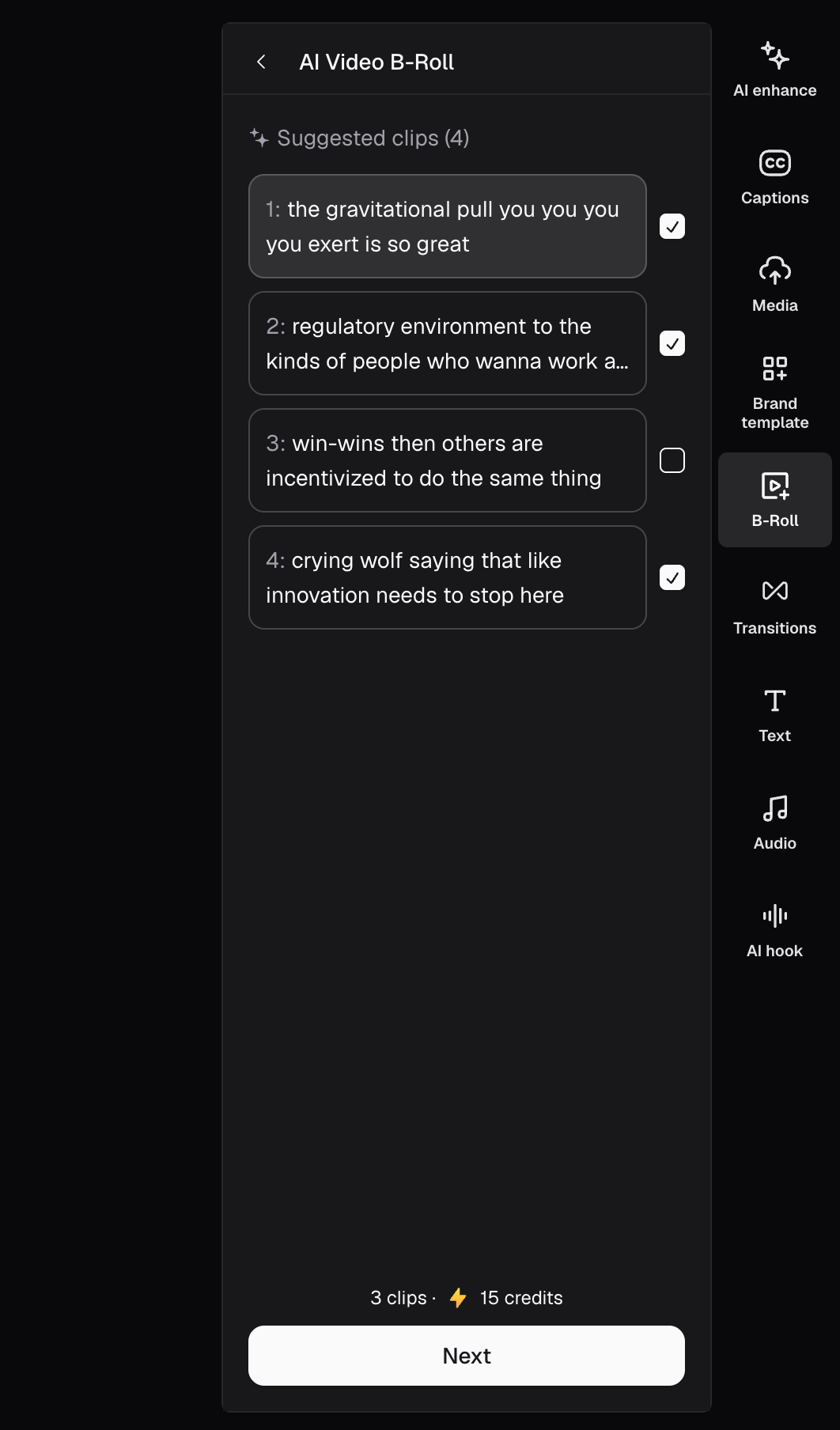
- Review the auto-suggested B-roll moments.
- Select the moments you’d like to generate.
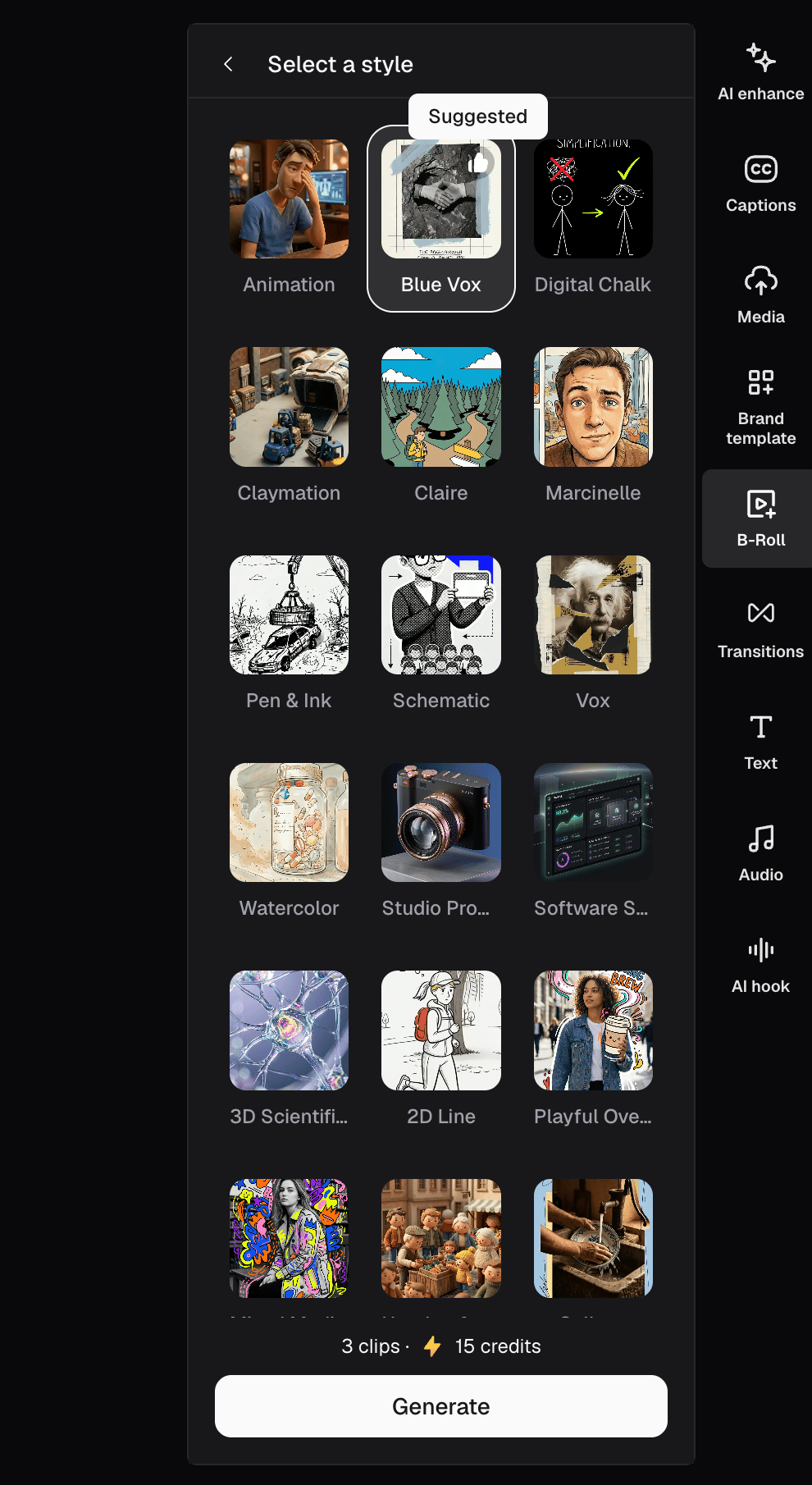
- Choose a visual style (or use the recommended style).
- Click Generate.
Can I edit generated AI Video B-Roll?
Currently, you have the ability to drag and crop the AI Video B-Roll. You are also able to move B-Roll on the timeline by clicking-and-holding it and moving it wherever you please on the timeline. Furthermore, you can also trim the duration of each B-Roll clip.How do I regenerate AI Video B-Roll?
If you’re not satisfied with a generated clip, click the B-roll clip to open the generation panel. You can:- Click Generate to create a completely different visual interpretation.
- Change the visual style and regenerate.
- Edit the prompt before regenerating.
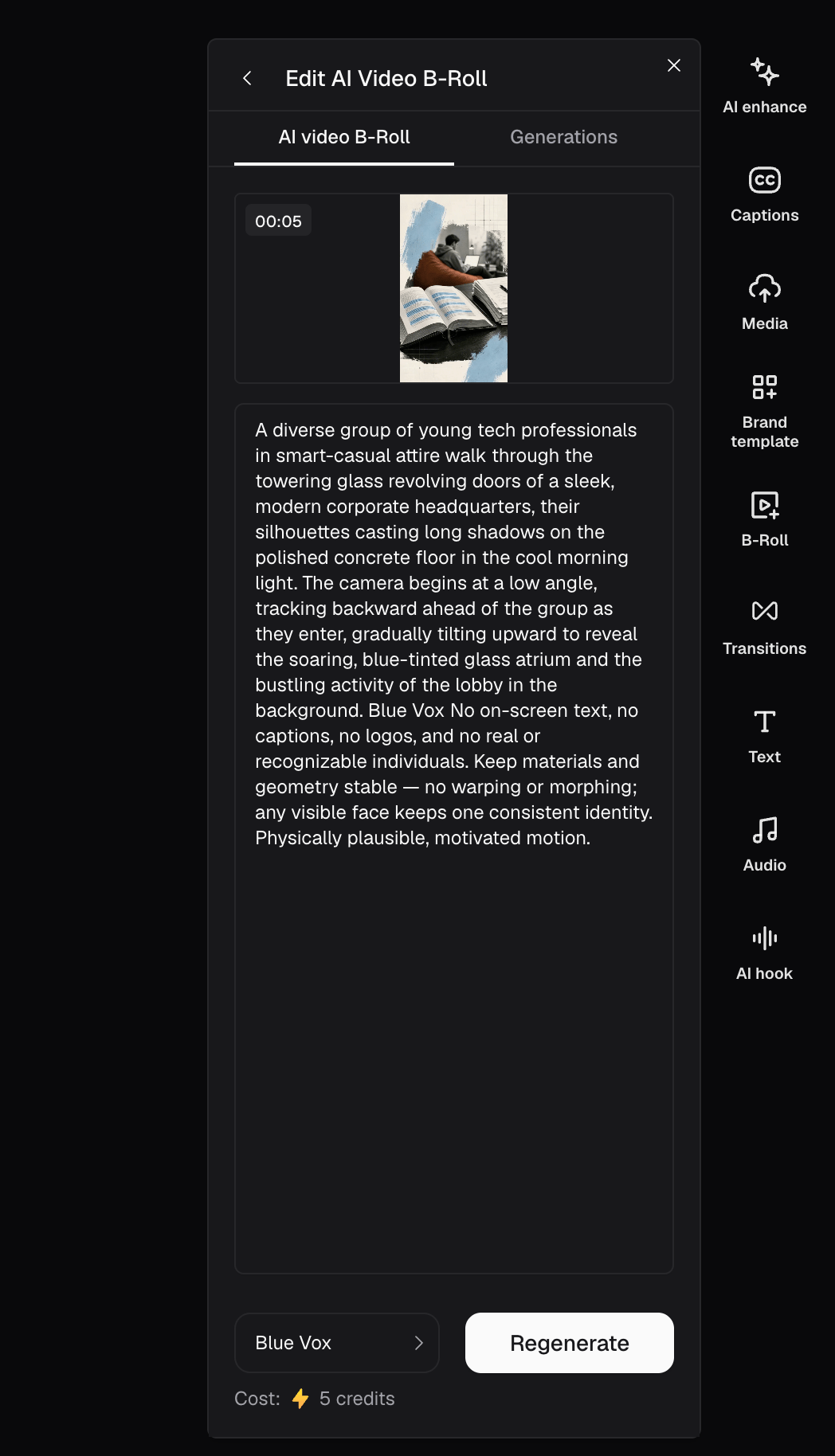
Can I view my AI Video B-Roll generation history?
Yes, absolutely! Click on a generated AI Video B-Roll clip to open the Generations panel, where you can review all previously generated versions and switch between them.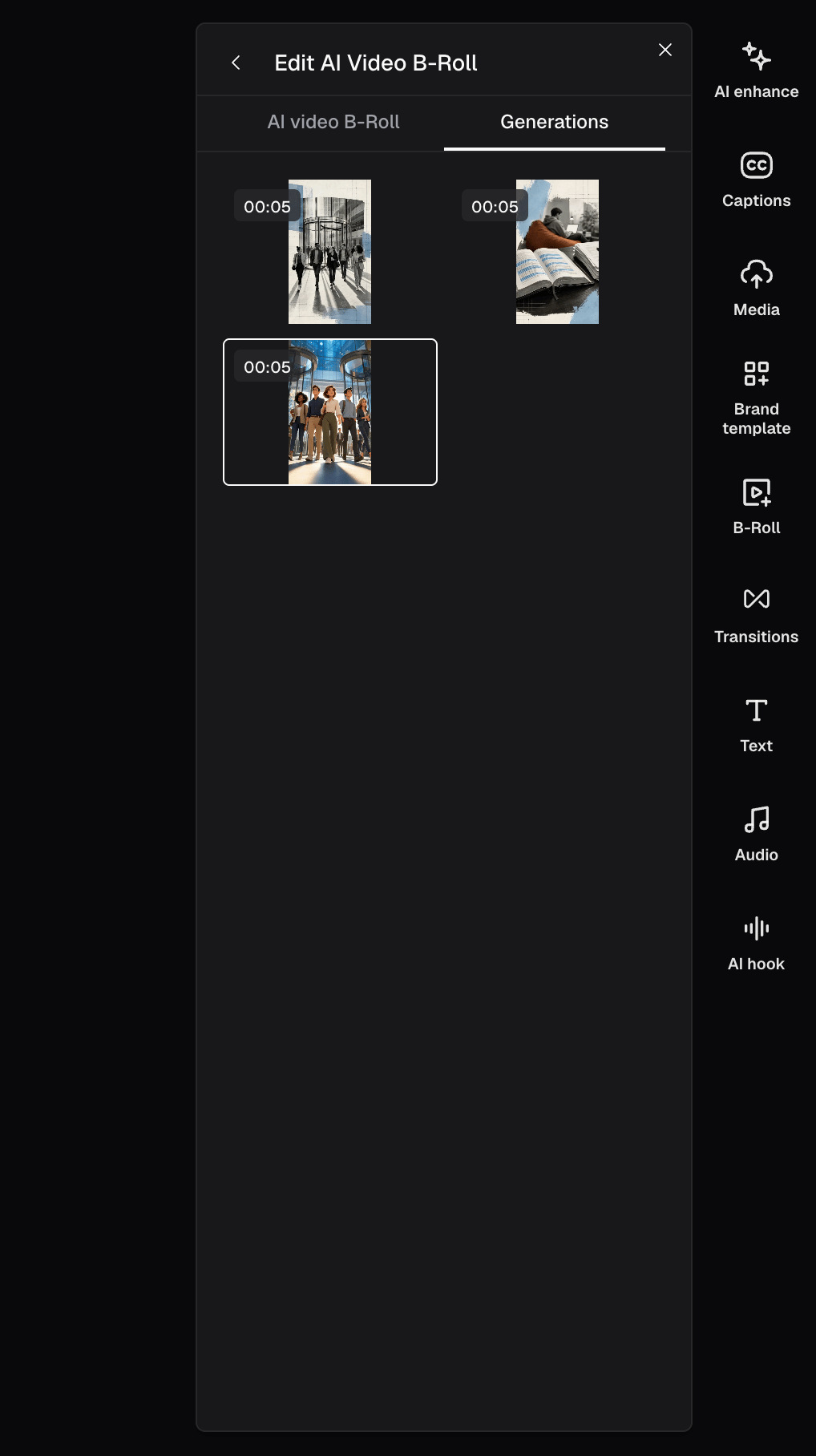
I accidentally deleted an AI Video B-Roll. Can I add it back?
Yes, of course! Open B-Roll → AI Video B-Roll, then click the Restore button to reinsert the deleted AI Video B-Roll clip into the timeline.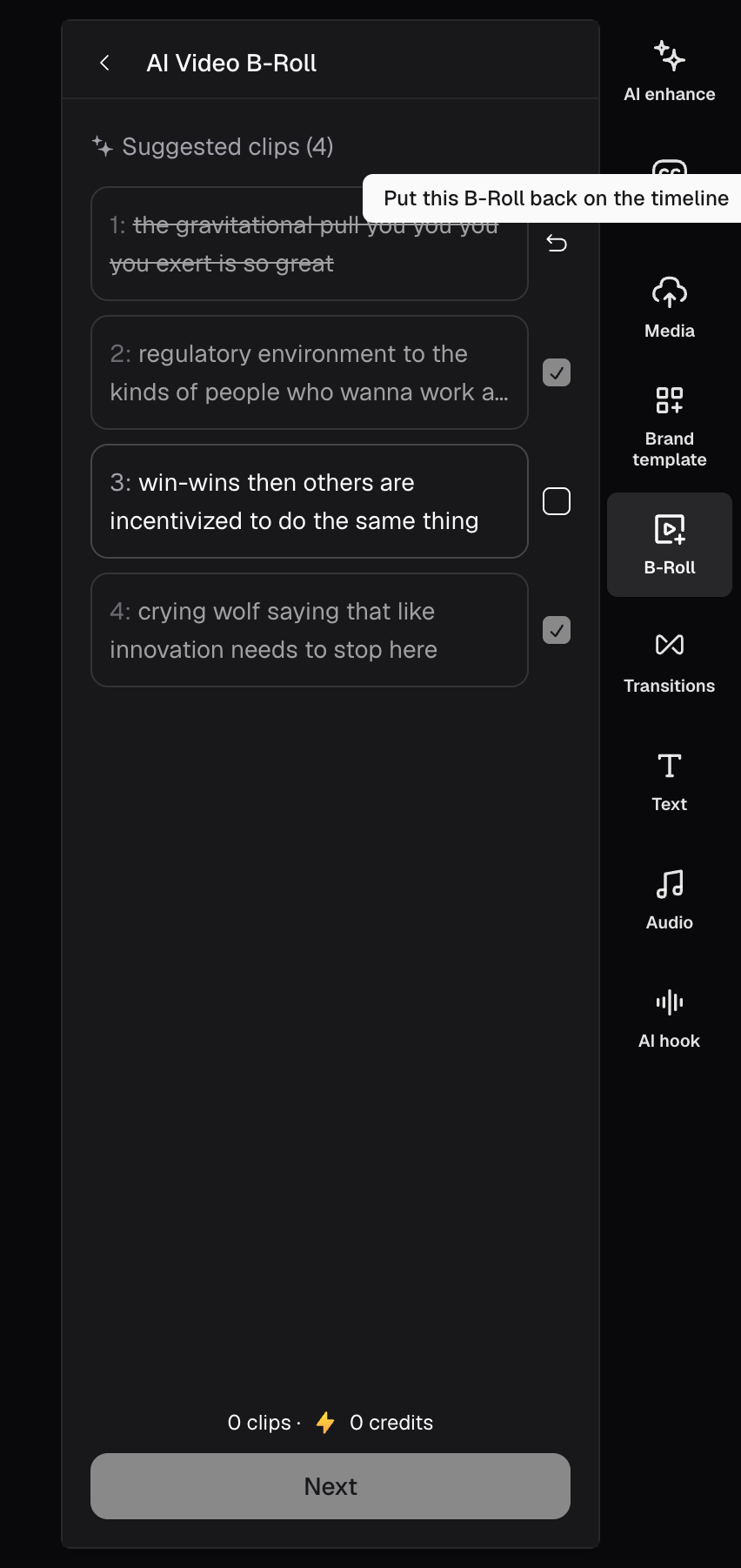
Who can use AI Video B-Roll?
AI Video B-Roll is available for Pro, Max, and Business plans. Starter and Free plans do not include AI Video B-Roll.Can I manually select a sentence to generate AI Video B-Roll?
Not yet. Manual sentence selection is planned for a future release.Does AI Video B-Roll consume credits?
Yes. Each AI Video B-Roll generation costs 10 credits. Every Pro, Max, and Business user also receives:- 3 free AI Video B-Roll generations (lifetime)
- 5 free regenerations (lifetime)