Sound design can make the difference between a flat clip and one that stops the scroll. AI Sound Effects watches your video, detects key moments, and places production-quality sound effects on your timeline automatically — no editing experience needed.

How to use AI Sound Effects

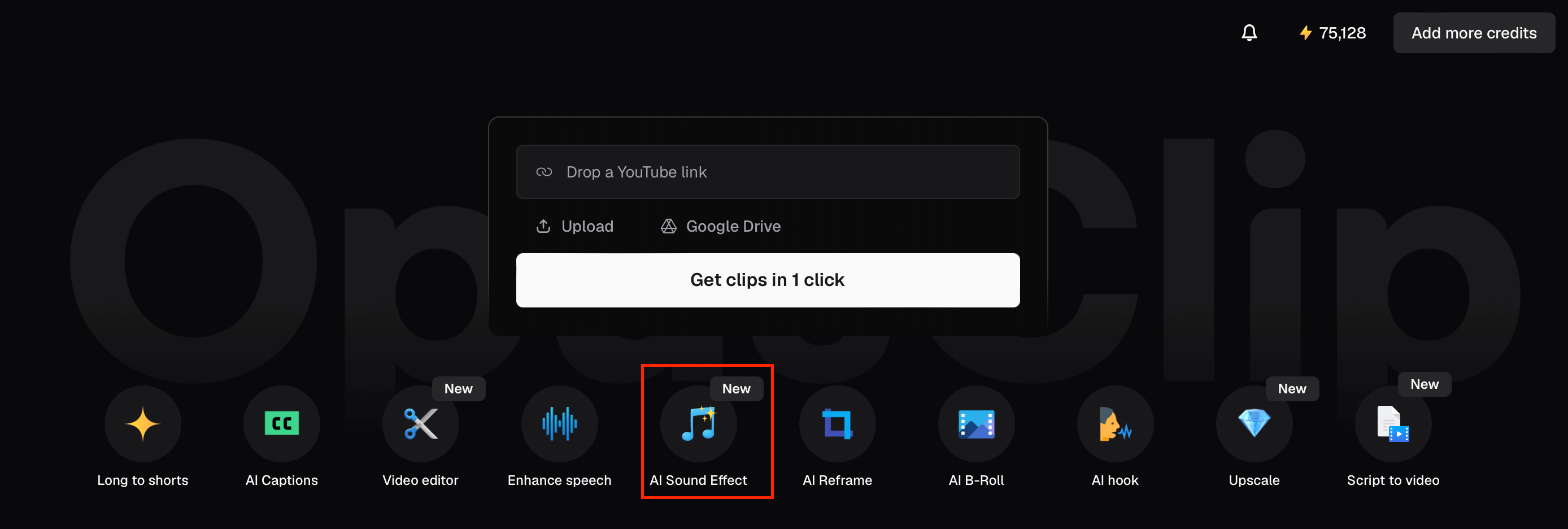
  1. From the homepage, click AI Sound Effect in the Quick Start. You can also access it from the editor: open a clip and click Audio in the right sidebar.
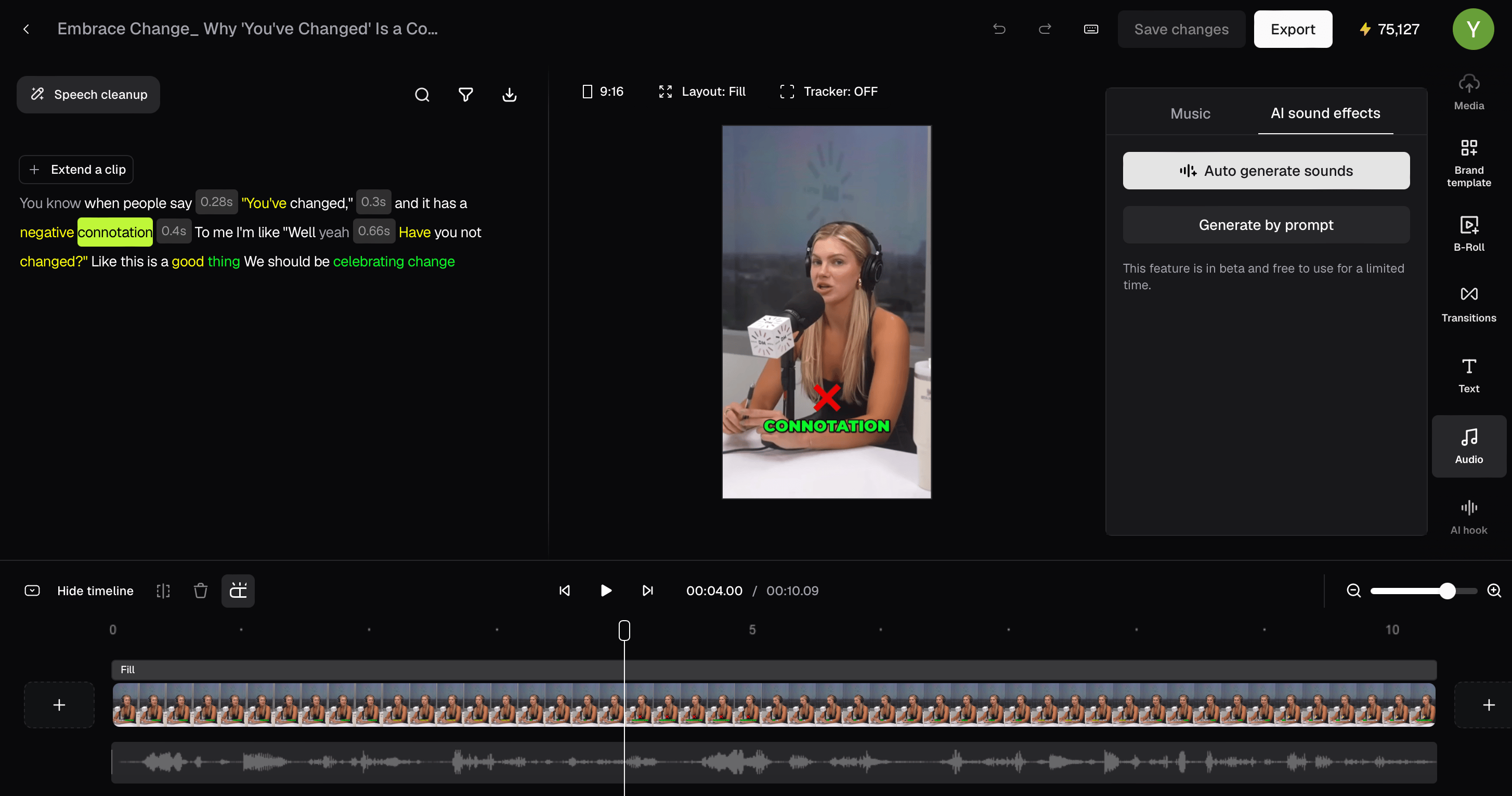
  1. In the Audio panel, click the AI sound effects tab. Then click Auto generate sounds — OpusClip analyzes your video and adds SFX automatically. This takes under 2 minutes for a 60-second clip.
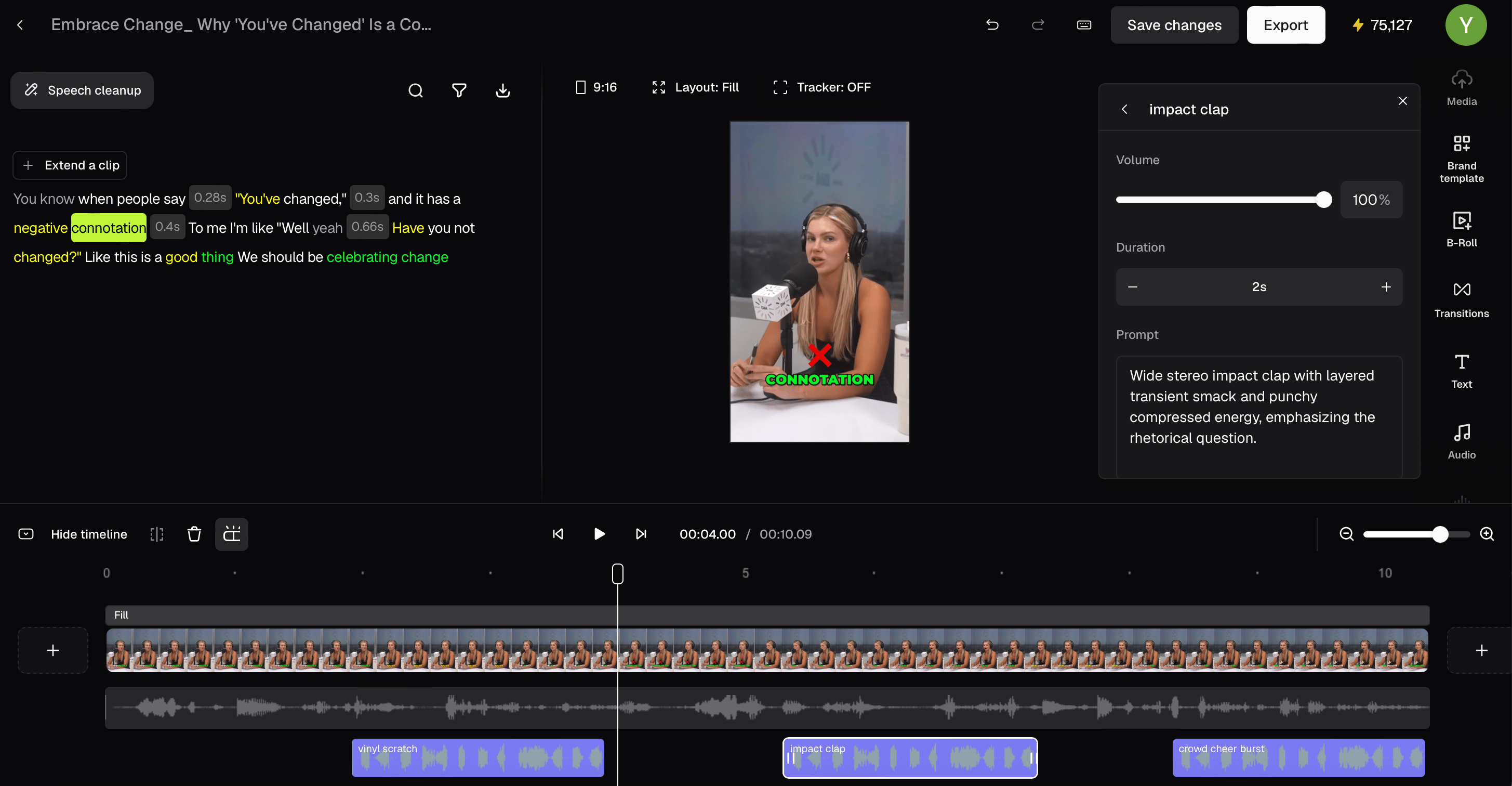
  1. Your sound effects appear as colored blocks on the timeline. Click any block to adjust its Volume, Duration, or edit the Prompt and regenerate that specific sound.
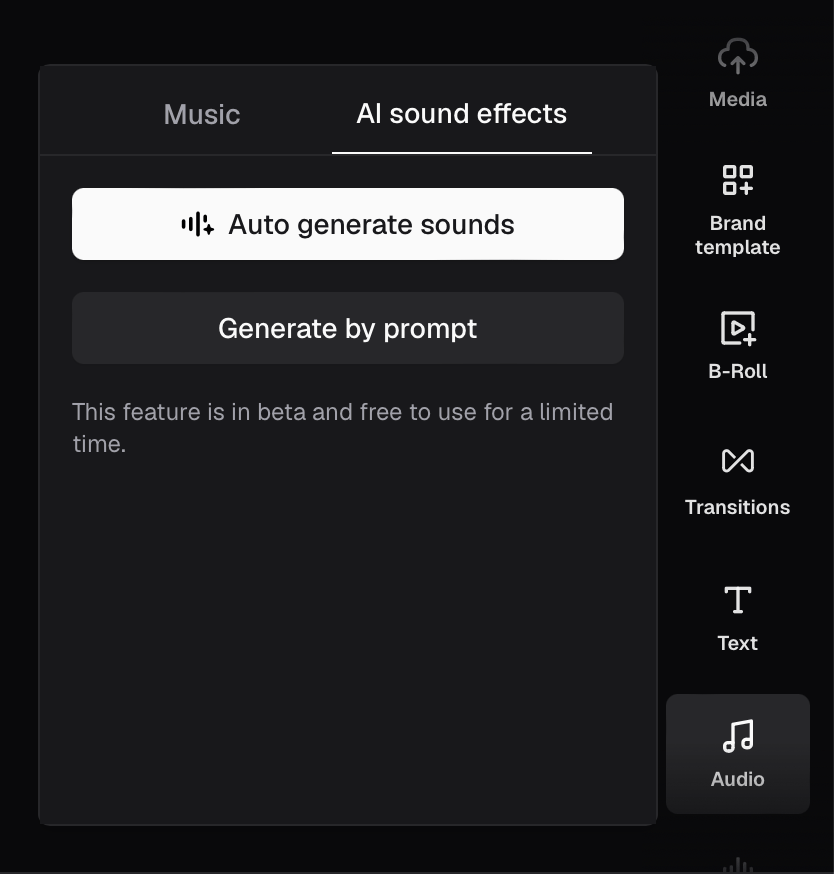
Generate a sound by prompt

  1. On the AI sound effects tab, click Generate by prompt.
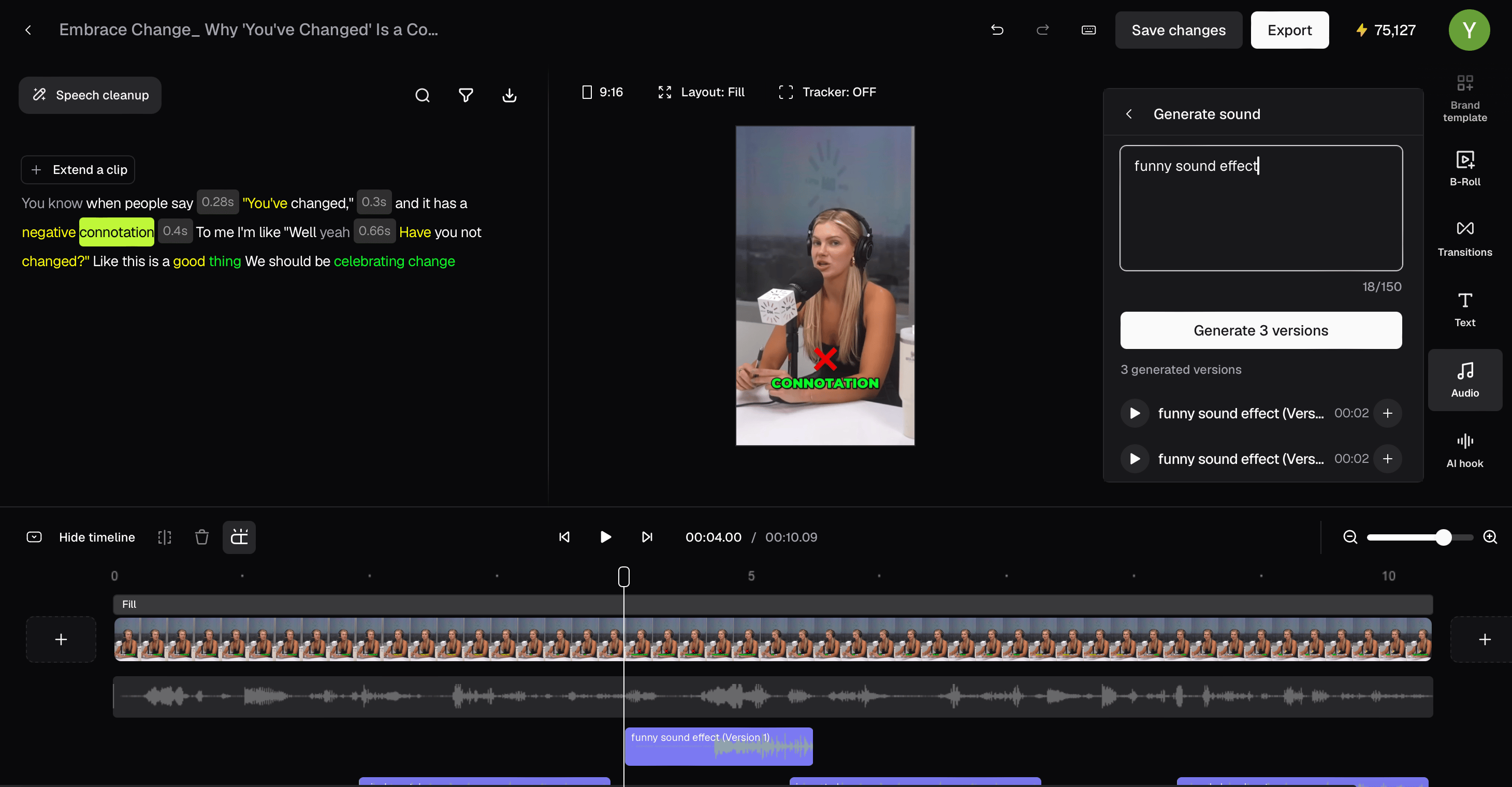
  1. Describe the sound effect you want in the Prompt field (e.g., “funny sound effect” or “deep cinematic boom”), set the Duration, then click Generate 3 versions and pick the one that fits best.
Plan availability

FAQ

How long does generation take? Under 2 minutes for a 60-second clip. Can I undo the generated sound effects? Yes, each SFX block lives on a separate track. Delete any block or regenerate it at any time without affecting the rest. What kinds of sounds does it add? OpusClip detects transitions, impacts, UI moments, ambient sounds, and more — matched to your video’s content and tone. Will this change my original video? No, sound effects are placed on a separate track and can be removed at any time without touching your original footage.