
1. What is Story Mode?
 Introducing Story Mode, a new way to create your personal style that stays consistent across every shot. You can: Upload your custom style, Bring your own audio or script, Create all formats of polished mid-form videos. Whether it’s explainers, faceless videos, hip videos, or marketing videos, Story Mode helps you tell a better story.
Story Mode is built to solve the three biggest problems in AI video: the style consistency problem, where visuals feel disjointed, the static problem where videos lack real motion, and the transition problem where scenes “cut” or jump instead of flowing shot to shot. It uses a “Long Take” technique, creating a seamless, immersive experience where scenes morph and flow into one another without jarring cuts. This makes it perfect for a wide range of use cases:
Introducing Story Mode, a new way to create your personal style that stays consistent across every shot. You can: Upload your custom style, Bring your own audio or script, Create all formats of polished mid-form videos. Whether it’s explainers, faceless videos, hip videos, or marketing videos, Story Mode helps you tell a better story.
Story Mode is built to solve the three biggest problems in AI video: the style consistency problem, where visuals feel disjointed, the static problem where videos lack real motion, and the transition problem where scenes “cut” or jump instead of flowing shot to shot. It uses a “Long Take” technique, creating a seamless, immersive experience where scenes morph and flow into one another without jarring cuts. This makes it perfect for a wide range of use cases:
- Narrative Storytelling: Bring your stories to life with a consistent visual style that matches your narrative tone. Ideal for brand stories, historical explainers, or fictional narratives.
- Educational Content: Create engaging and easy-to-follow educational videos. The fluid transitions help to keep viewers focused and engaged on the content.
- Marketing and Advertising: Produce eye-catching marketing videos that stand out. The unique visual styles can help to build a strong brand identity.
- Social Media Content: Quickly generate content of different formats for platforms like TikTok, Instagram Reels, and YouTube Shorts.
2. How is Story Mode different from the original Agent Opus experience?
The main Agent Opus video product is built for creating videos that are grounded in reality. It pulls together a hybrid mix of real-world assets, stock footage, AI-generated visuals, and avatars to produce polished, professional content. Story Mode is designed for purely imaginative and stylistic storytelling, where every single frame is generated by AI and shares the same visual DNA.3. How do I get started with Story Mode?
1. Open Agent Opus
Create an account and log in at agent.opus.pro using a one-time password.2. Enter Story Mode
From the main Agent Opus dashboard, click the “Story Mode” button on the side panel. This takes you into the dedicated Story Mode interface.3. Submit Your Request
Once you are in Story Mode, you will see the headline “Create a short video in your own style.” Below that is the input box, which is pre-tagged with @StoryMode. Type directly into the chatbot. You can start in several ways:- Submit a script (e.g., “Turn this script into a video: [your script]”)
- Describe a topic (e.g., “Create a video about [a video idea]”)
- Upload audio
4. Select a Style and Submit
Choose a visual style from the preset gallery at the top of the page. You can also create your own custom style if none of the presets match your vision. Once you are happy with your selection, hit submit and Agent Opus will handle the rest.
5. Sample Cases
Want to get inspiration? Scroll down to the “Top story mode” section to browse sample projects in various styles:- See a project you like? Click it to see the prompt that was used or even recreate it using the recreate button.
- Each example shows a different visual style with the style name labeled at the bottom, so you can quickly find a look that matches your vision.
- Browse across styles like Claymation, 2D Line, Animation, Collage, Claire, Pen & Ink, Halftone, Schematic, Watercolor, and Blue Vox to see what each one looks like in a finished video.
4. What types of input does Story Mode accept?
Story Mode is flexible about how you start your project. You can come in with a fully written script, a rough idea, or even just an audio recording. Here is a breakdown of inputs Story Mode accepts and how to use each one:
The possibilities here are limitless. You could paste a blog post you wrote and turn it into a narrated video. You could record yourself talking through an idea on your phone, upload the audio, and let Story Mode handle the rest. You could describe a concept you have been thinking about and see it come to life in a visual style you love. The point is that Story Mode meets you wherever you are in your creative process.
- How can I customize my video? (prior to project submission)
🎨 Visual Styles
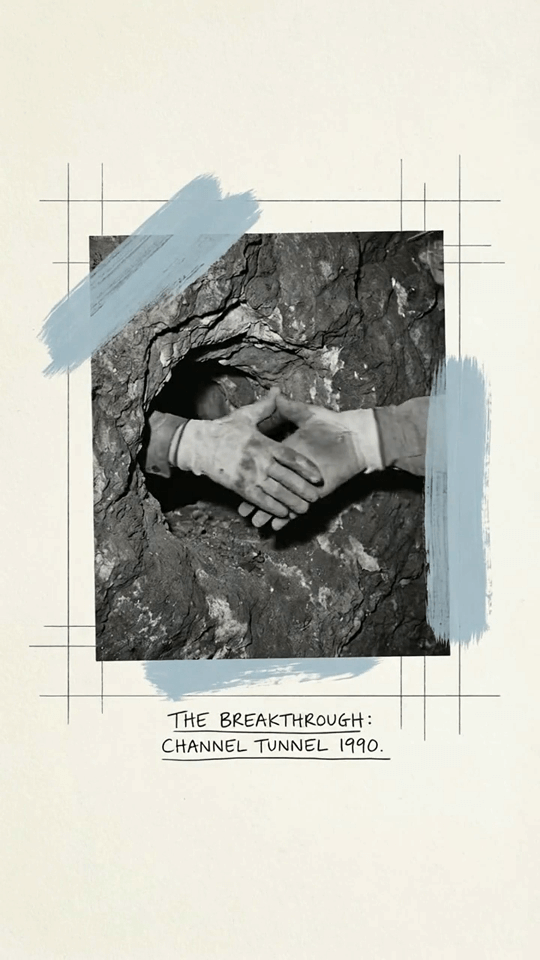
Story Mode offers a curated gallery of 12+ preset visual styles, each one carefully designed to maintain hyper consistency throughout your entire video. Every frame in your video will share the same visual DNA, so there are no jarring shifts between scenes. Available styles include: 2D Line Clean, hand-drawn line art with sketch-like quality | 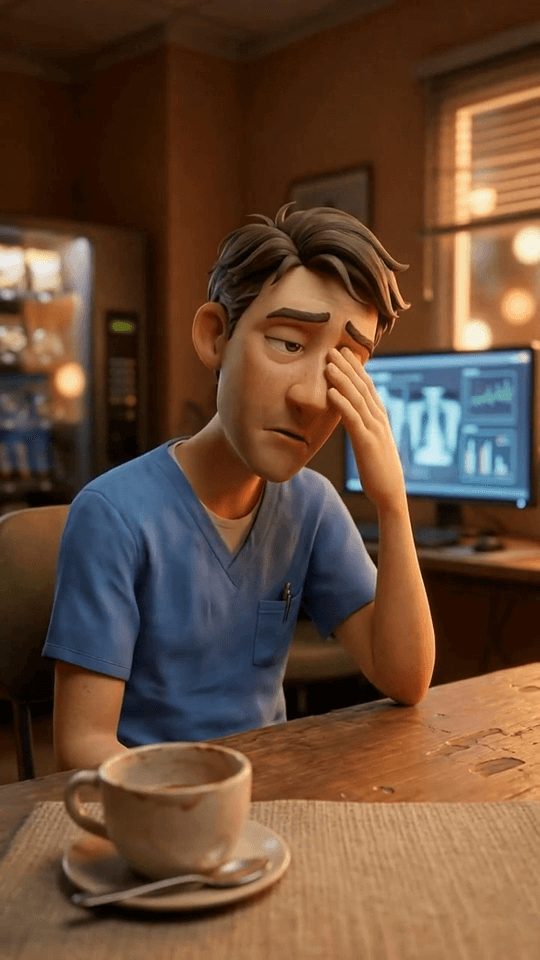 Animation Vibrant, colorful animated illustration | 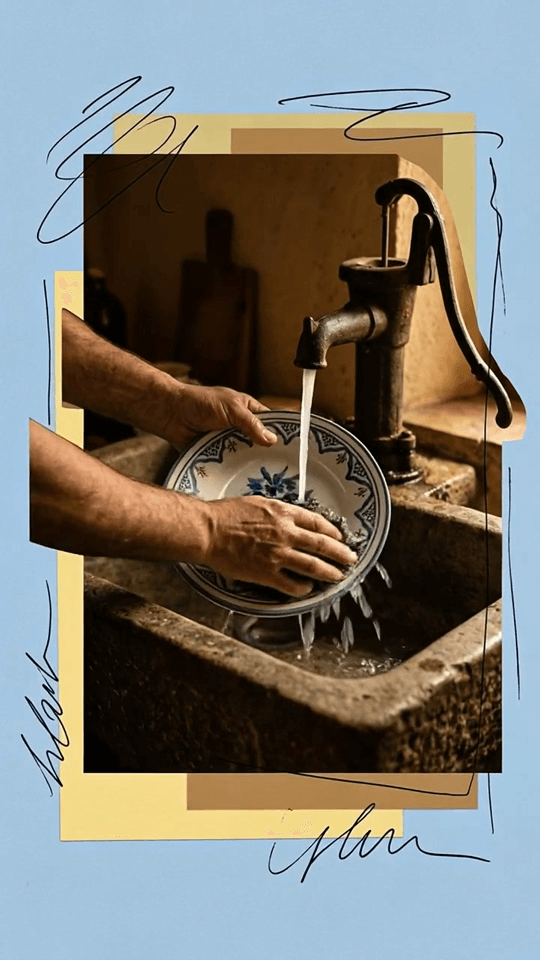 Collage Textured, mixed media collage with a handmade feel |
 Blue Vox Stylized, Vox-inspired editorial graphics | 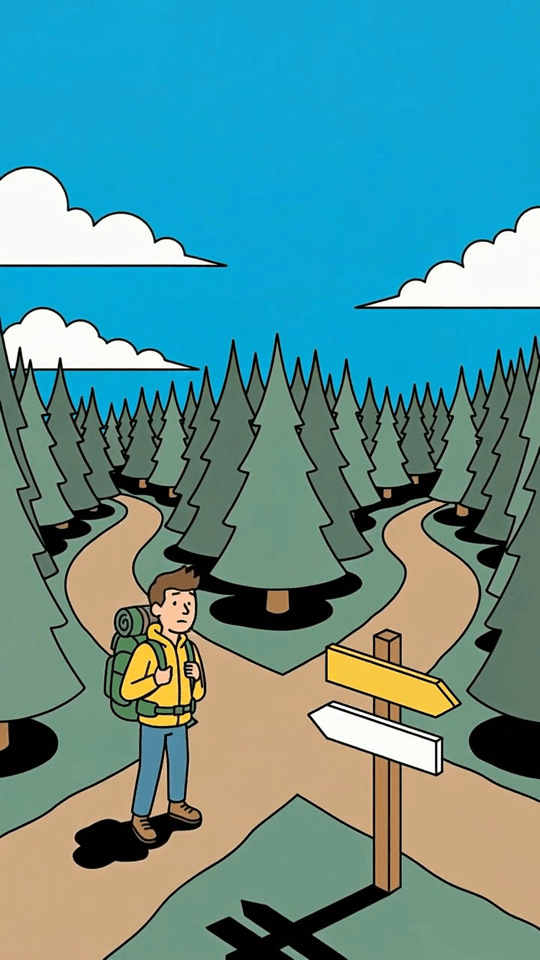 Claire Soft, elegant illustration with gentle tones | 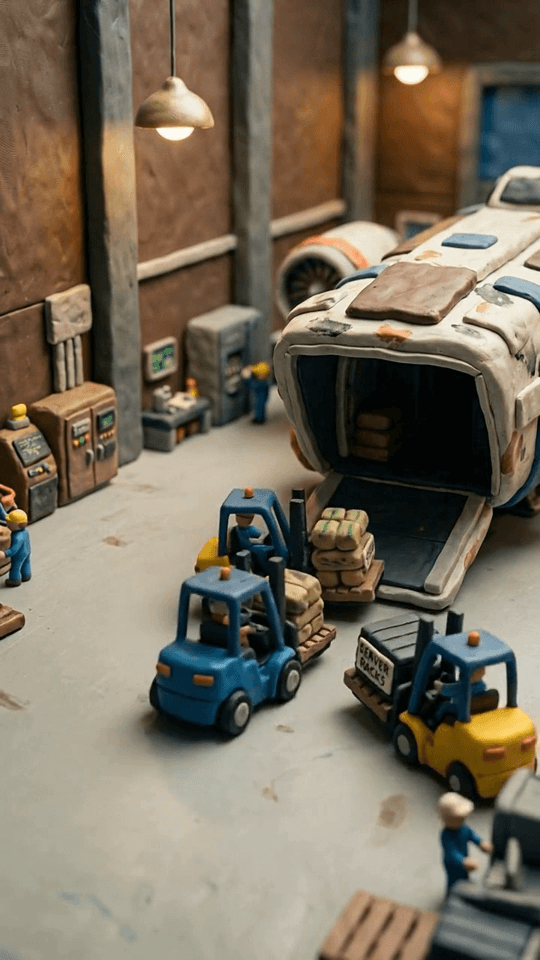 Claymation Stop motion clay aesthetic that looks like real claymation |
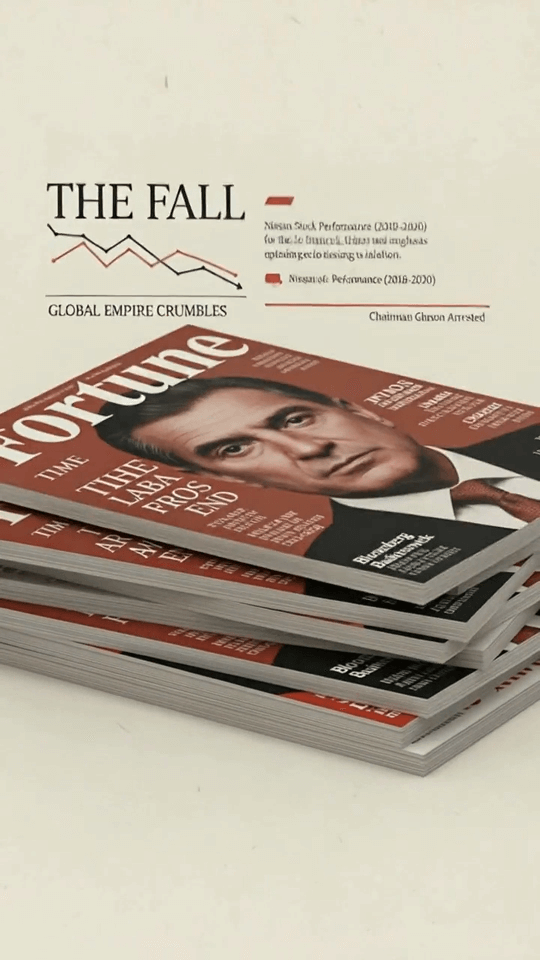 Economic Data-driven, infographic style with charts and figures | 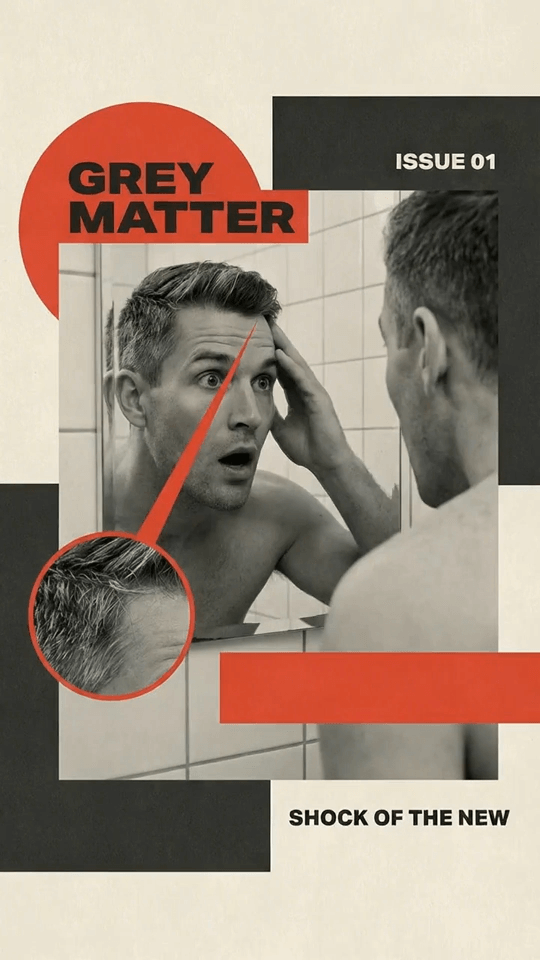 Halftone Retro halftone print effect with a vintage newspaper look | 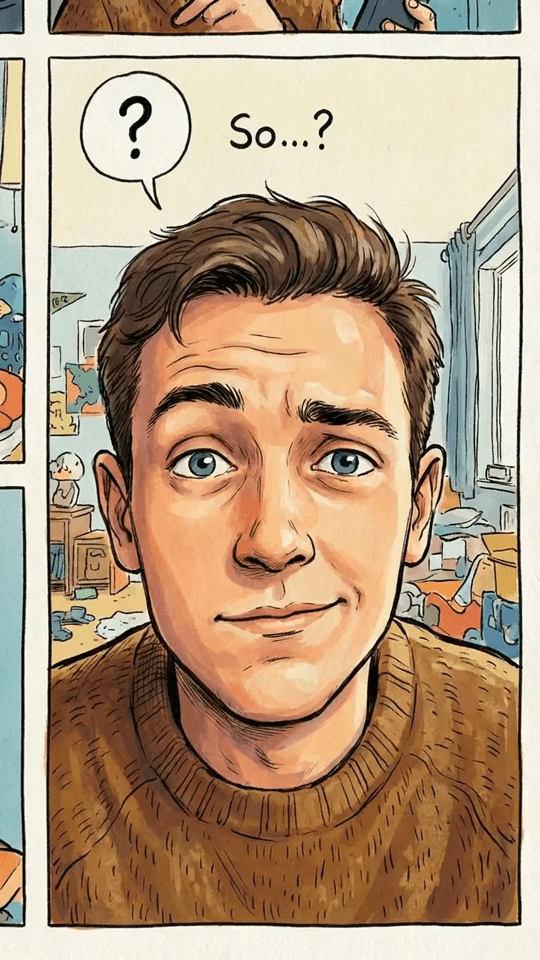 Marcinelle European comic book style with bold outlines |
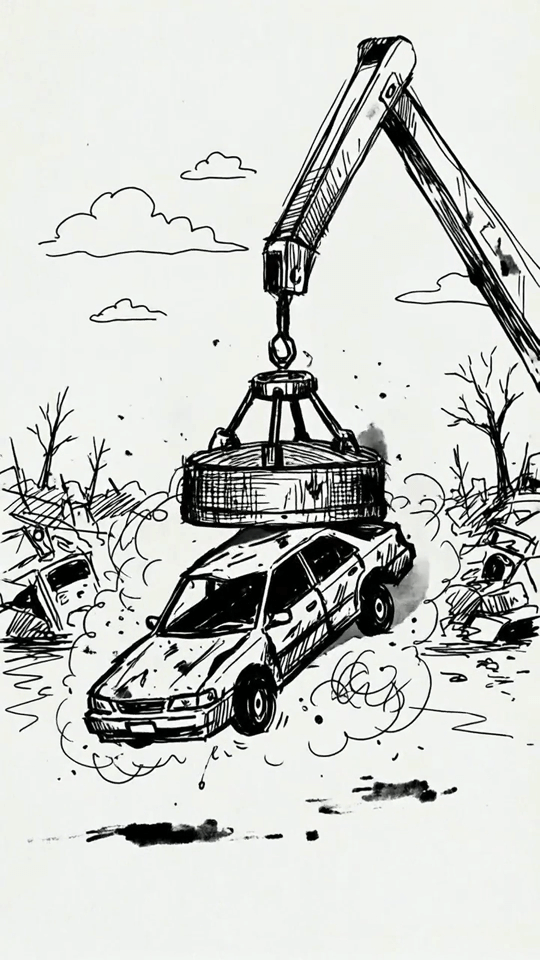 Pen & Ink Classic pen and ink illustration with crosshatching | 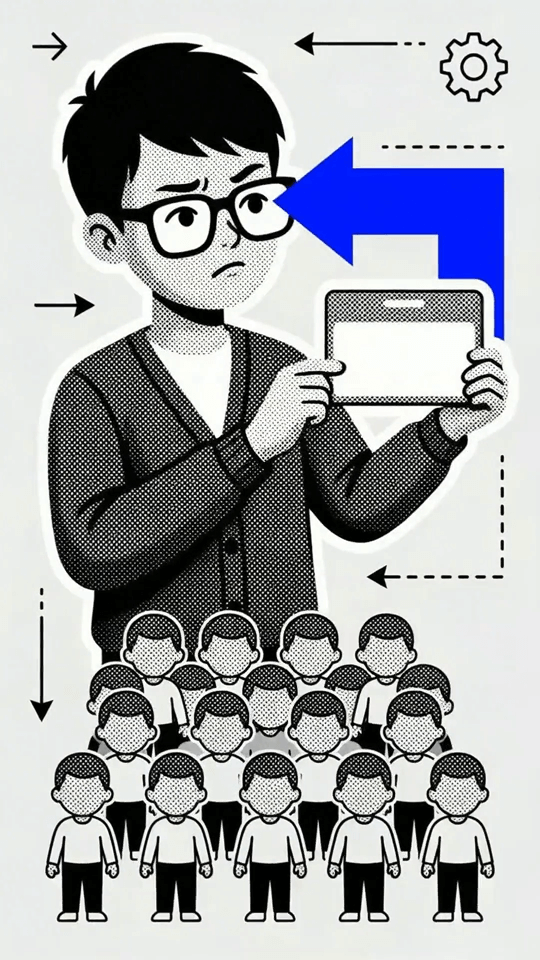 Schematic Technical blueprint style with a mechanical feel | 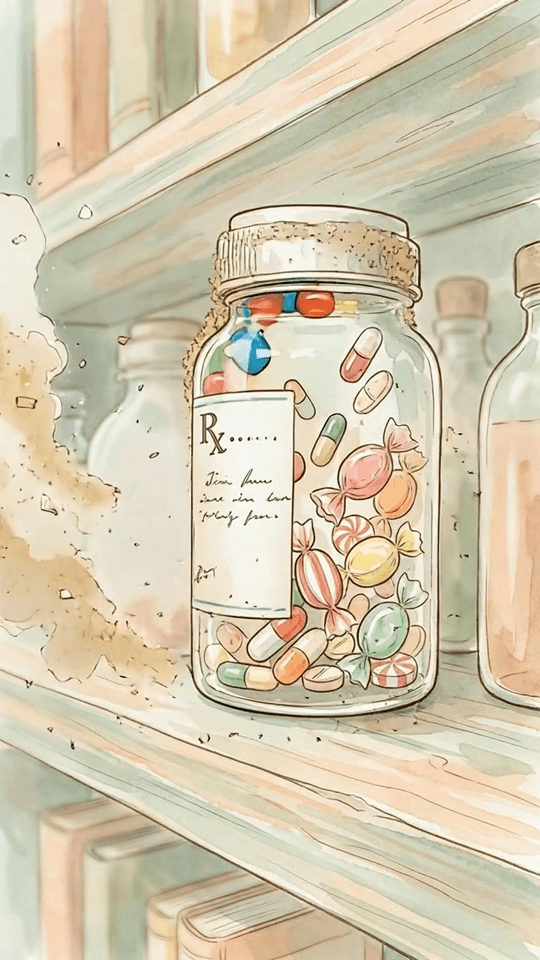 Watercolor Soft, flowing watercolor painting aesthetic |
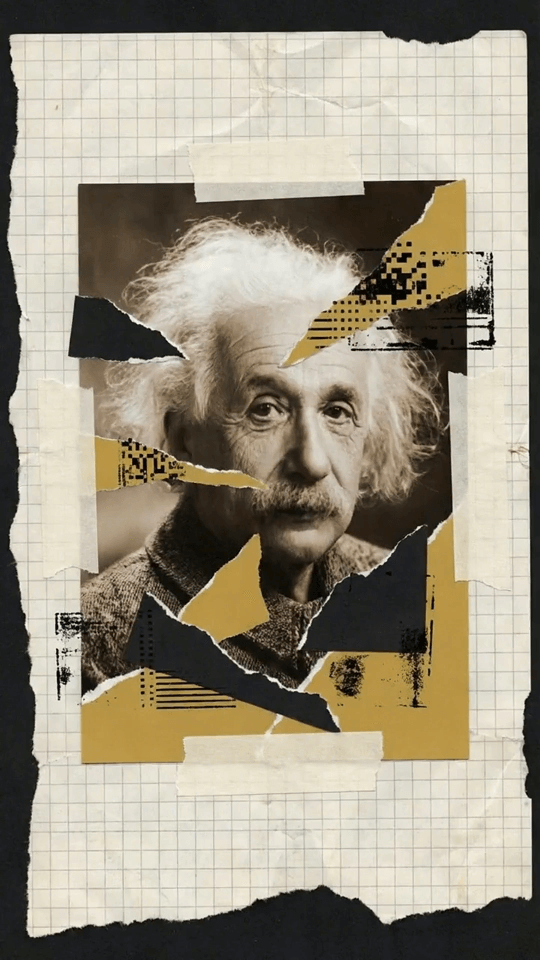 Vox Bold, editorial graphics with strong typography |
🖌️ Custom Styles
If none of the presets match your vision, you can create a custom style. Click the “Add style” button at the beginning of the style gallery to open the Style Creator. From there, you have two options:- STYLE IMAGE: Upload a reference image (PNG, JPG, or WebP) that represents the visual look you want. Story Mode will analyze the image and apply that aesthetic to your entire video.
- STYLE INSTRUCTION: Write a text description of your custom style in the text box. For example, you could write “dark moody watercolor with heavy shadows and muted earth tones” and Story Mode will interpret that into a visual style. You can use either one or both together for the best results. Once you are happy with your custom style, click “Apply” to save it and use it for your project. Your custom styles are saved to your library so you can reuse them on future projects.

📱 Aspect Ratio
Story Mode supports multiple aspect ratios so you can create content optimized for different platforms. To change the aspect ratio, click the aspect ratio button in the input toolbar before submitting your project.- 9:16 (Vertical) This is the default setting and is ideal for TikTok, Instagram Reels, and YouTube Shorts
- 16:9 (Horizontal) Best for YouTube videos and landscape content
- 1:1 (Square) Works well for Instagram feed posts and LinkedIn

🎙️ Voiceover
Story Mode gives you full control over how your video sounds. You can choose from the existing Agent Opus voice library, which includes a range of built-in AI voices with different tones, accents, and styles. To select a voice, click the “Voice” button in the input toolbar. From there, you can:- Use a built-in voice: Browse and preview the built-in AI voices to find one that matches the mood of your content
- Clone a voice: Upload or record up to a 30-second sample of your voice or the voice you want and Story Mode will clone it to narrate the entire video
6. How does Story Mode generate my video?
Story Mode does not just “generate video.” It directs it. After you submit your content, the system runs through a multi-stage AI pipeline that has been specifically designed to ensure narrative flow and visual consistency across every frame of your video. Traditional AI Video: Audio shots → Separate videos → Hard cuts Story Mode: Audio shots → Videos with transitions → Fluid morphs7. When should I NOT use Story Mode?
While Story Mode is a powerful tool, it is not the right fit for every type of video. Here are some situations where you should use the core Agent Opus or OpusClip instead:- Specific Real World Accuracy: Story Mode is an interpretive tool, not a documentary tool. It cannot perfectly generate specific real people, real locations, or photorealistic scenes. If your video needs to show exactly what a person or place looks like, use the core Agent Opus which can pull in real-world assets and stock footage.
- Heavy editing or clipping: For videos that require heavy editing or clipping long videos into shorter segments, use OpusClip or the core Agent Opus editor instead. Story Mode is designed as a “set it and forget it” experience.
- Online content: Story Mode cannot pull content from links.
8. What are the video length limits?
Story Mode videos follow the same length requirements as the core Agent Opus. Transcripts cannot exceed 450 words or 4 minutes of audio. The recommended length for optimal quality and social media performance is under 3 minutes, which aligns with the ideal format for TikTok, Reels, and YouTube Shorts. Keeping your videos in this range also helps with viewer retention and engagement.9. How many projects can I submit?
Story Mode projects count toward your overall Agent Opus project quota. To allow as many users as possible to enjoy Agent Opus, there may be a limit on the total number of projects you can generate per day.10. How can I edit my videos?
Right now, you can export the video and use OpusClip to edit it.11. What is the future of Story Mode?
Story Mode is continuously evolving. The team is actively working on new features and improvements based on user feedback. Here is a preview of what is coming next:- Integrating With Real World Online Assets:** Deep integration with real-time online assets to blend AI-generated content with real-world references. This will let you combine the consistency of Story Mode with the authenticity of real footage.
- Editor: Clip editing and clip regeneration capabilities so you can fine-tune individual scenes without regenerating the entire video.
- Greater Personalization: Avatar mode, the ability to upload your own assets, and smarter user intent understanding, so Story Mode can better interpret what you are looking for.