> ## Documentation Index
> Fetch the complete documentation index at: https://help.opus.pro/llms.txt
> Use this file to discover all available pages before exploring further.
# Introduction to OpusClip
> OpusClip helps you turn long videos into shorts, and publishes them to all social platforms in one click.
## Get Started
Welcome to the OpusClip Help Center! Our **AI-powered search assistant** is here to help. Simply **type your question into the search bar** to get started!
Looking for a more comprehensive introduction? Check out the detailed walkthrough below:
## Submit your first project
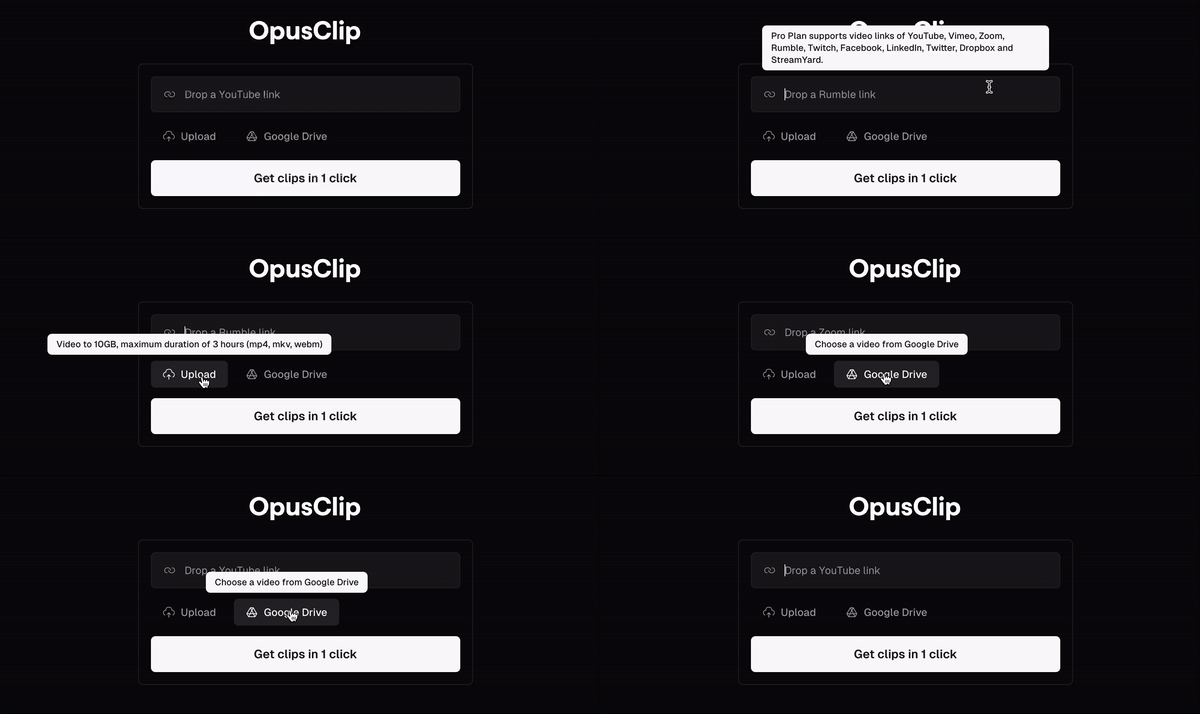
You can submit your first project by uploading a long video through **YouTube links, Google Drive, Vimeo, Rumble links, Zoom, StreamYard, Facebook, Twitter or even local files**.
For more information on the types of videos you can upload, please refer to [this article](/docs/article/video-sources-supported).
## Generate clips
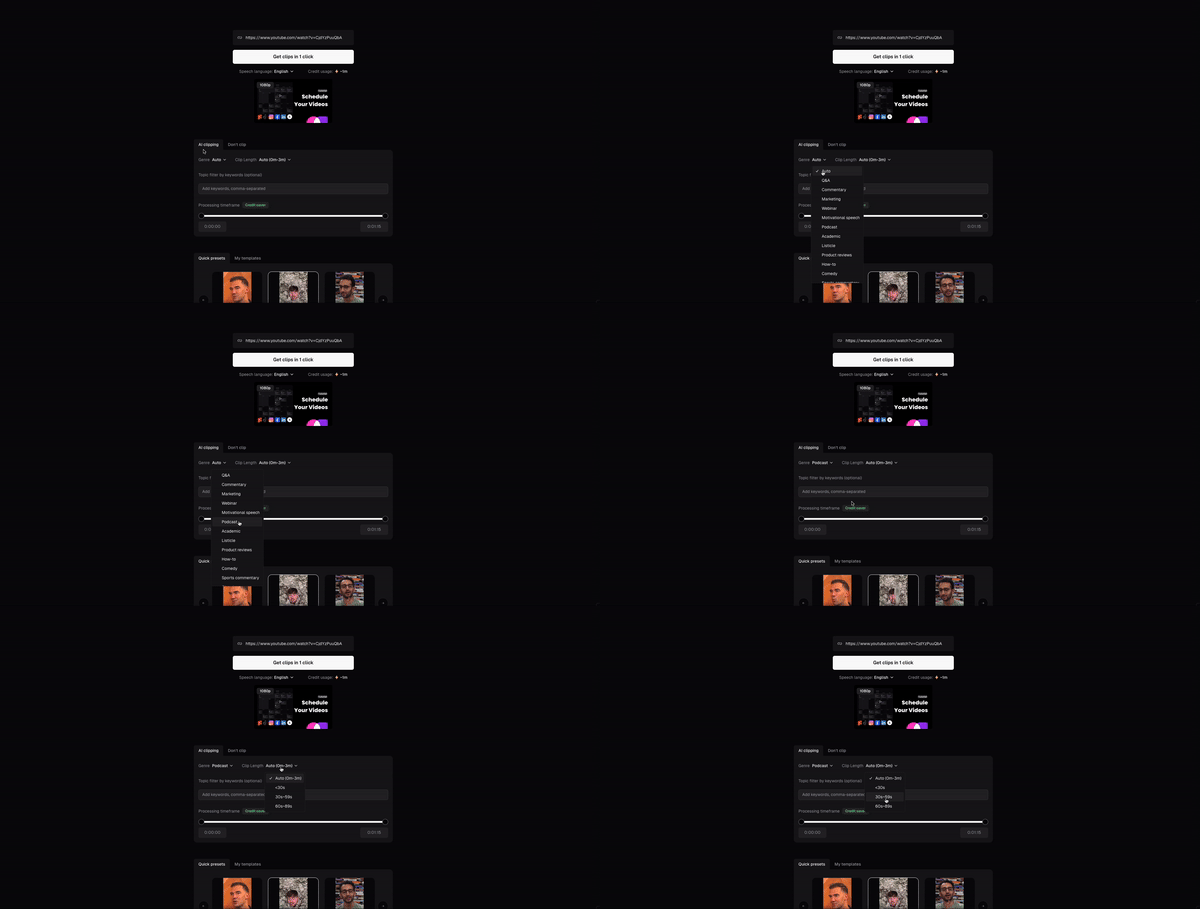
After submitting your video, you can use the **AI Co-pilot** to provide specific instructions for our AI to follow during the creation process. Our AI models will then generate short videos based on your guidelines.
If you would like to learn more about how to finetune your clips upon submission, please refer to [this article](/docs/article/how-to-use-clipanything).
## Edit your clips
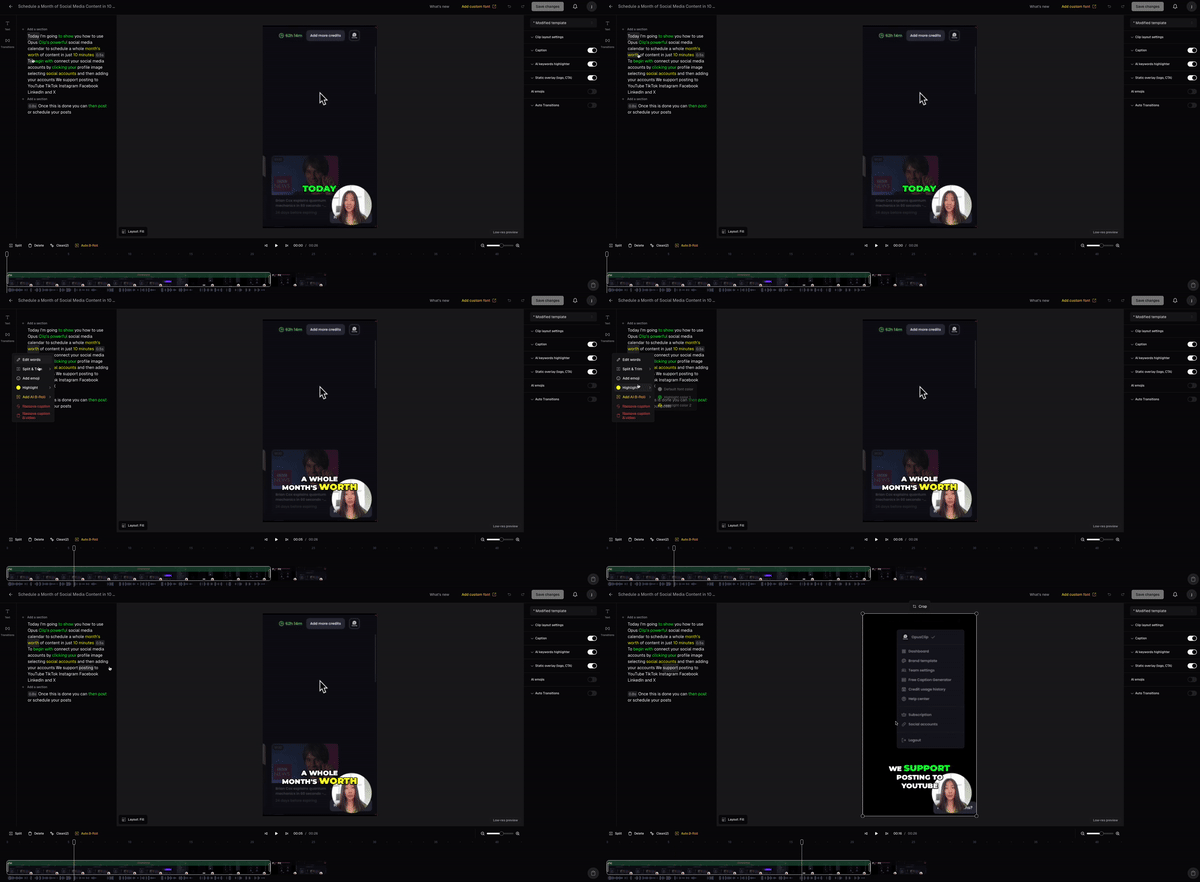
If you like the clips which are generated but wish to make minor adjustments to the final result, we've got you covered with our native in-browser video editor.
You can **trim or extend sections of the clip, remove filler words, add B-rolls**, and much more! For a deeper dive into the editor's capabilities, check out [these articles](/docs/article/introduction-to-opusclip#edit-your-clips).
## Export or Post to Social media
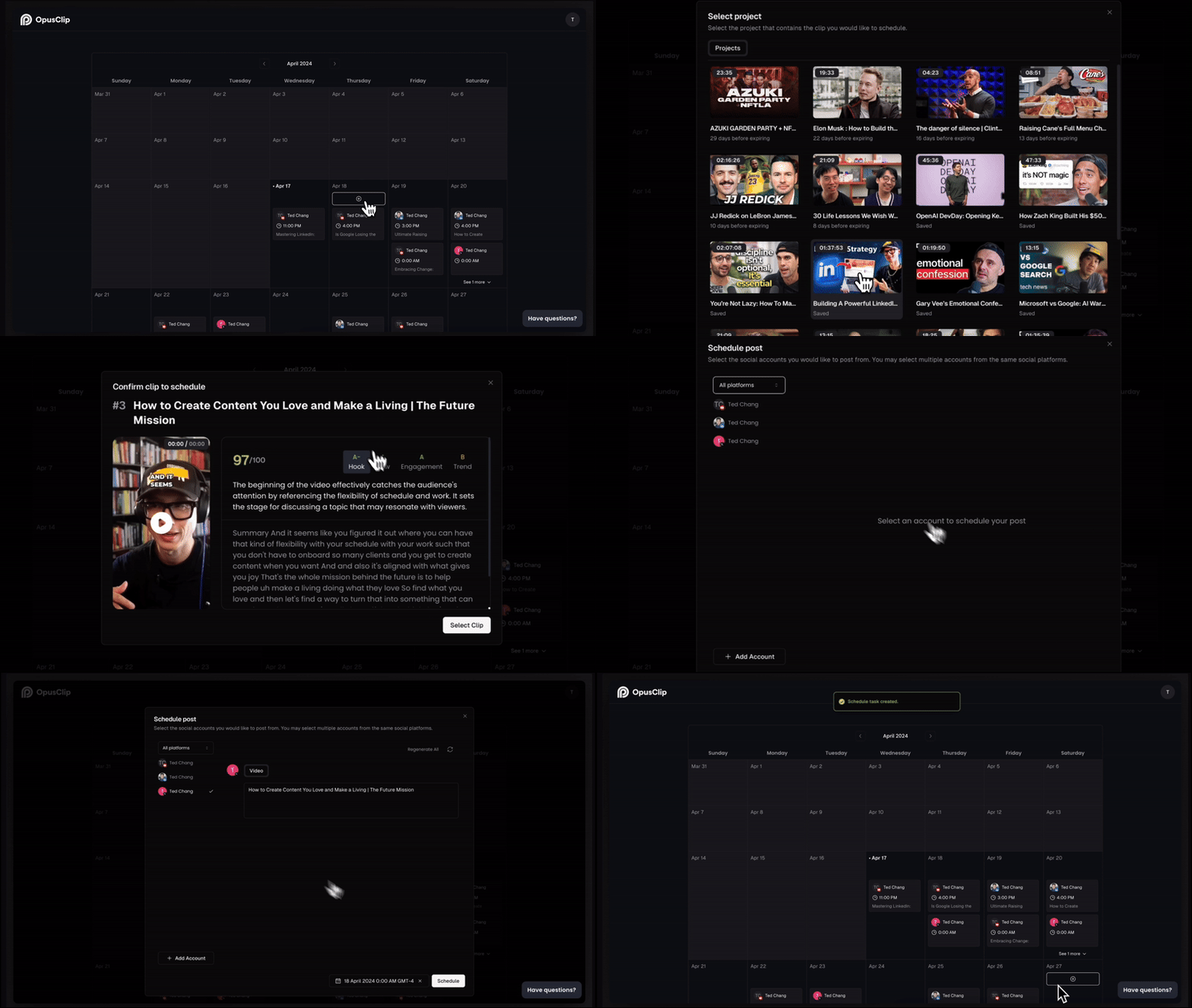
You can download the HD copies of the result clips, as well as **download them in XML format** for further editing in Adobe Premiere or DaVinci Resolve. Alternatively, you can **schedule them directly to your social media platforms** from the [project page](/docs/article/schedule-clips#schedule-your-post-from-the-project-page) or by using our [Scheduler](/docs/article/schedule-clips#schedule-your-posts-using-the-social-media-calendar)!