> ## Documentation Index
> Fetch the complete documentation index at: https://help.opus.pro/llms.txt
> Use this file to discover all available pages before exploring further.
# Snap Editing
Snap Editing makes clips and overlays magnetic in the timeline — when you drag or trim near a key point, they lock into place automatically. No more nudging frame by frame.
## What it snaps to
When snapping is on, clips and overlays will snap to:
* Start and end of main video segments
* Start and end of layout blocks
* Current playhead position
* Start and end of other timeline layers
## How to turn it on or off
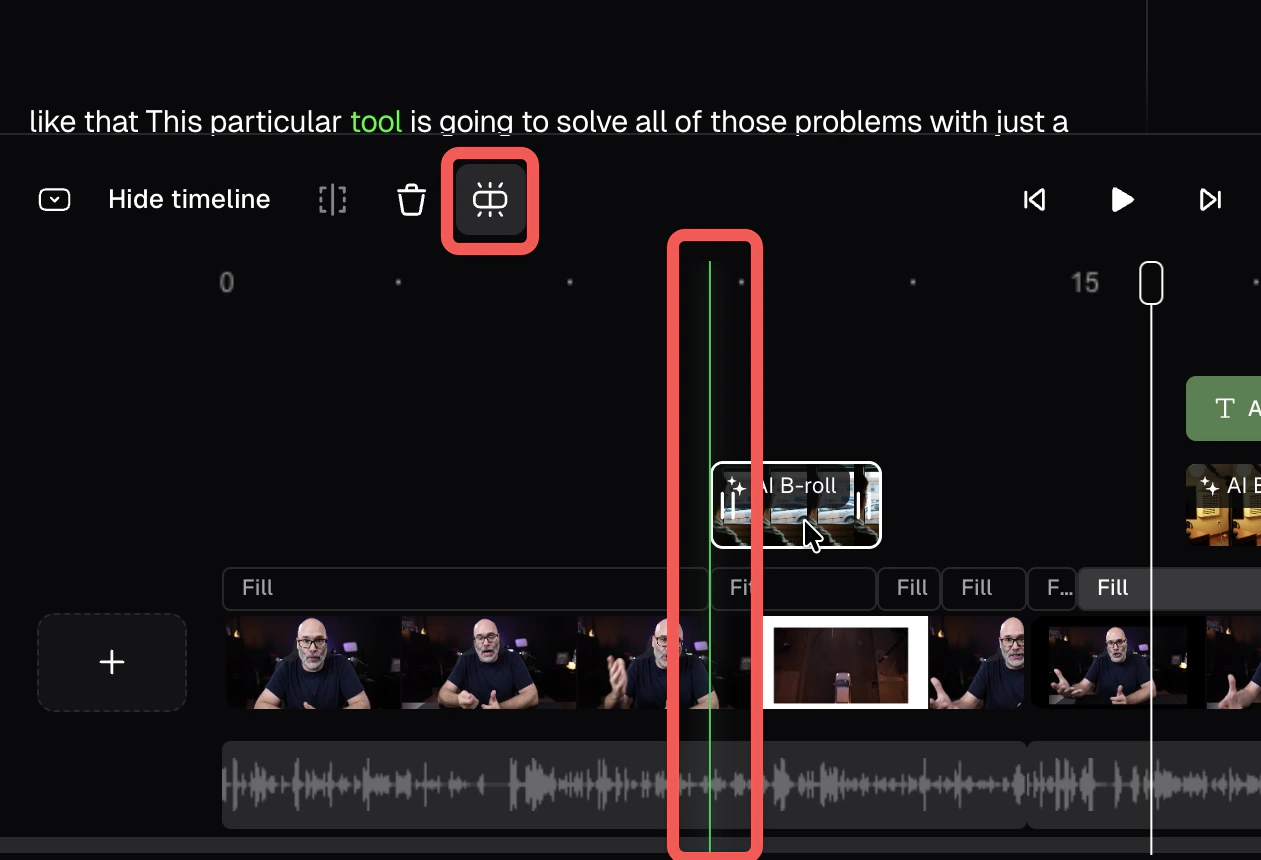
Click the **Snap Editing** icon in the timeline toolbar, or press **S** on your keyboard to toggle it on or off anytime.
## How it works
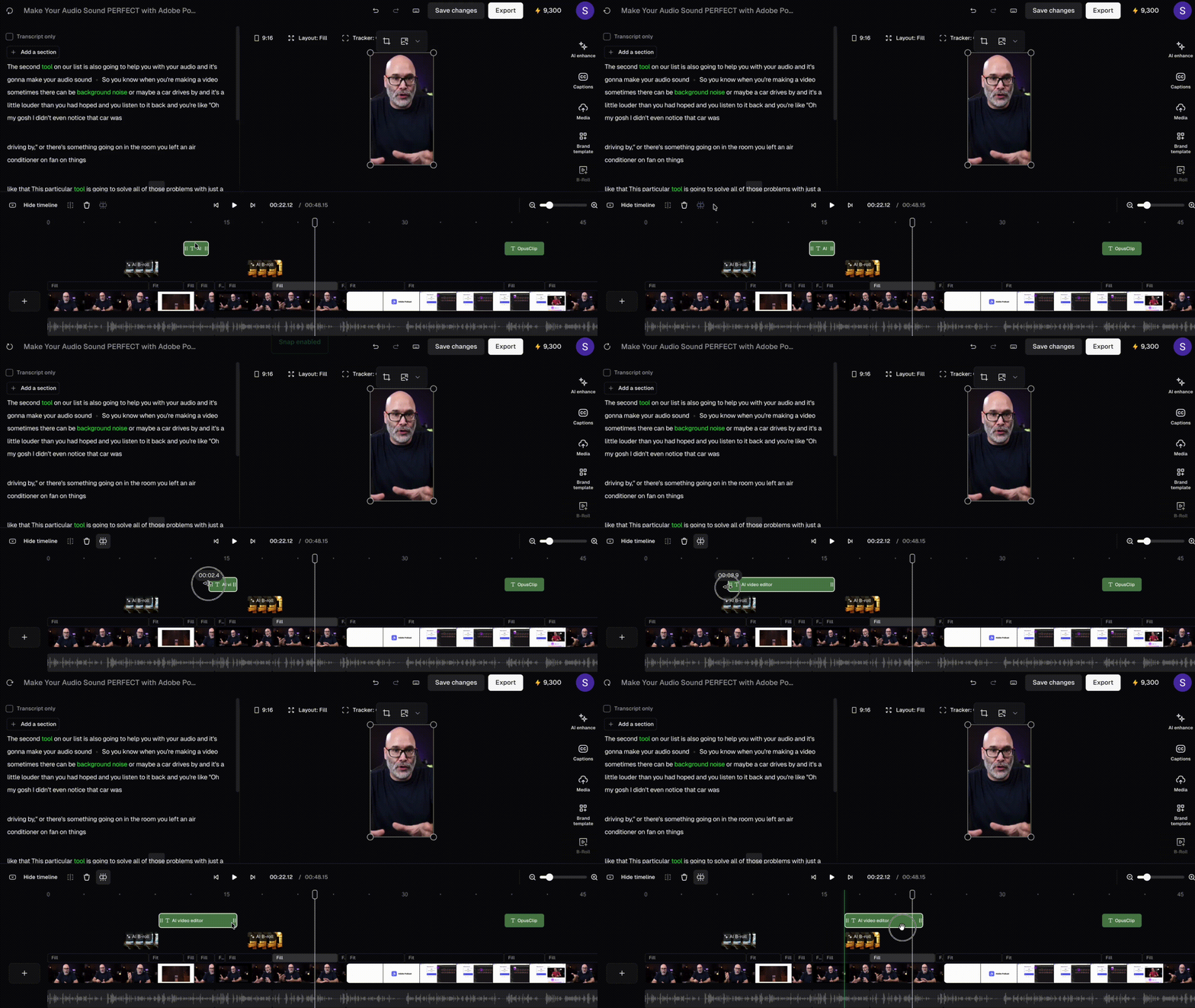
Drag any clip or overlay and it locks into alignment when it gets close enough to a snap point. The same applies when trimming — drag the left or right edge of any clip and it snaps to nearby alignment points. A vertical guideline appears across the timeline to confirm the snap.
## FAQ
### Is Snap Editing on by default?
Yes — it's on by default. You can toggle it off anytime from the toolbar or by pressing **S** on your keyboard.