> ## Documentation Index
> Fetch the complete documentation index at: https://help.opus.pro/llms.txt
> Use this file to discover all available pages before exploring further.

# Share Projects with Collaborators

<Warning> **Are you sure your content is safe to share publicly?**
If you set your projects as **Public**, your content will be accessible to anyone with the link. Please ensure it is safe to share.</Warning>

If you want to share your projects with someone outside your OpusClip team workspace, you can change the private setting of your projects and share the project

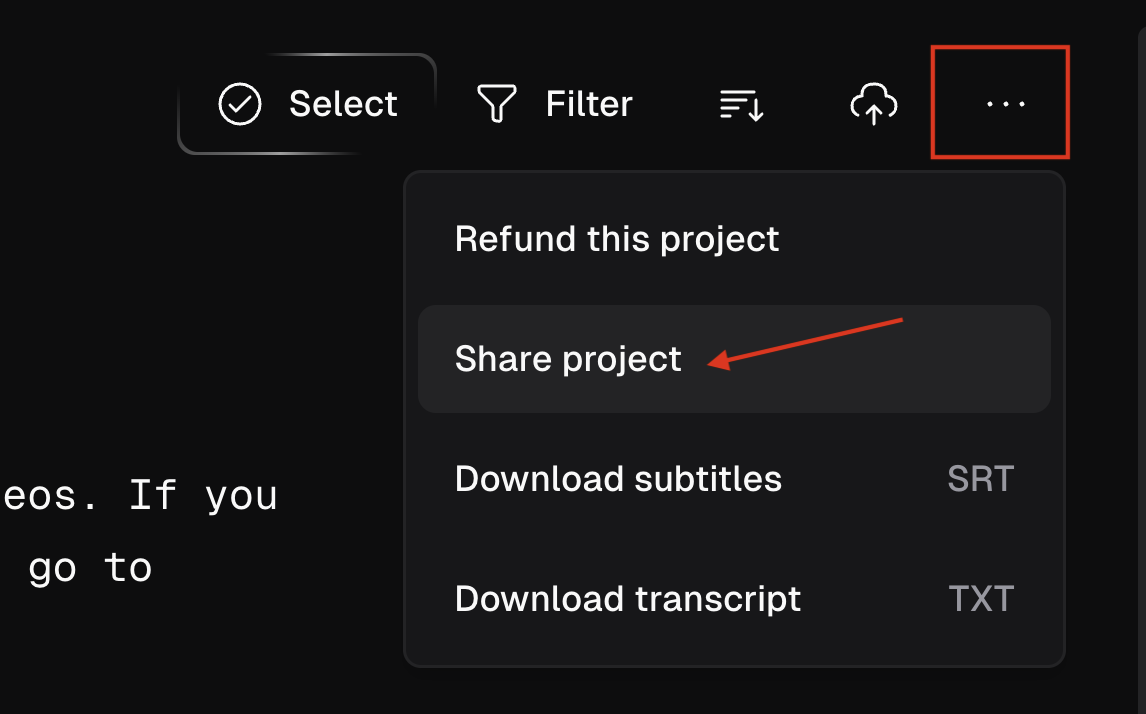
1. Go to the project page or the dashboard and find the share button as shown below:

<div className="img-frame">
  <img src="https://mintcdn.com/opusclip-c3e48c12/nfs8k7joMOwNh3iE/images/imgs/Screenshot0413-01.png?fit=max&auto=format&n=nfs8k7joMOwNh3iE&q=85&s=40e308eadbdf237e0ba37fa968d14be7" noZoom width="1146" height="714" data-path="images/imgs/Screenshot0413-01.png" />
</div>

<div className="img-frame">
  <img src="https://mintcdn.com/opusclip-c3e48c12/qs18v3VqmSqKrXX1/images/imgs/share-project-2.png?fit=max&auto=format&n=qs18v3VqmSqKrXX1&q=85&s=a54c55dc4d9dbc19b4f78a5406740889" noZoom width="1734" height="768" data-path="images/imgs/share-project-2.png" />
</div>

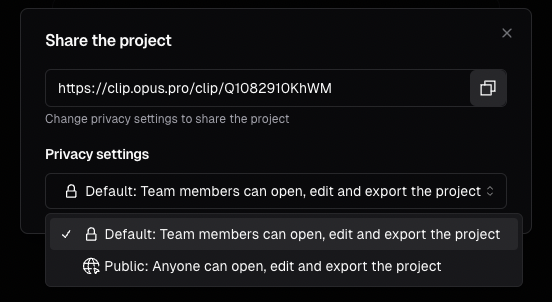
2. Change the **Privacy settings** of your project from **Default** to **Public**.

<div className="img-frame">
  <img src="https://mintcdn.com/opusclip-c3e48c12/qs18v3VqmSqKrXX1/images/imgs/share-project-3.png?fit=max&auto=format&n=qs18v3VqmSqKrXX1&q=85&s=cb9c4c0a1d70d9a044bc15fca342cfdc" noZoom width="552" height="302" data-path="images/imgs/share-project-3.png" />
</div>

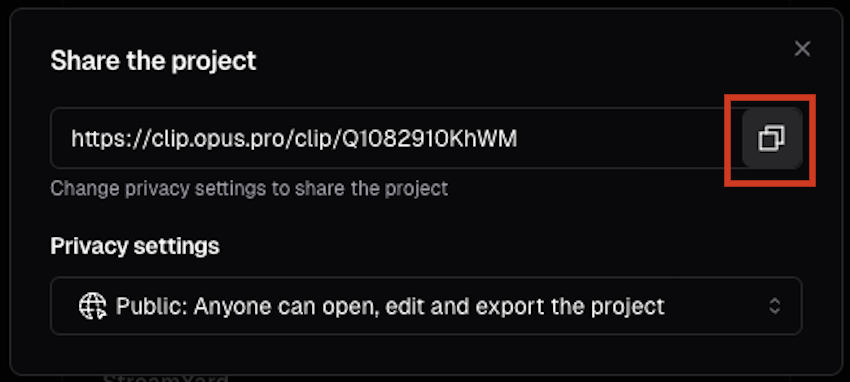
3. Copy the link and share it with your teammate or your customer.
<div className="img-frame">
  <img src="https://mintcdn.com/opusclip-c3e48c12/qs18v3VqmSqKrXX1/images/imgs/share-project-4.png?fit=max&auto=format&n=qs18v3VqmSqKrXX1&q=85&s=461c79ce597737438f2ae53cea53bac2" noZoom width="850" height="382" data-path="images/imgs/share-project-4.png" />
</div>