> ## Documentation Index
> Fetch the complete documentation index at: https://help.opus.pro/llms.txt
> Use this file to discover all available pages before exploring further.
# Schedule Your Clips
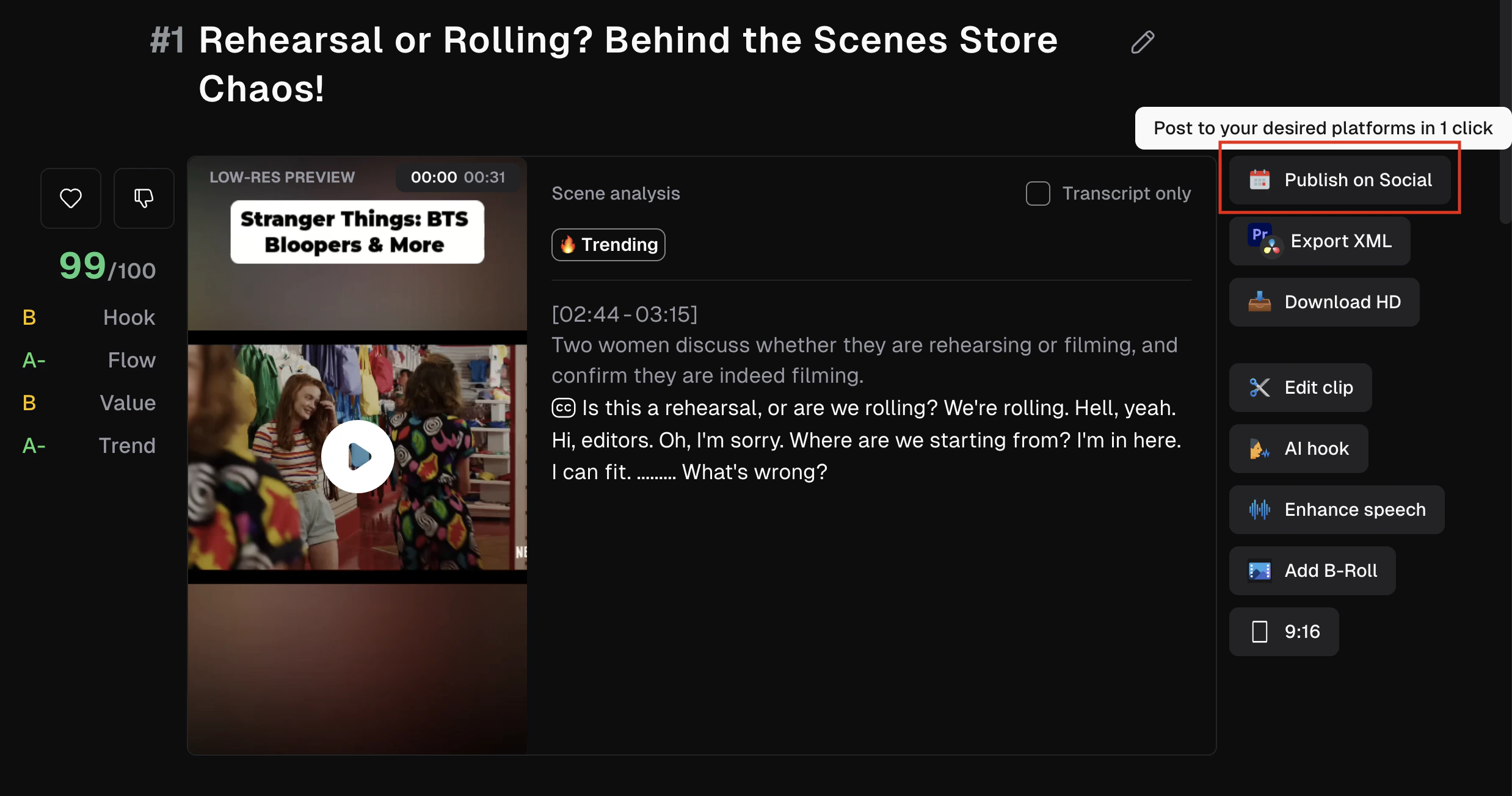
## Schedule your post from the project page
You can schedule and post your clips to your social platforms directly from the results page:
## Schedule your posts using the social media calendar
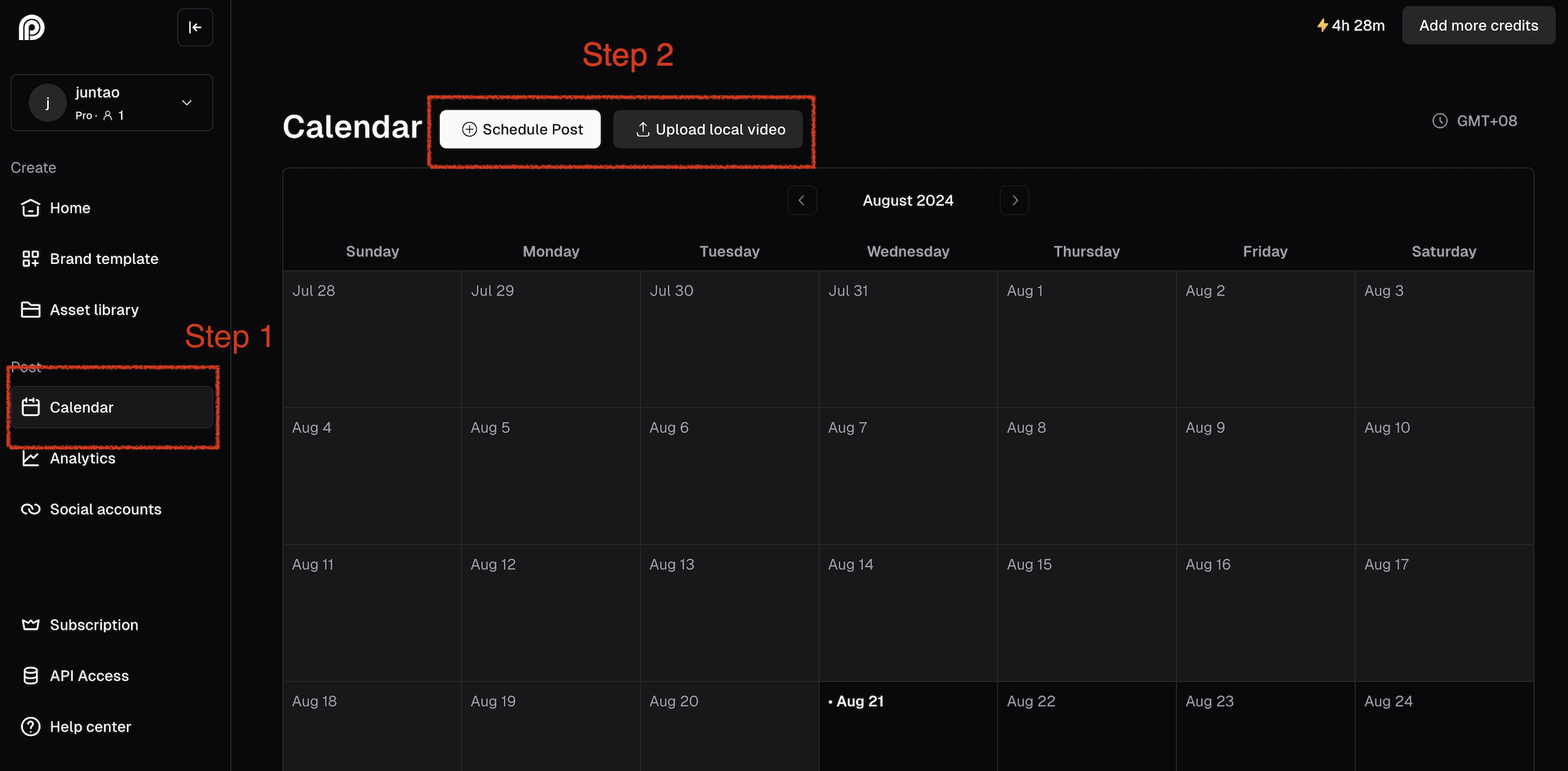
To schedule your posts from the calendar page, please:
1. Click “Calendar” in the middle left navigation bar
2. Choose your desired date on the calendar
3. From there, choose the clips and platforms for your posts. Our AI will auto-generate descriptions and hashtags
You can upload your local videos and schedule them from the calendar.
## Cancel scheduled posts
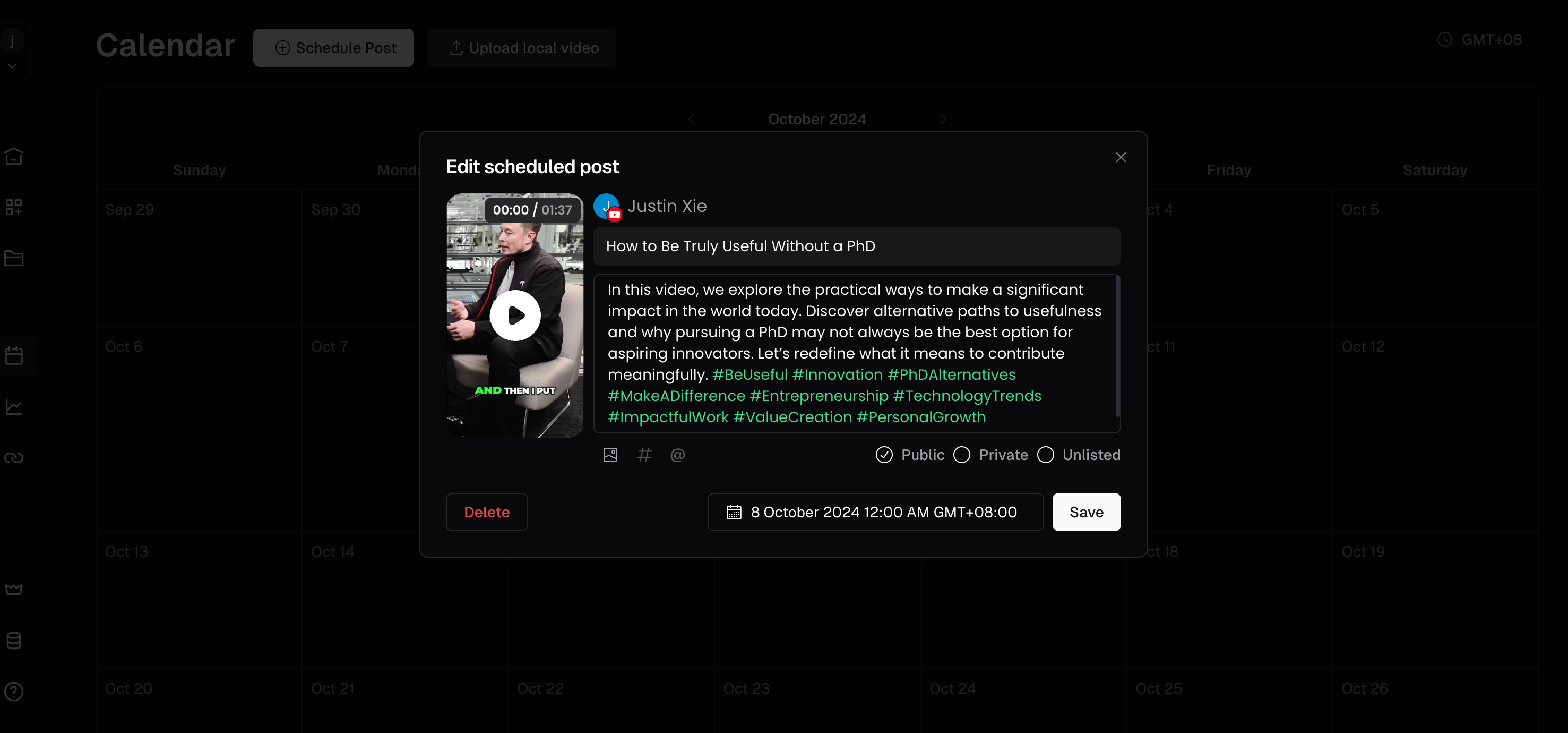
1. Click the **Calendar** tab on the side bar.
2. Find your scheduled post in the calendar and click on it.
3. Click the **Delete** button on the popup and delete the scheduled post.
You can also post clips directly from the **OpusClip iOS app**. Tap the scheduler icon on any clip to open the post page, edit your title and description, select platforms, and publish.