> ## Documentation Index
> Fetch the complete documentation index at: https://help.opus.pro/llms.txt
> Use this file to discover all available pages before exploring further.

# How to use ClipAnything?

ClipAnything is the *first-ever multimodal AI clipping that lets you clip any moment from ANY video* using visual, audio, and sentiment cues, including videos with little to no dialogue.

You can use *natural language prompts to find any scene, action, character, event, emotional moment, viral topic, and more*.

When processing videos with minimal talking or less talking, we **highly recommend that you use ClipAnything** to improve the quality of your clips.

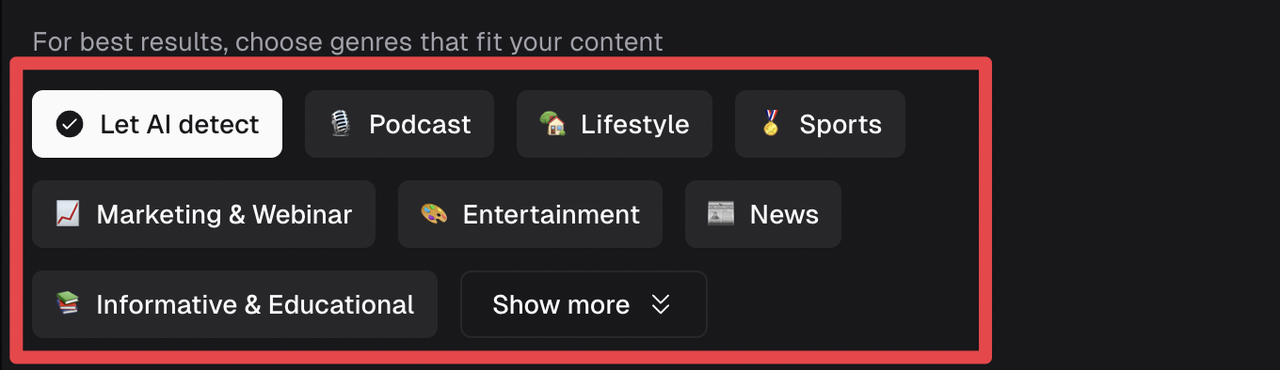
1. **Drop your video link / Upload a video**

<div className="img-frame">
  <img src="https://mintcdn.com/opusclip-c3e48c12/4oBcsSmINxEJFGA4/images/imgs/clipanything-1.png?fit=max&auto=format&n=4oBcsSmINxEJFGA4&q=85&s=61e31e624b2925781dc7ea7d6c318e7e" noZoom width="1276" height="688" data-path="images/imgs/clipanything-1.png" />
</div>

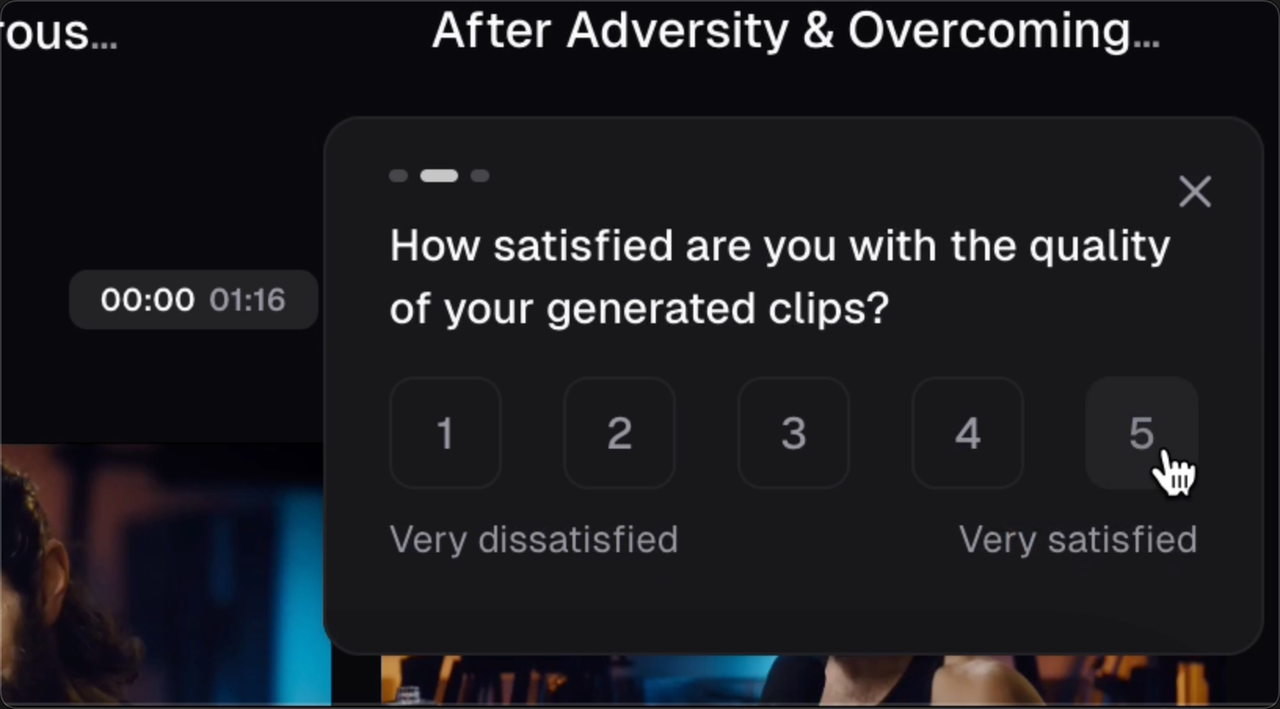
2. **Select "ClipAnything" under Clip model**

<div className="img-frame">
  <img src="https://mintcdn.com/opusclip-c3e48c12/4oBcsSmINxEJFGA4/images/imgs/clipanything-2.gif?s=9860c4bcdb94ed6548d45eb89fe49c7b" noZoom width="1610" height="1288" data-path="images/imgs/clipanything-2.gif" />
</div>

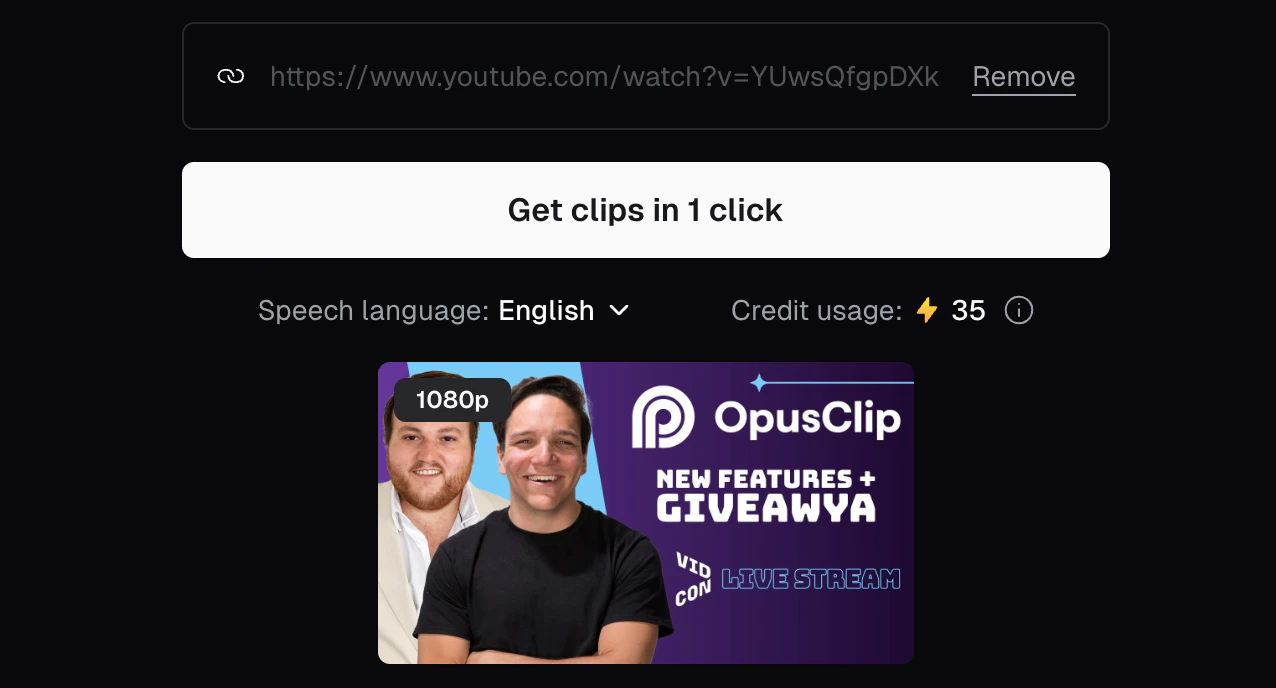
3. **Select your video genre** (optional)

<div className="img-frame">
  <img src="https://mintcdn.com/opusclip-c3e48c12/4oBcsSmINxEJFGA4/images/imgs/clipanything-3.png?fit=max&auto=format&n=4oBcsSmINxEJFGA4&q=85&s=03181d4b4b5b9c326424b9b5dc860f83" noZoom width="1280" height="370" data-path="images/imgs/clipanything-3.png" />
</div>

4. **Type your prompt to find a specific moment** (optional). For instance, "Find all the touchdowns", or "Find the moments most likely to go viral on social media."

<div className="img-frame">
  <img src="https://mintcdn.com/opusclip-c3e48c12/4oBcsSmINxEJFGA4/images/imgs/clipanything-4.png?fit=max&auto=format&n=4oBcsSmINxEJFGA4&q=85&s=402dc38ba7da35ee9bf1a98df4a80435" noZoom width="685" height="106" data-path="images/imgs/clipanything-4.png" />
</div>

<Tip>You can save your favourite clip settings (model, genre, and presets) as default to simplify your workflow and never miss a setting again.</Tip>

5. **Choose a caption style from Quick Presets**, or select **No Caption** if your video already has captions baked in or you prefer a clean look.

<div className="img-frame">
  <img src="https://mintcdn.com/opusclip-c3e48c12/GsH3gXLY0N7C1KSM/images/imgs/clipanything-no-caption.png?fit=max&auto=format&n=GsH3gXLY0N7C1KSM&q=85&s=adc2cac0deba6bc43bb6ff208f74077f" noZoom width="1402" height="818" data-path="images/imgs/clipanything-no-caption.png" />
</div>

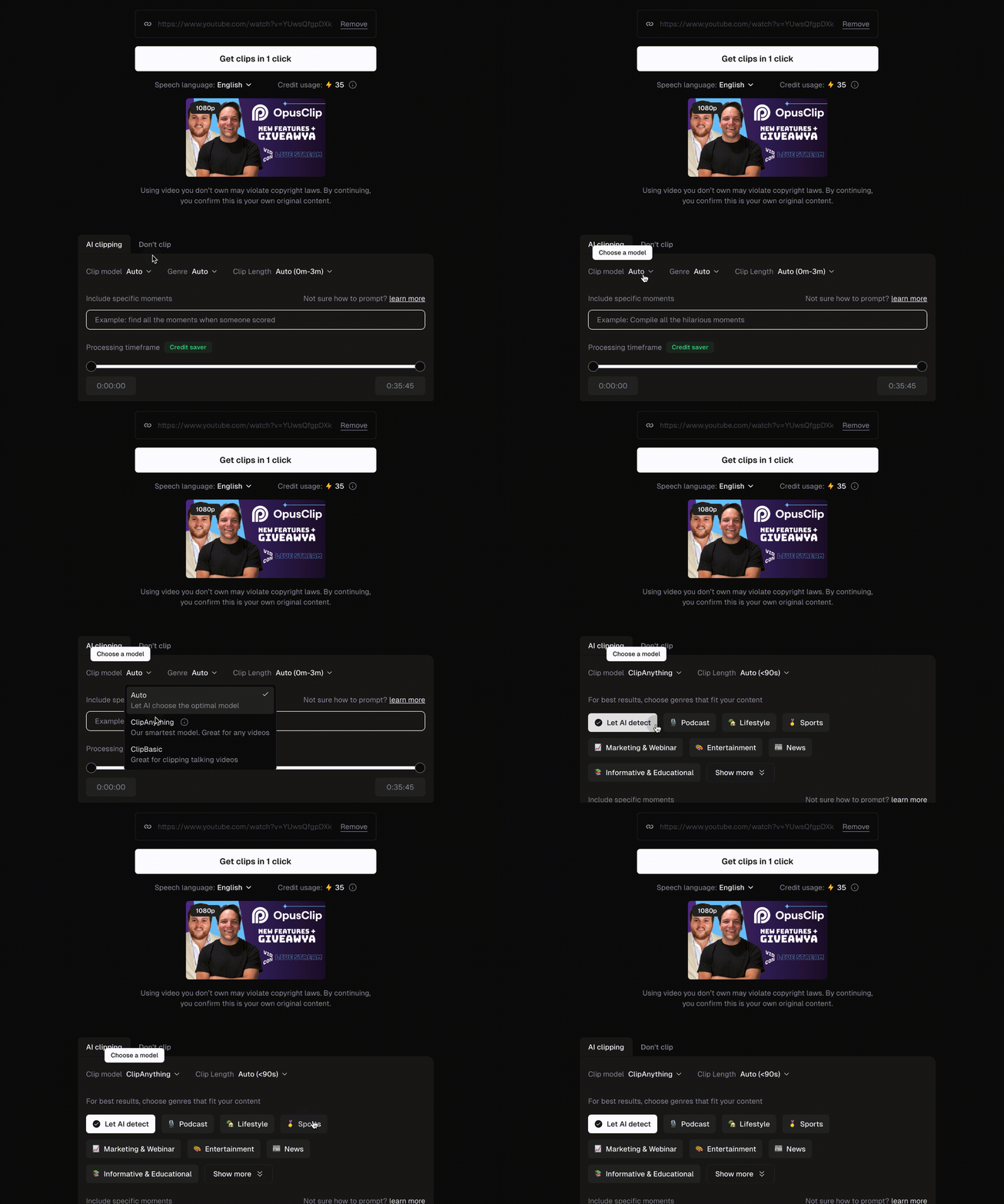
As we continue to iterate on our clipping models, your feedback is always greatly appreciated. Please let us know about your experience using OpusClip, by clicking the “heart” or “thumbs down” button located on the left side of each clip, or by completing our quick feedback survey when you see it on the results page.
<div className="img-frame">
  <img src="https://mintcdn.com/opusclip-c3e48c12/4oBcsSmINxEJFGA4/images/imgs/clipanything-6.png?fit=max&auto=format&n=4oBcsSmINxEJFGA4&q=85&s=f78d6e1d3adf224e0c8b11e4681e2afb" noZoom width="1280" height="709" data-path="images/imgs/clipanything-6.png" />
</div>