> ## Documentation Index
> Fetch the complete documentation index at: https://help.opus.pro/llms.txt
> Use this file to discover all available pages before exploring further.
# How to post to TikTok
OpusClip gives you two ways to post your clips to TikTok:
1. **TikTok Inbox** - Sends your clip to the TikTok mobile app via system notification, where you can preview, edit, and post to your **Feed or Story**
2. **TikTok Feed** - Automatically schedules and posts your clip directly to your **Feed** without using the TikTok app
Each method is designed for a different type of workflow — choose the one that fits your content style and publishing needs.
## What is TikTok Inbox?
TikTok Inbox lets you instantly transfer clips from Opus to your TikTok mobile app via a **system notification**. It's the fastest way to get your clip into TikTok for **manual editing and publishing** using TikTok's native tools.
Unlike TikTok's **scheduled Feed posting**, which supports direct publishing, TikTok Inbox is a **manual publishing method**. Your clip is delivered to the app as a **draft notification**, where you can **open it, make edits, and post it yourself**.
## Why use TikTok Inbox?
* **TikTok Inbox** is ideal when you want to **manually post or edit your clip inside the TikTok app**
* It's useful for adding native effects, music, or editing before publishing
* It's the **only TikTok workflow in Opus that supports draft delivery via mobile notification**
* For automatic **Feed posts**, use the **TikTok Auto-Publish option** instead when available
## Which method to choose?
| Feature | Inbox | Feed |
| :------------------------------------: | :---: | :--: |
| Post to Feed | Yes | Yes |
| Post to Story | Yes | No |
| Edit With TikTok Tools | Yes | No |
| Automatic Posting | No | Yes |
| Scheduling | Yes | Yes |
| AI Generated Captions and Descriptions | No | Yes |
## Post on TikTok Inbox and/or Feed
1. **Navigate to your project**: Open your projects' results page.
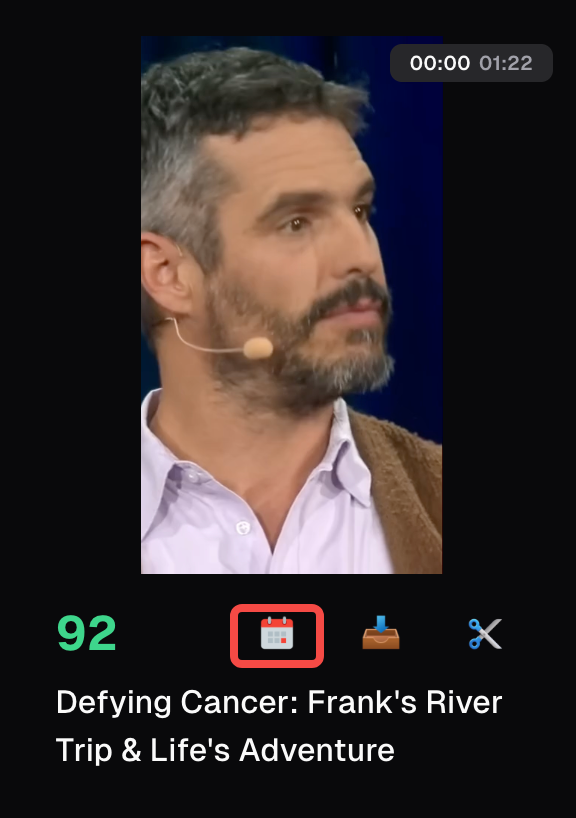
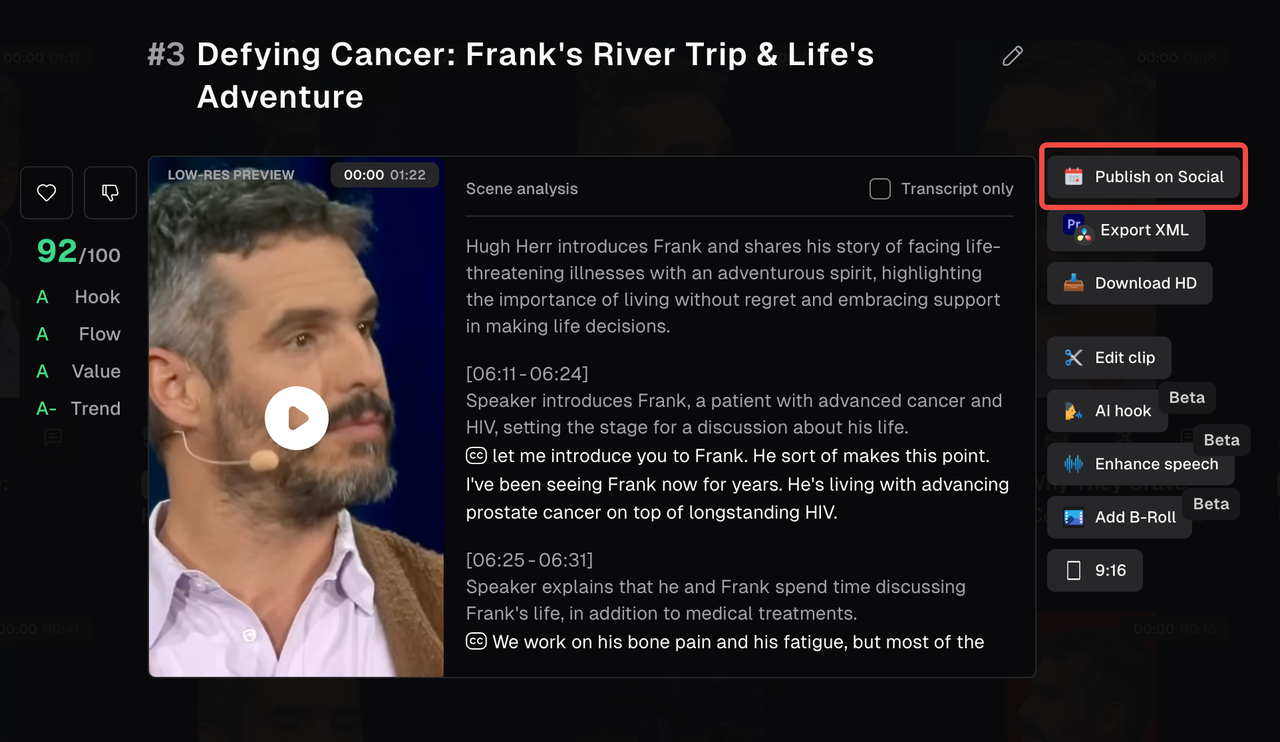
2. **Select Clips**: Click on the calendar icon to schedule your post
3. **Publish to TikTok**:
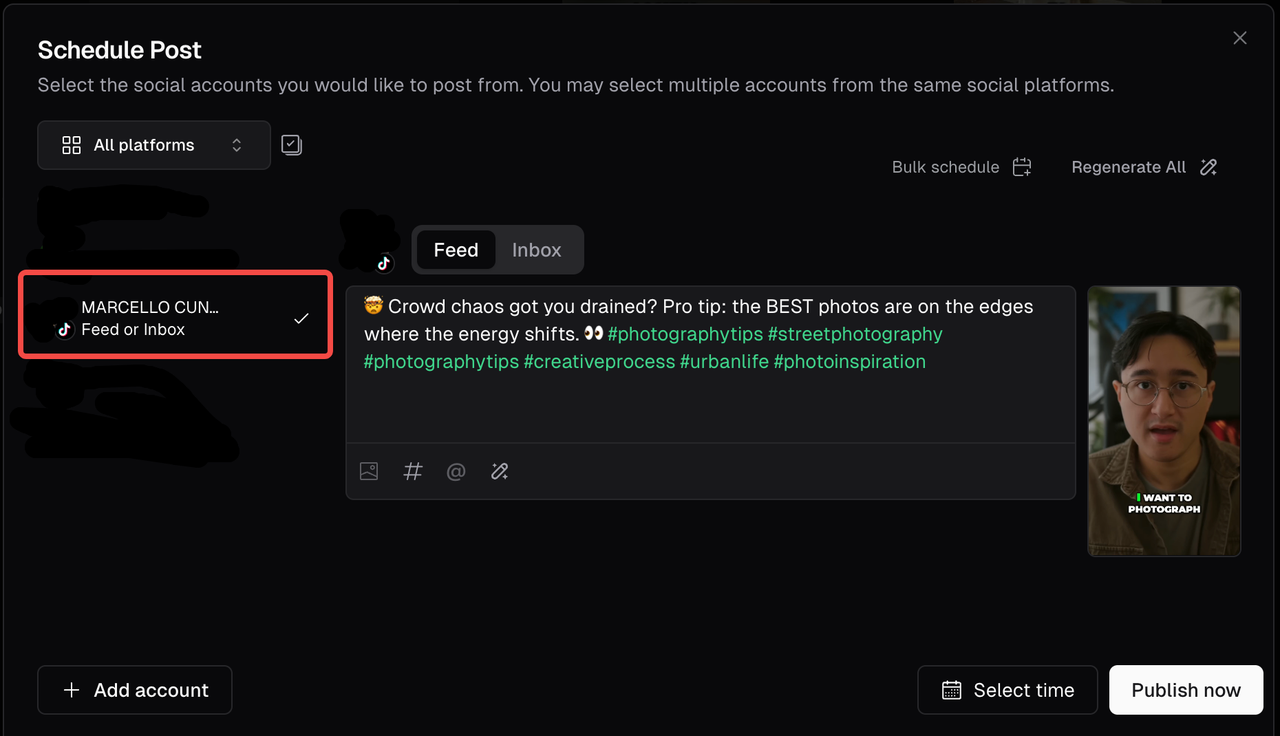
* Select the TikTok platform you want to post to
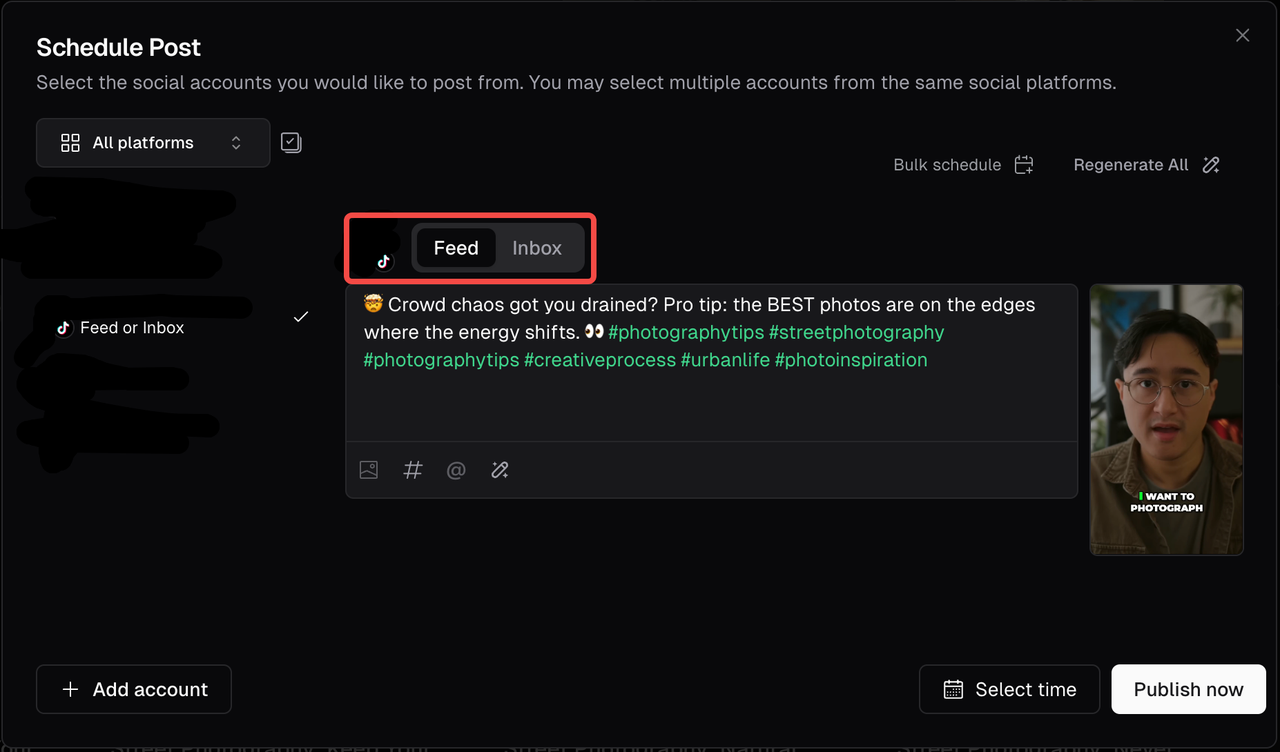
* Select if you want to post to Feed or Inbox
* Click on "Publish Now" or click on "Select Time" if you want to schedule it for a later time.
## Where can i find my clips?
**TikTok Feed**
1. Your videos can be found in your profile.
**TikTok Inbox**
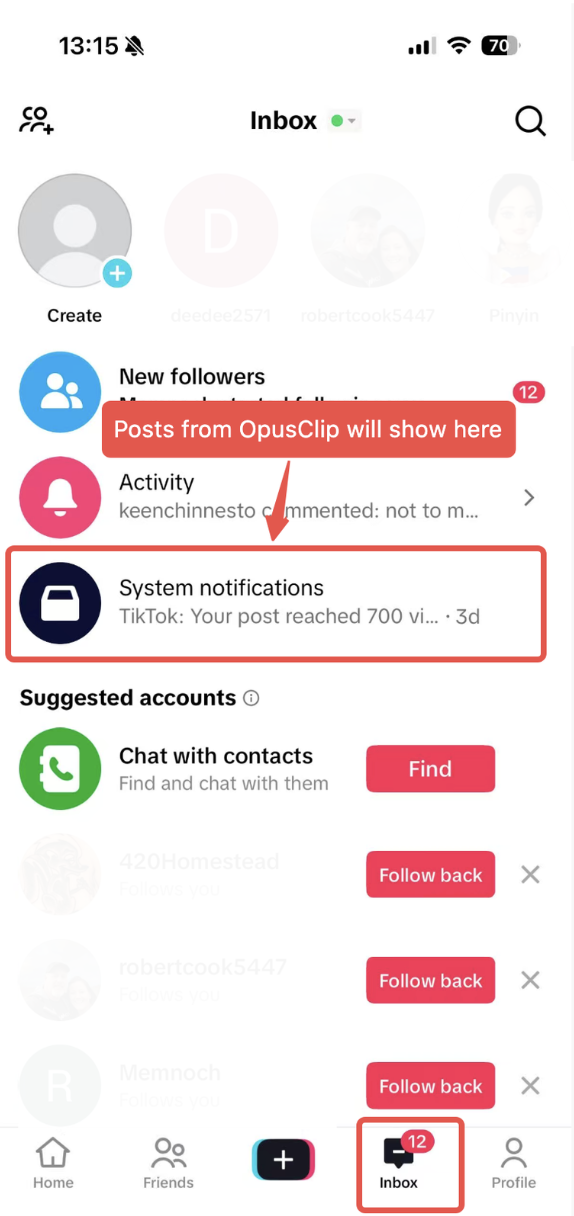
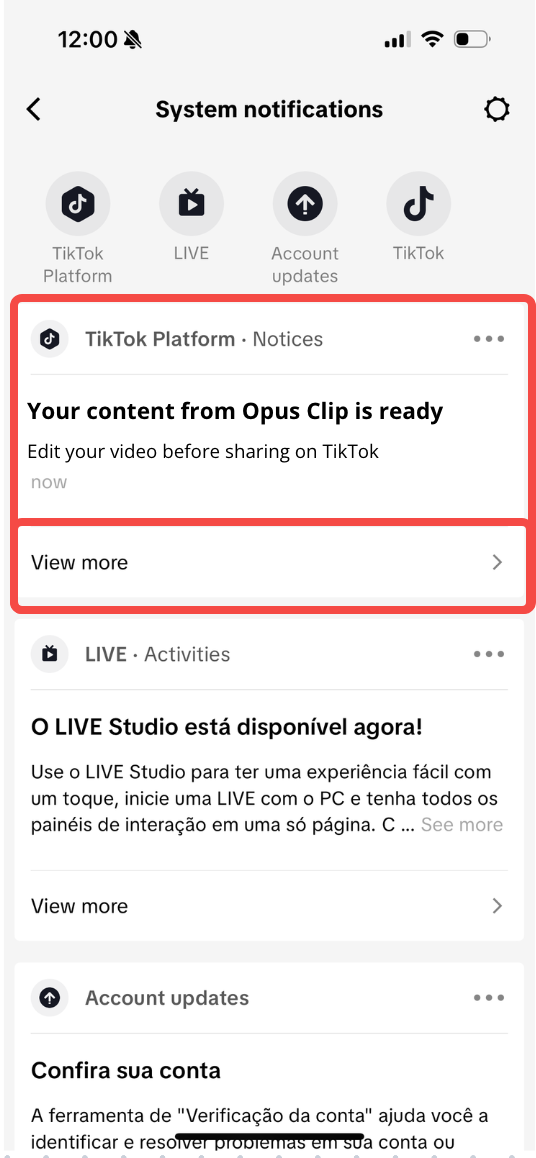
1. **Open TikTok on your mobile device**: click on "Inbox" and then tap "System Notifications". There you will see a notification that your clip is ready.
2. **Open your clip**: Tap on "View More" to see your clip.
# FAQ
## Why Can't I Schedule to TikTok Inbox?
Unlike TikTok Feed, clips are handed off to the TikTok mobile app as **draft notifications on your selected date and time** — not published or pre-scheduled posts to your Feed.
If you want to post automatically to TikTok in advance, consider using the **Feed** option.
## Can I edit the clip before posting?
Yes. Once the clip appears in your TikTok Inbox (under **System Notifications**), you can trim, add music, captions, filters, or text using TikTok's native editing tools before publishing.
## Where does the clip go after I click "Publish Now”?
For **TikTok Inbox** your clip is sent directly to the **TikTok mobile app** and appears under **Inbox → System Notifications**. It will not appear in your Drafts tab unless you manually save it there after opening.
For **TikTok Feed**, your clip can be found in your **profile**.
## What if I don't see the notification in TikTok?
* Make sure you're logged into the same TikTok account you connected in OpusClip
* Check **System Notifications**, not regular messages or Drafts
* If it still doesn't appear, try force-closing and reopening the TikTok app after 1-2 minutes
## Can I send the same clip again if I missed the notification?
Yes. Simply return to the clip in Opus, click the calendar icon again, and choose **Publish Now** to TikTok Inbox a second time.