> ## Documentation Index
> Fetch the complete documentation index at: https://help.opus.pro/llms.txt
> Use this file to discover all available pages before exploring further.
# Why is my clip resolution low?
## Why is my resolution low?
Before we proceed, please ensure the following:
1. Are you viewing preview videos on the results page? These previews are in low resolution. To see them in HD, you need to export the videos.
2. After uploading a video to YouTube, it may take some time before it becomes available in HD, as processing is required.
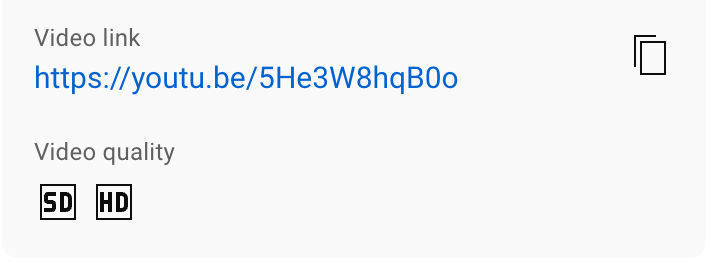
How to check if your YouTube video is in HD:
1. Open **YouTube Studio**.
2. Click into the **Detail Page** of that video
3. You will be able to see the **HD icon** if it's in HD
## How does OpusClip crop my videos?
We won't compress your videos to a lower resolution, but we will crop them. Here's how we determine the output video sizes based on different input sizes:
* 4K original video (3840 x 2160) cropped to a 9:16 aspect ratio results in an output of 1215 x 2160.
* 1080p original video (1920 x 1080) cropped to a 9:16 aspect ratio results in an output of 608 x 1080.
If either the width or height is below 1080, we will upsample it to an output of 1080 x 1920, ensuring the minimum resolution remains 1080p.