> ## Documentation Index
> Fetch the complete documentation index at: https://help.opus.pro/llms.txt
> Use this file to discover all available pages before exploring further.
# Download Transcripts & Subtitles of Your Original Video
Pro plan users can download transcripts & subtitles of your original videos directly from the result page and dashboard.
## How to Download?
There are two ways to download your transcript or subtitle file.
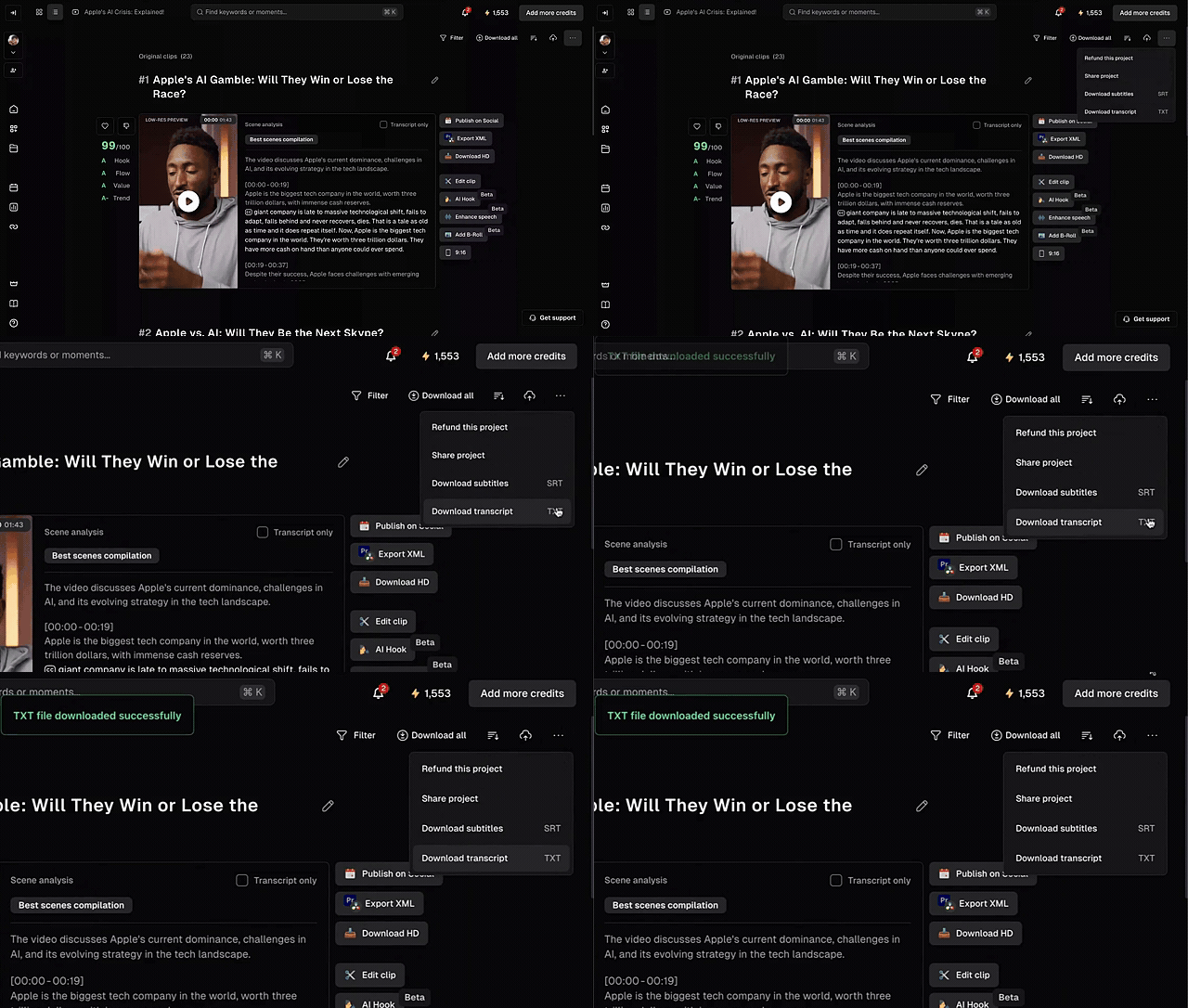
1. **From the Result page**
* Go to your project result page
* Click the '**More**' menu, and you will see 2 options
* **Download Transcript**
* **Download Subtitles**
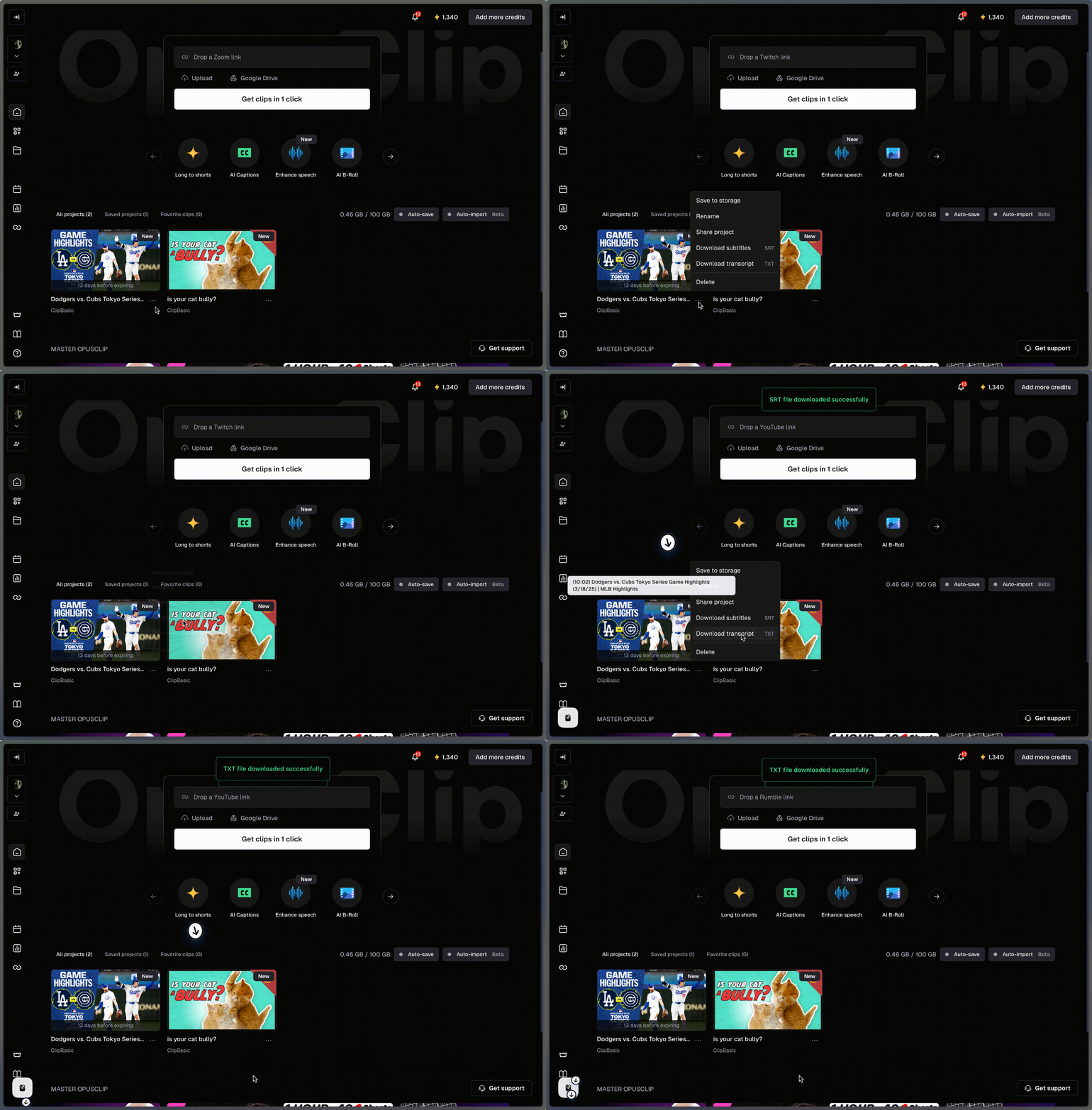
2. **From the Dashboard**
* Go to your dashboard and select a project.
* You can click '**More**' to download your subtitles or transcript.
## What Format Is Supported?
* **Download Transcript** → .txt file
* **Download Subtitles** → .srt file (subtitle format compatible with YouTube and other video platforms)