> ## Documentation Index
> Fetch the complete documentation index at: https://help.opus.pro/llms.txt
> Use this file to discover all available pages before exploring further.
# Connecting Your Instagram Professional Account (Business or Creator accounts)
Instagram offers three profile types: Personal, Business, and Creator. All Instagram accounts start off as Personal by default, but you can convert a Personal or Creator profile to a Business profile at any time.
Due to limitations from Instagram, **you can only connect Business and Creator profiles to OpusClip**.
## How to Check Your Instagram Account Type
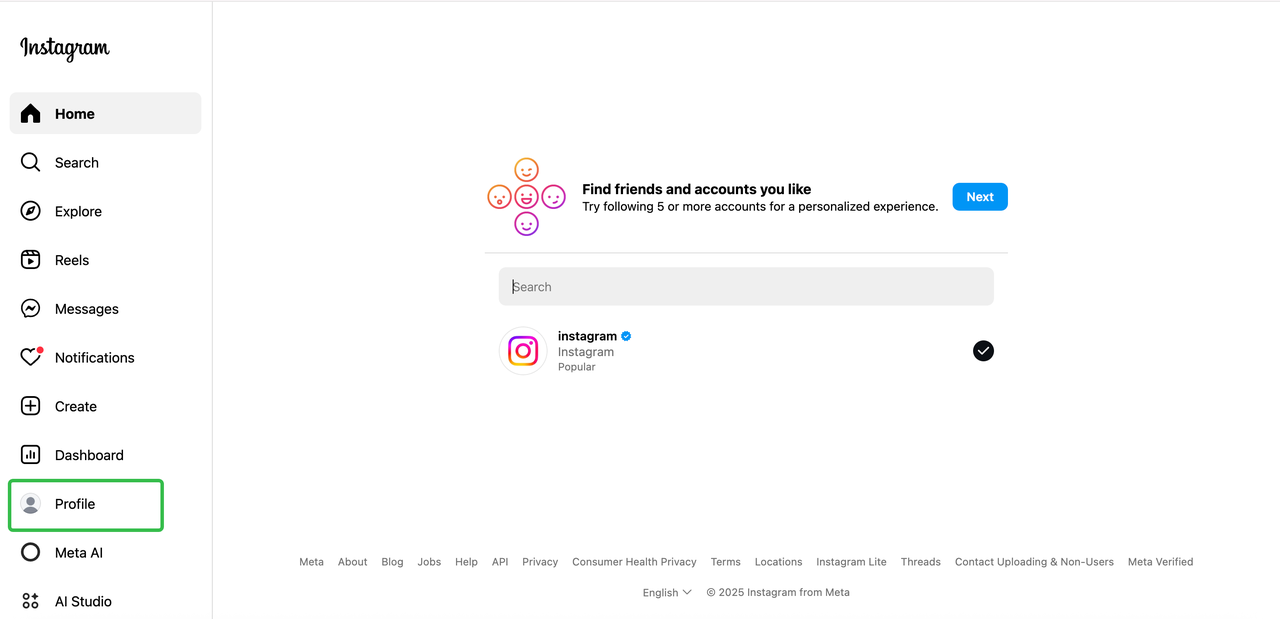
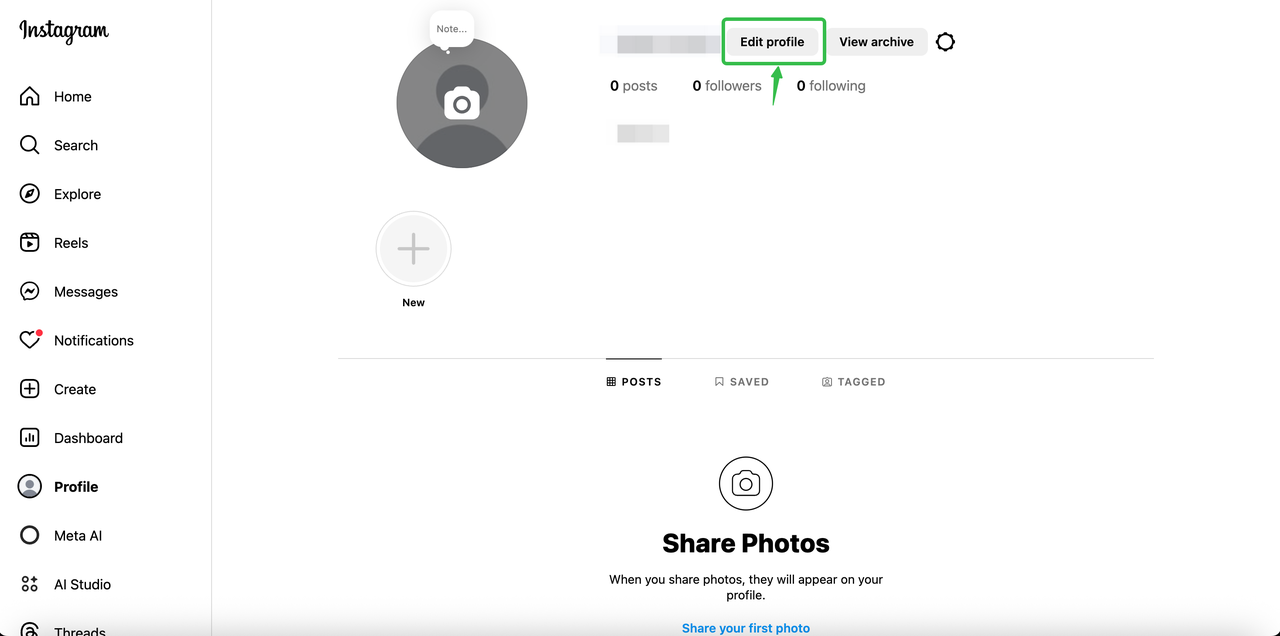
1. Open the Instagram app and go to your profile.
2. Tap the Edit profile in the top-right corner.
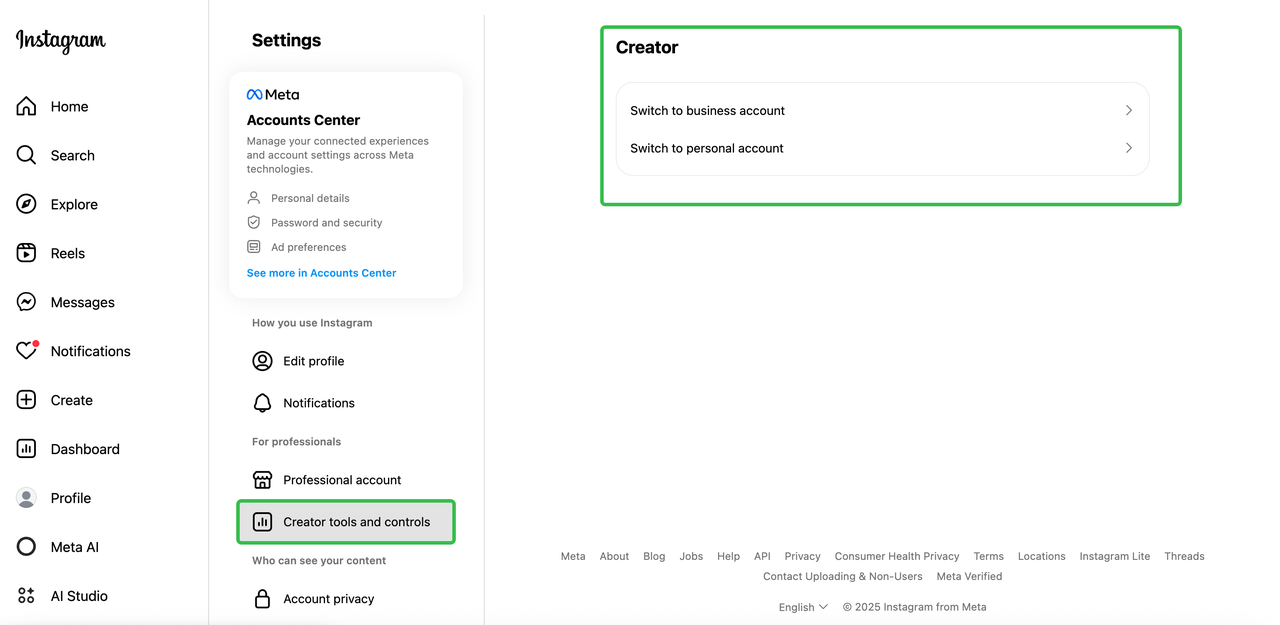
3. At the bottom of the menu, look for one of the following:
* **Business tools and controls** = Business account
* **Account type and tools** = Personal account
* **Creator tools and controls** = Creator account
In the case below, it's a creator account.
## Convert to a Professional Account (Business or Creator)
1. Select **Switch to professional account**.
2. Note: If you see **business tools and controls** instead, your account is already professional. Try reconnecting or refreshing your Instagram channel in OpusClip.
3. Tap **Continue** and follow prompts until you reach **Category Selection**. Choose a category.
4. Select **Business** or **Creator** to complete the setup.
## If You Have Multiple Instagram Accounts Linked to Facebook
If you have multiple Instagram accounts linked to the same Facebook account, you may run into issues when connecting your Instagram account to OpusClip via Facebook login. This is a known limitation with how Facebook handles multi-account authentication.
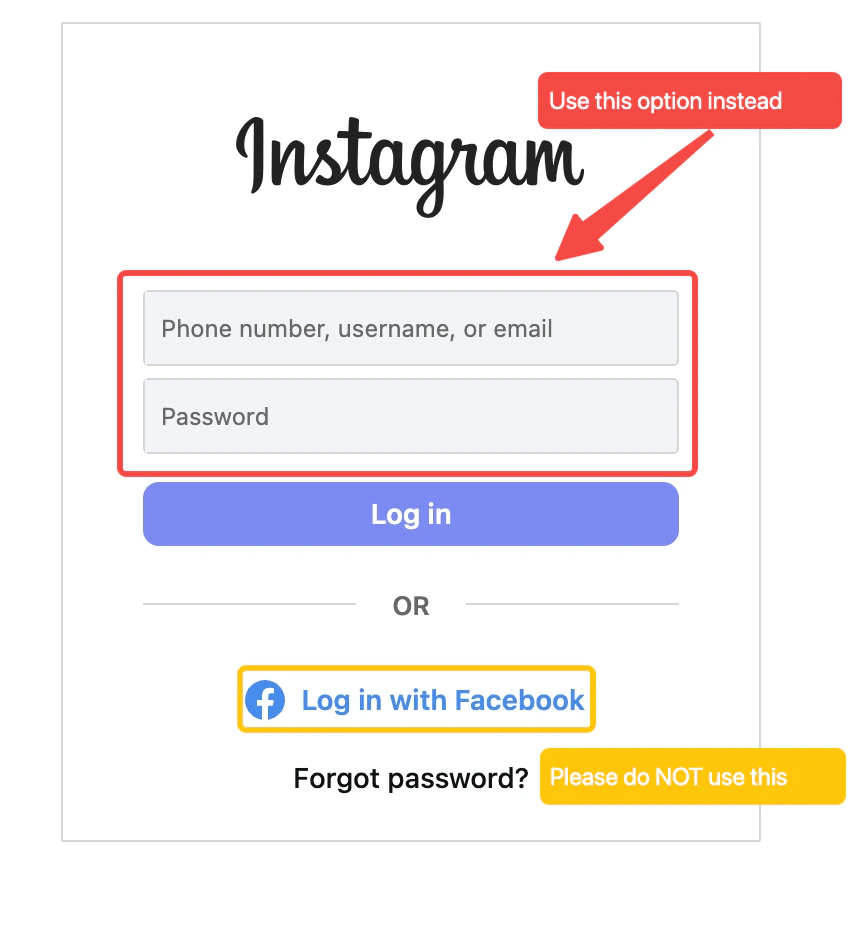
**Workaround:** Use your Instagram username and password directly
1. In OpusClip, go to **Add Social Accounts** and select **Instagram**
2. When Instagram's login screen appears, entering the credentials for the **specific Instagram business/creator account** you want to connect
3. Click the **Log in** button — the blue button
**NOTE:** Please avoid clicking **"Log in with Facebook"** on this Instagram login screen
Once logged in, complete the connection flow as normal.
## Need More Help?
[Learn about what is a professional account from Instagram](https://help.instagram.com/138925576505882/?helpref=related_articles)
[How to set up a creator account on Instagram](https://help.instagram.com/2358103564437429?helpref=faq_content)
[Set up a business account on Instagram](https://help.instagram.com/502981923235522?helpref=faq_content)