> ## Documentation Index
> Fetch the complete documentation index at: https://help.opus.pro/llms.txt
> Use this file to discover all available pages before exploring further.
# Change or Remove Captions
## How to edit captions?
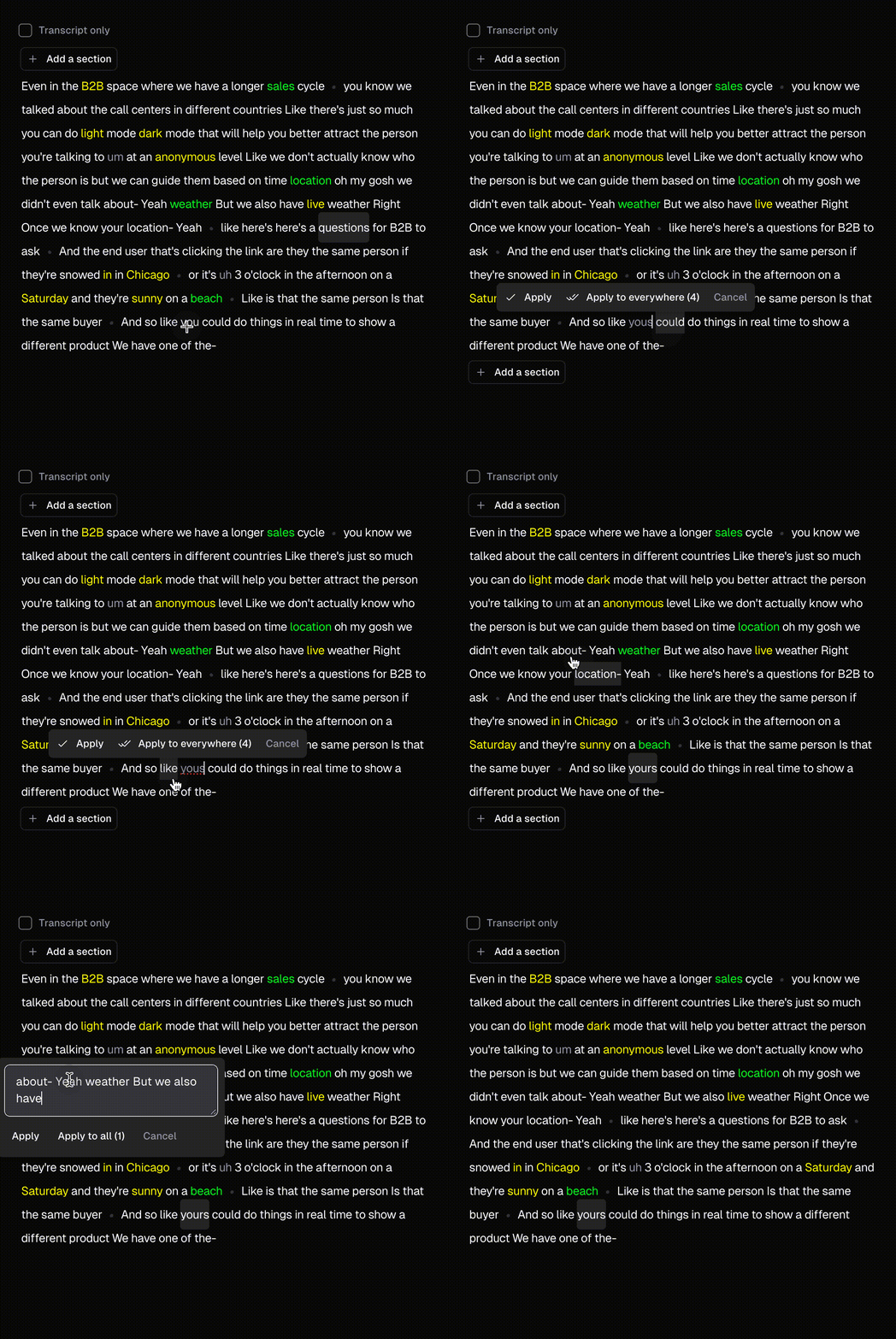
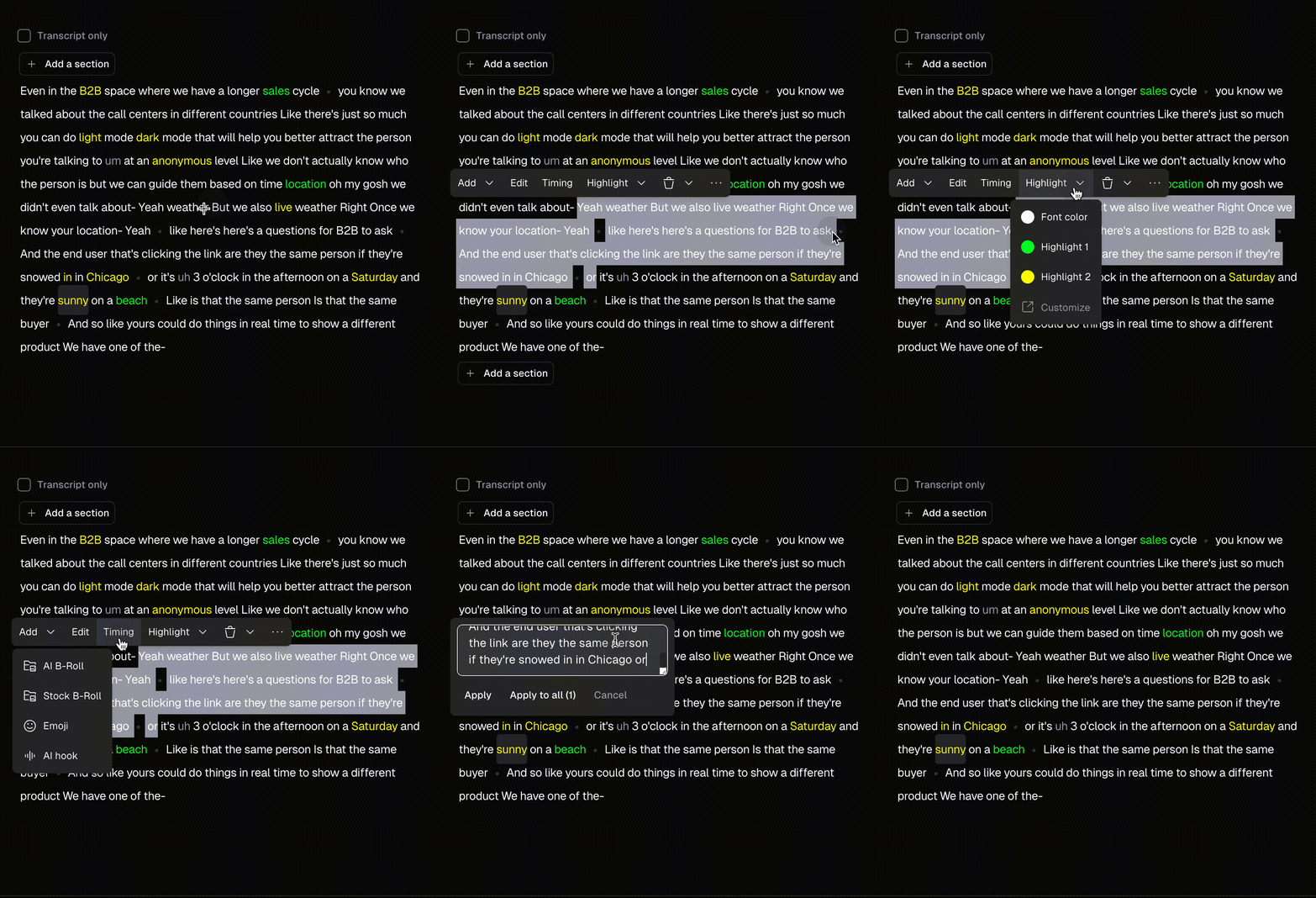
To edit captions, select a specific word/sentence and then click the **Edit** button.
## How can I change captions position?
You can change the caption position as you like in Brand tab of editing page.
## Can I change the caption fonts and color?
Yes you can! To do so, simply go to the editing page, and then click the “Captions” tab where you can find fonts section. You can change font style/size/color/stroke/shadow, and uppercase/lowercase all texts.
## Truncated words show in two lines in my captions
Please use a smaller font if your captions get truncated.
## How can I fix it when some captions are not being added?
You can manually add missing/fix incorrect captions by clicking on the word in the Captions Editor, and type your corrections into the script.
## Can I select and edit more than just one word?
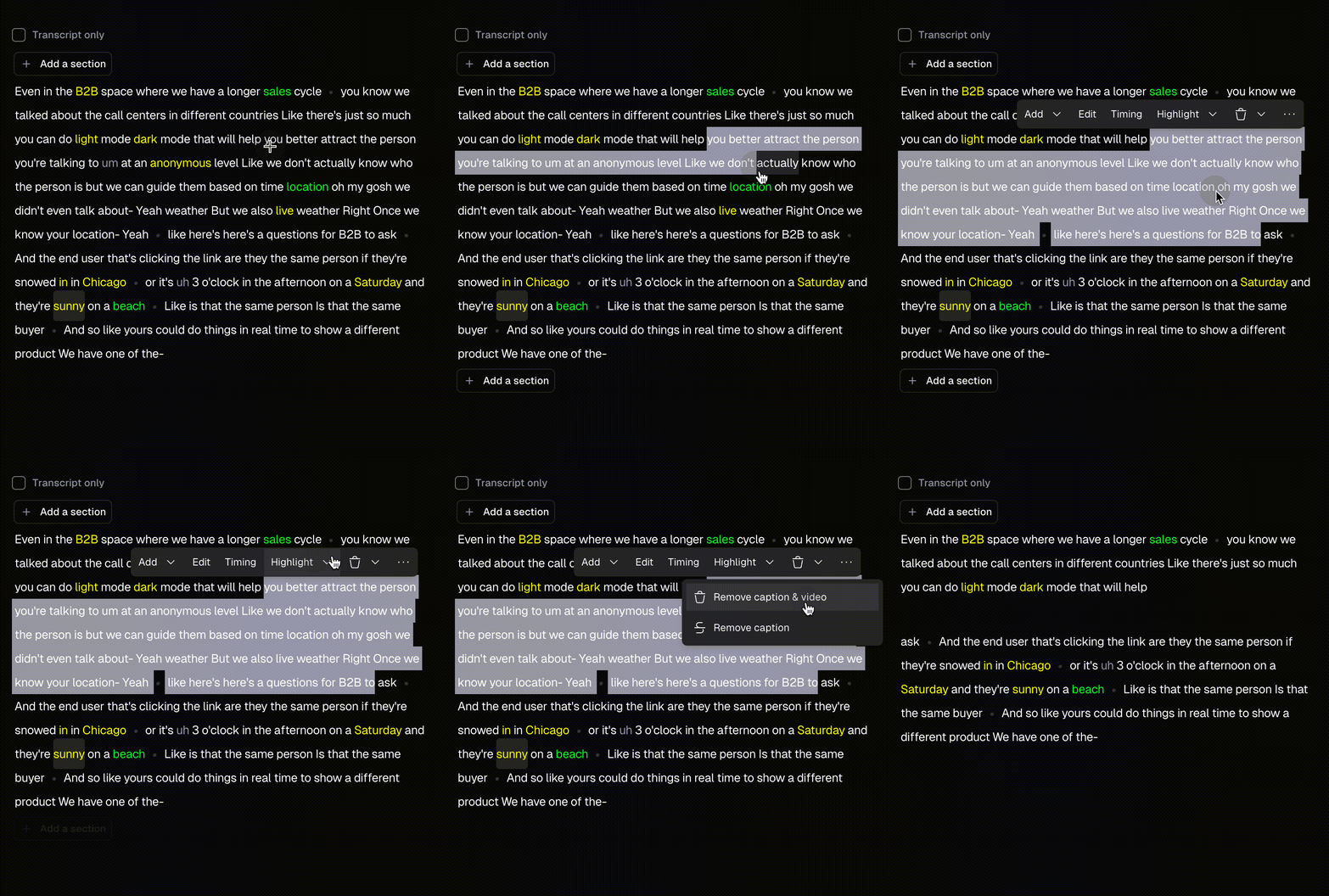
Absolutely! You can select multiple words, phrases, and even entire sentences at once. Simply enter the editing box to correct and make changes to them. You have the option to correct, remove captions only, or delete both the captions and the video for the selected words.
## How to trim or remove unwanted sentences from clips?
You can trim unwanted sentences/footage in two methods:
* Method 1: Select the section you want to remove from the text and click **Delete**.
* Method 2: Drag the beginning and end of selected segment in the timeline editor to trim it.
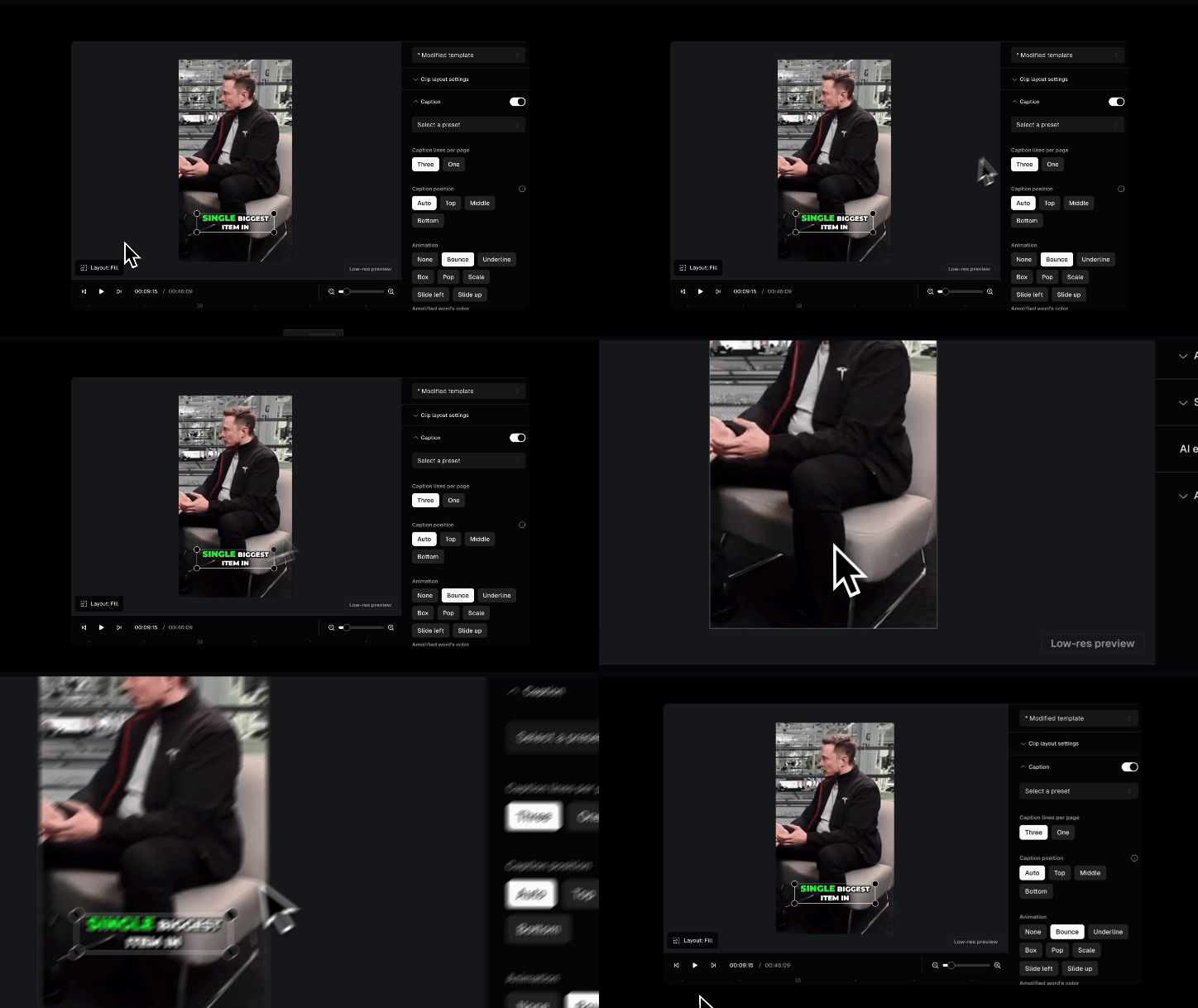
## Move Caption Position
You can now **drag and reposition captions anywhere** on the main canvas in the editor!
## Add a new section to your clip
To refine your hook, extend your clip, or add a section from another part of your video, click **Add a Section** at the start or end of the transcript.
Then, select the desired section from the full transcript and click **Add**.
## How to remove captions completely?
* **For new projects (prevent captions from generating)**
The easiest way to avoid captions is to set up a no-caption **brand template** prior to submitting a project:
1. Go to **Brand Template** and create a new template
2. Turn off the captions toggle in the template settings
3. Select this template when submitting a new project
This prevents captions from being generated entirely, so you won't need to click into each clip to remove caption manually afterward.
* **For existing projects**
If your clips have already been generated with captions, you'll need to turn off caption for each clip individually in the editor.
Please note that we currently do not have a **bulk caption edit** feature. Each clip must be edited individually.
* **For hardcoded captions**:
If the captions are already hardcoded (burned into the video itself), there unfortunately isn't a way for OpusClip to remove them.
The only way to avoid those captions would be to use a version of the source video that doesn't have captions burned in.