> ## Documentation Index
> Fetch the complete documentation index at: https://help.opus.pro/llms.txt
> Use this file to discover all available pages before exploring further.
# Auto Text Overlay Hook
## What Is Auto Text Overlay Hook?
Auto Text Overlay Hook automatically generates a short, one-line text overlay that appears at the beginning of your clip. The hook is designed to:
* Provide instant context to viewers
* Capture attention in the opening seconds
* Improve short-form retention and engagement
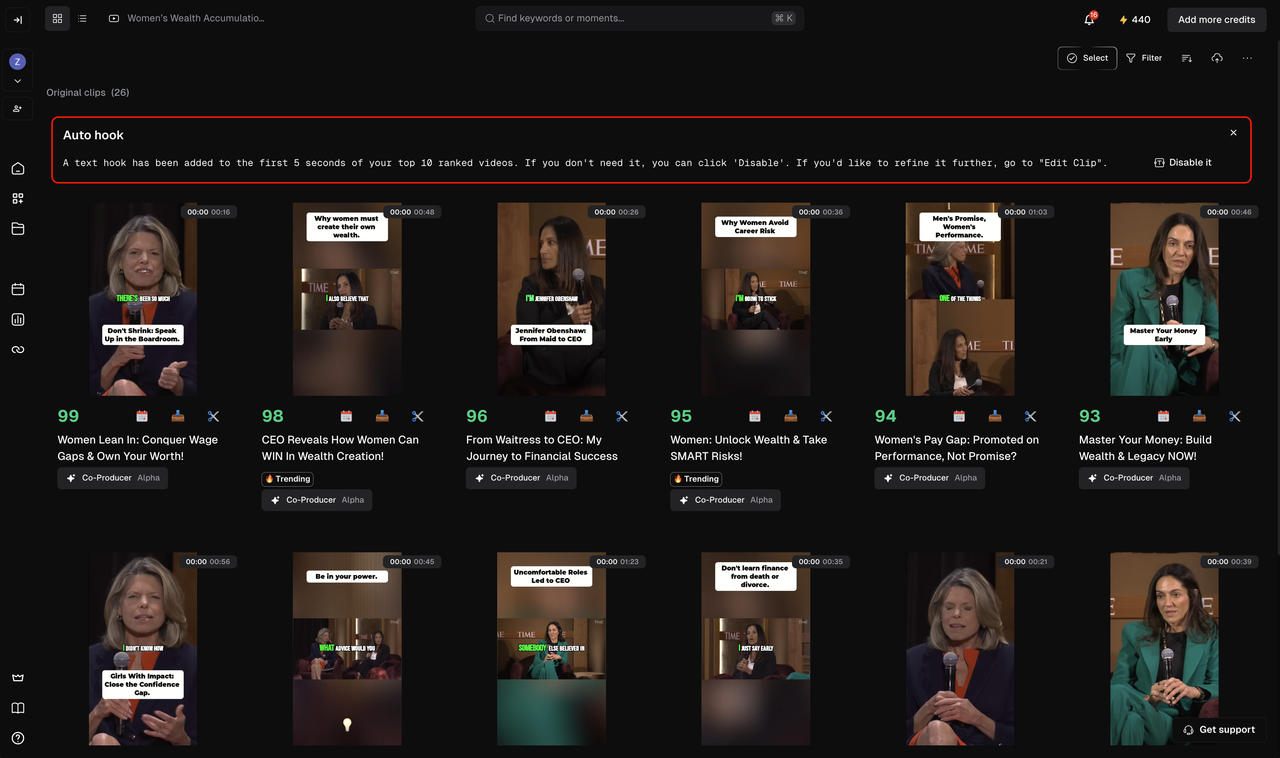
When enabled, OpusClip applies the hook to the **top 10 generated clips** in your project.
## How It Works
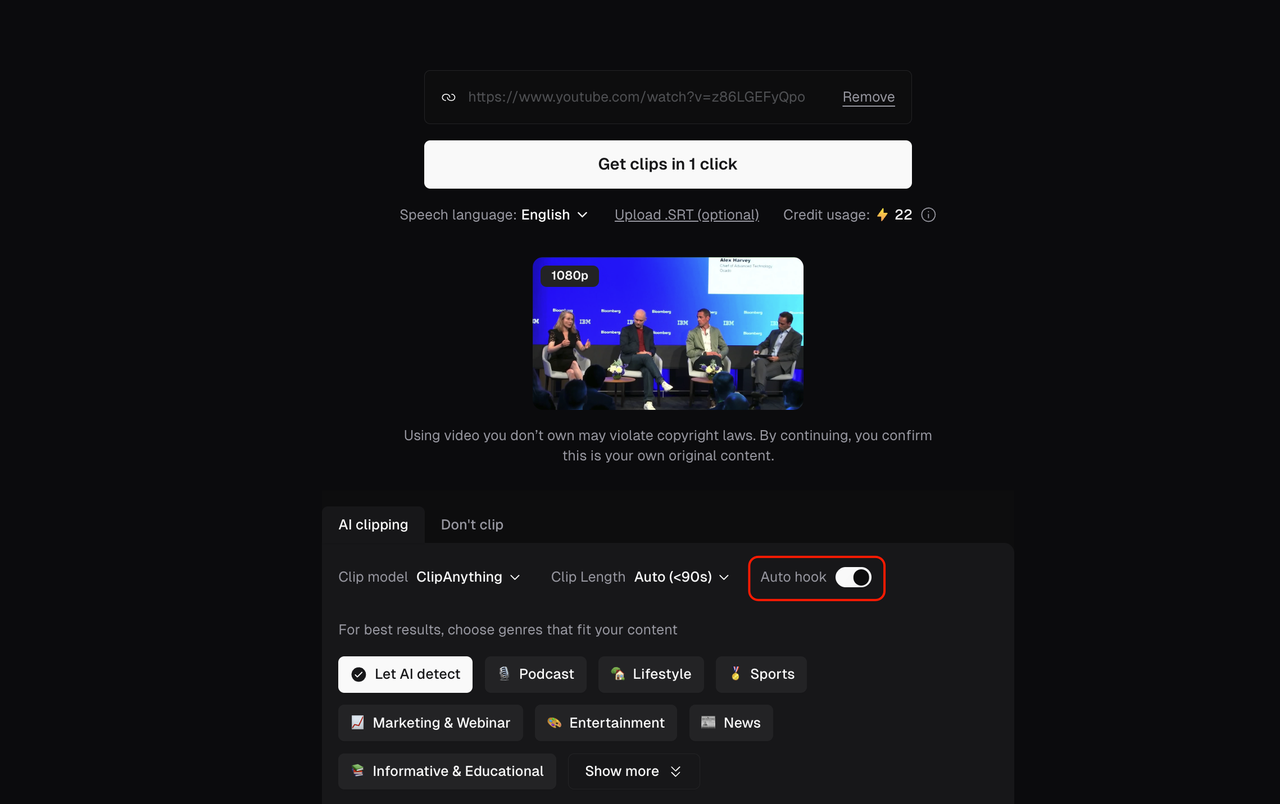
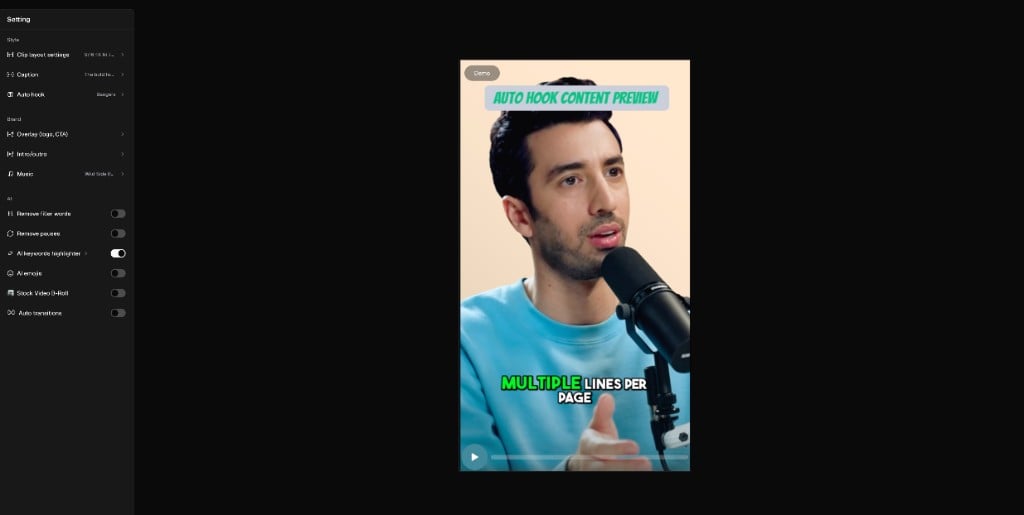
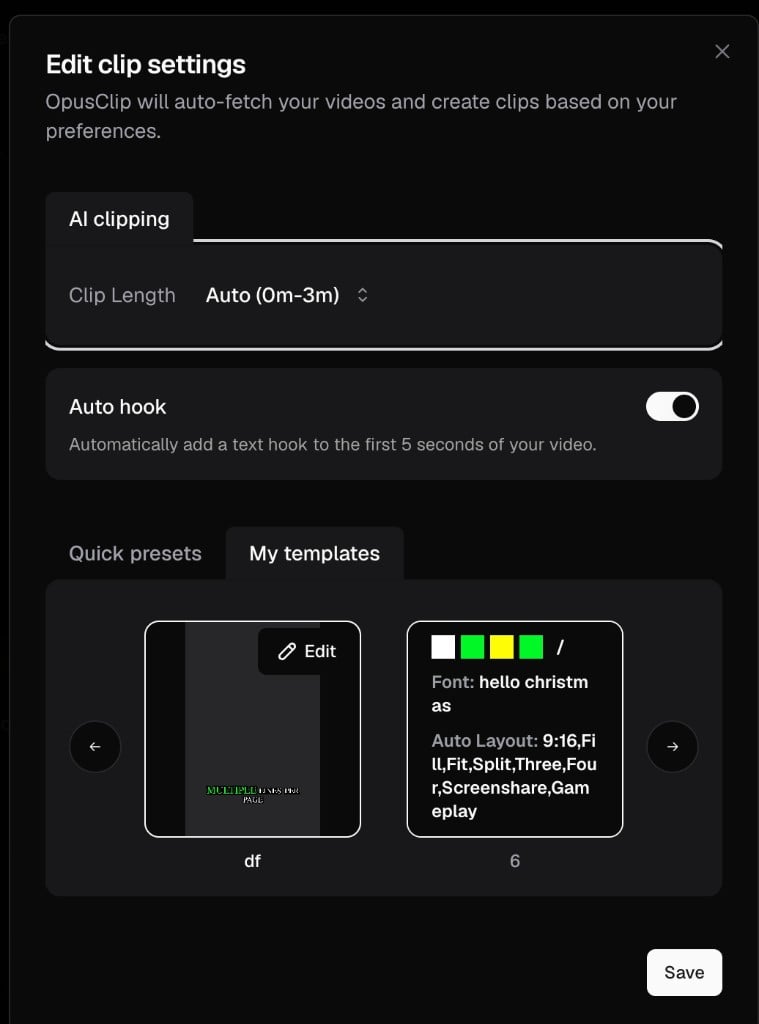
1. You can enable **Auto Hook** from multiple places: the **Submit Panel** when uploading, the **editor**, and your **auto-import** settings. It's turned on by default for manual uploads and off by default for auto-imported videos.
2. OpusClip analyzes your content and generates a one-line text overlay hook.
3. The hook is automatically added to the beginning of each of the top 10 clips.
4. You can review the clips on the **Results Page** as usual.
5. We also provide a notice banner at the top of this page to quickly disable it. If you click "disable", the auto text will be disabled, and you can enable it again when submitting the project. The next **five projects you submit** will also display a reminder banner related to Auto Text Overlay Hook.
When uploading, you can toggle **Auto hook** directly in the submit panel:
On the **Results Page**, a banner lets you disable the hook or refine it further:
## Style Your Hook with Brand Templates
You can customize how the Auto Hook looks — **font, size, weight, font color, word background color, corner radius, and text box width** — in the **Auto Hook** section of your Brand Template. The style is saved once and applied automatically to all clips generated with that template. See [How to add a Brand Template](/docs/article/how-to-add-a-brand-template) for details.
## Auto Hook with Auto Import
Auto Hook now works with [Auto Import](/docs/article/auto-import). Turn it on in your auto-import / playlist settings, and the Auto Hook style from your Brand Template is applied automatically to clips generated from your imported videos.
Auto Hook is not applied to videos brought in through Zapier.
## Turning Auto Text Overlay Hook On or Off
* Disable: If you turn off the Auto Hook toggle before submitting, none of the generated clips will include the text overlay hook.
* Re-enable: You can turn the toggle back on when submitting a new project.