> ## Documentation Index
> Fetch the complete documentation index at: https://help.opus.pro/llms.txt
> Use this file to discover all available pages before exploring further.
# Auto Import Your Latest YouTube Videos
## What is Auto Import?
Auto Import lets **Pro** and **Starter** users **automatically process** their latest public YouTube videos into clips.
No more manual uploads — just log into OpusClip, and your videos are **already imported and ready to use.**
## How to Set Up Auto Import
1. Go to your OpusClip dashboard.
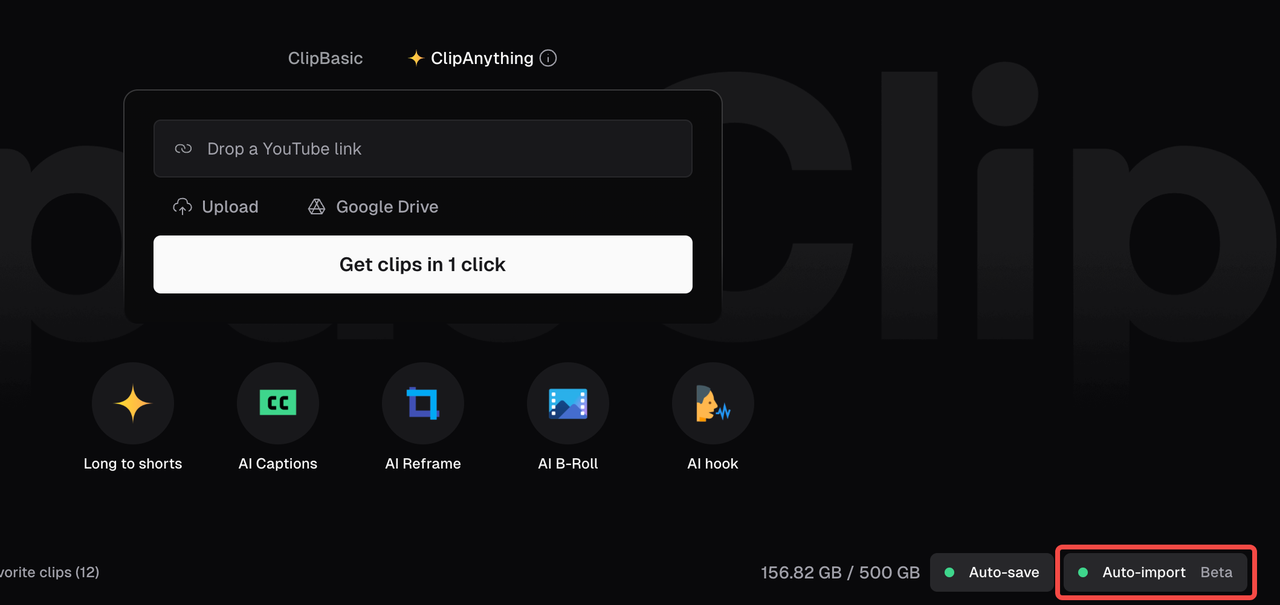
2. Click the "**Auto Import**" button on the right-hand side.
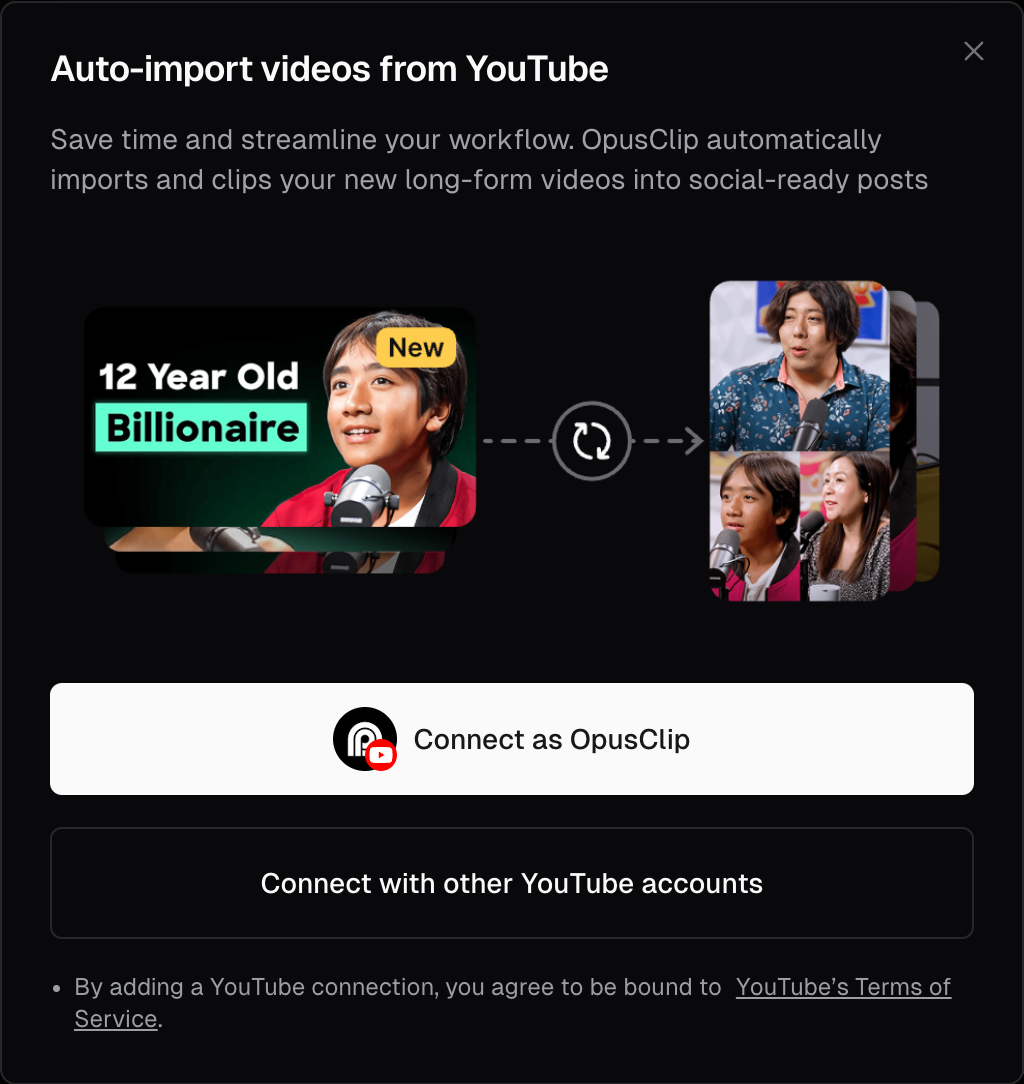
3. Sign in with your YouTube/Google account and grant OpusClip permission to connect to your youtube channel.
If you have already connected to your YouTube channel from the scheduling feature, you can enable auto import without having to re-connect your channel again.
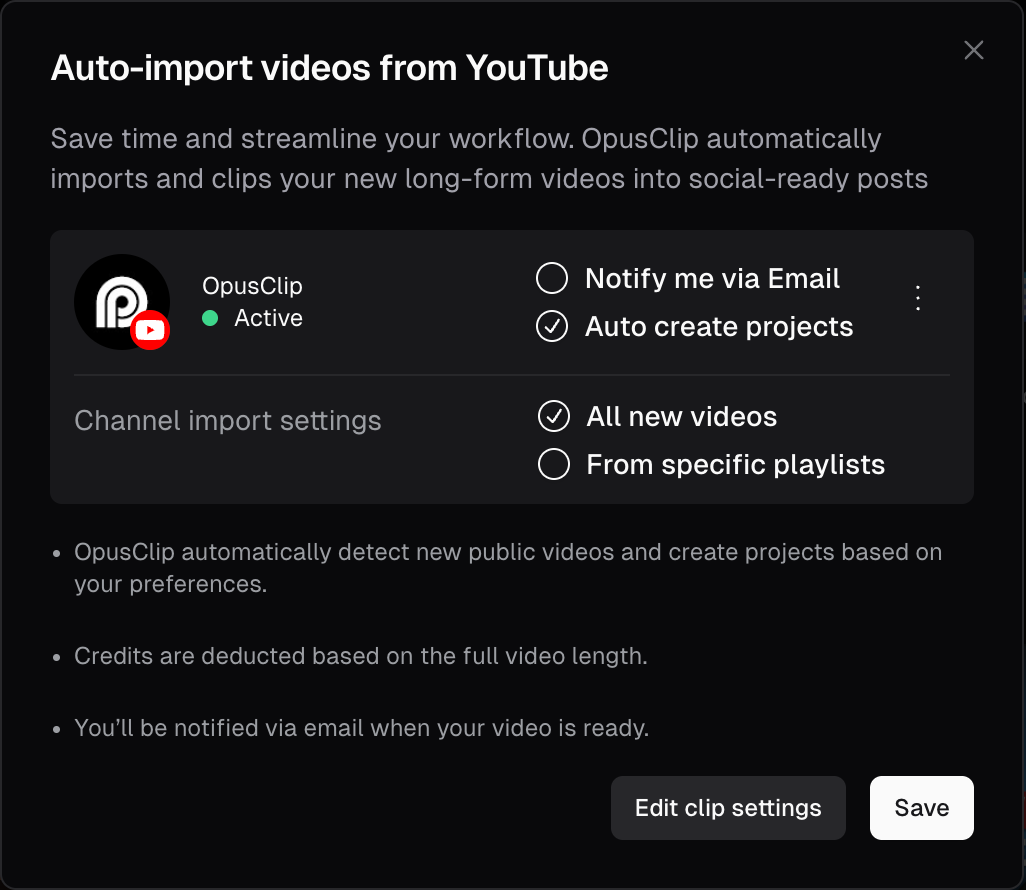
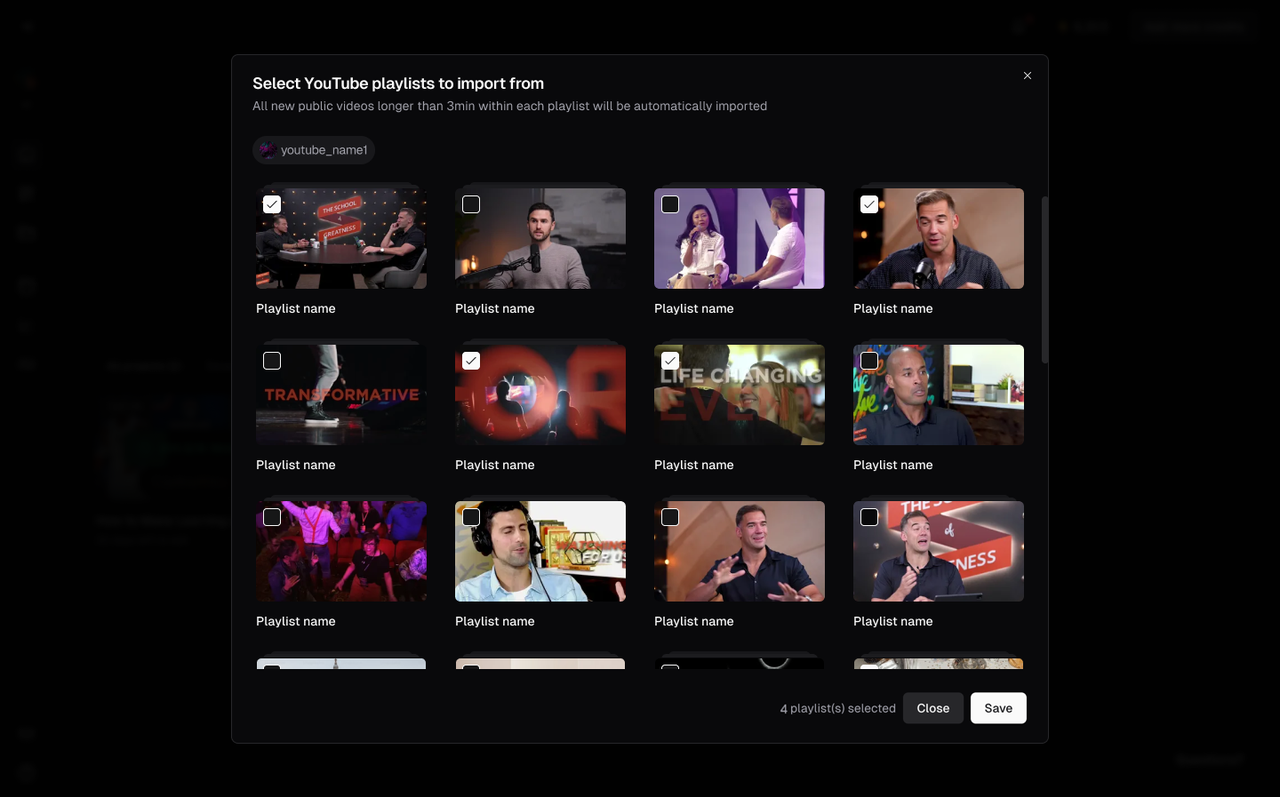
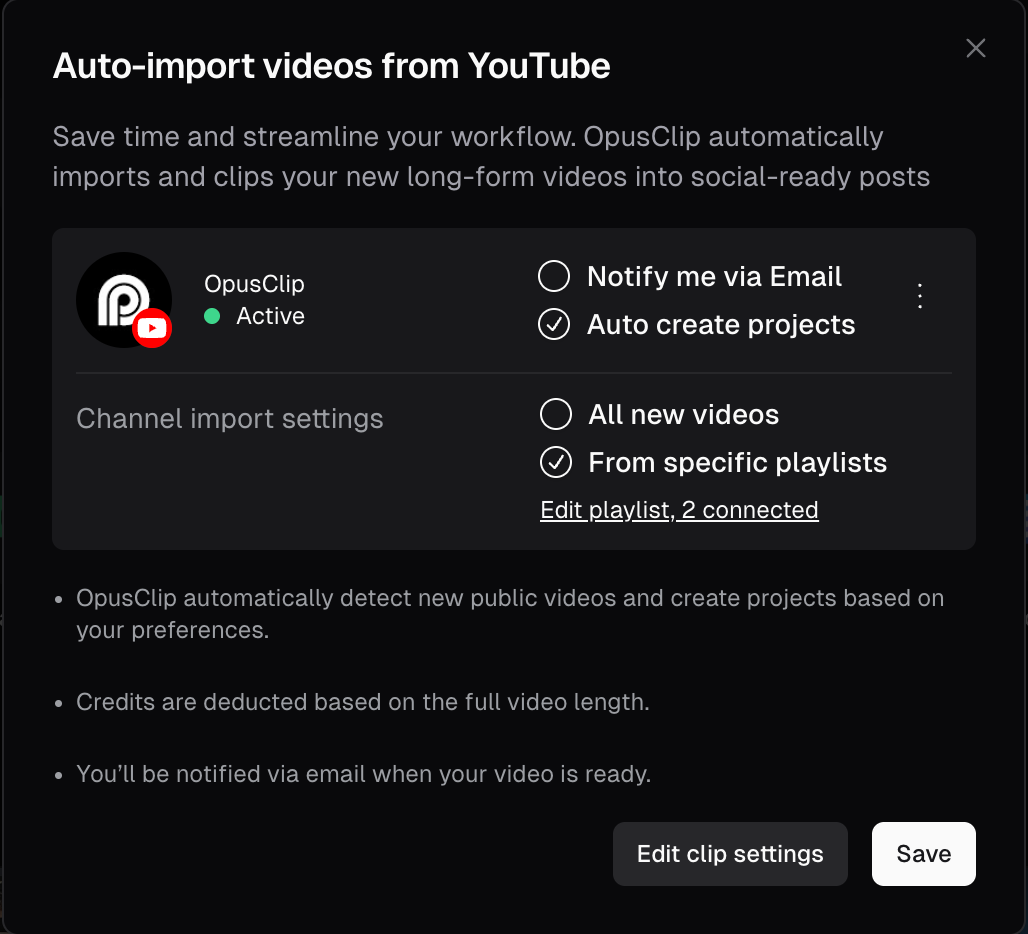
4. Once connected, OpusClip will check for new videos and process them based on your chosen settings. You can choose to have OpusClip pull all your new (longer than 3minutes) public videos, or pull only from specific public playlists:
## Processing Options
**✔ Notify me via Email (Manual Processing)**
* OpusClip will send you an email when a new video is detected.
* You can manually decide whether you want to clip the video.
**✔ Auto create projects (Automatic Processing)**
* OpusClip will **automatically process your new videos** using your saved clip settings.
* No need to log in or start processing manually—your videos will be ready when you open OpusClip.
* Credits will be deducted based the full video length.
You can change your processing preference and clip settings anytime in **Dashboard > Auto Import**.
## How to Manage Auto Import Settings
You can update or disable Auto Import at any time by going to **Dashboard -> Auto Import**:
* **Switch between Manual** (Email Reminder) **and Auto Processing**
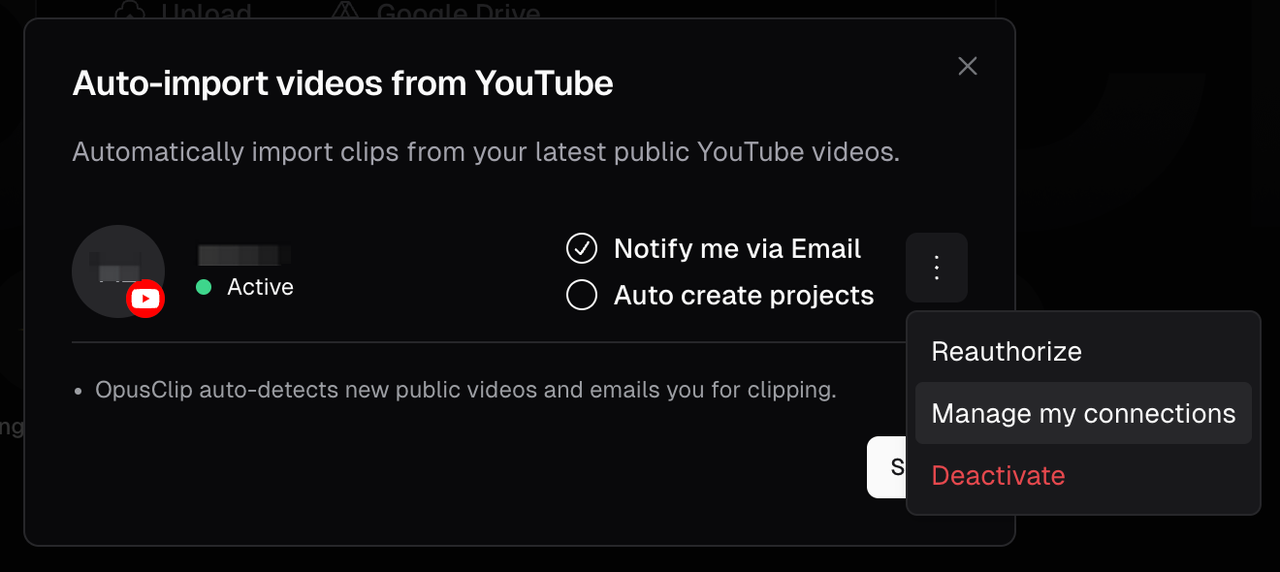
* **Reauthorize your channel** if you have not used OpusClip and the youtube connection is lost
* **Re-enable Auto Import** by following the setup steps above again
* **Manage your connections** to toggle between channels you want OpusClip to pull from
* **Specify playlists** to pull from by selecting "From specific playlists".
## How to manage clip settings?
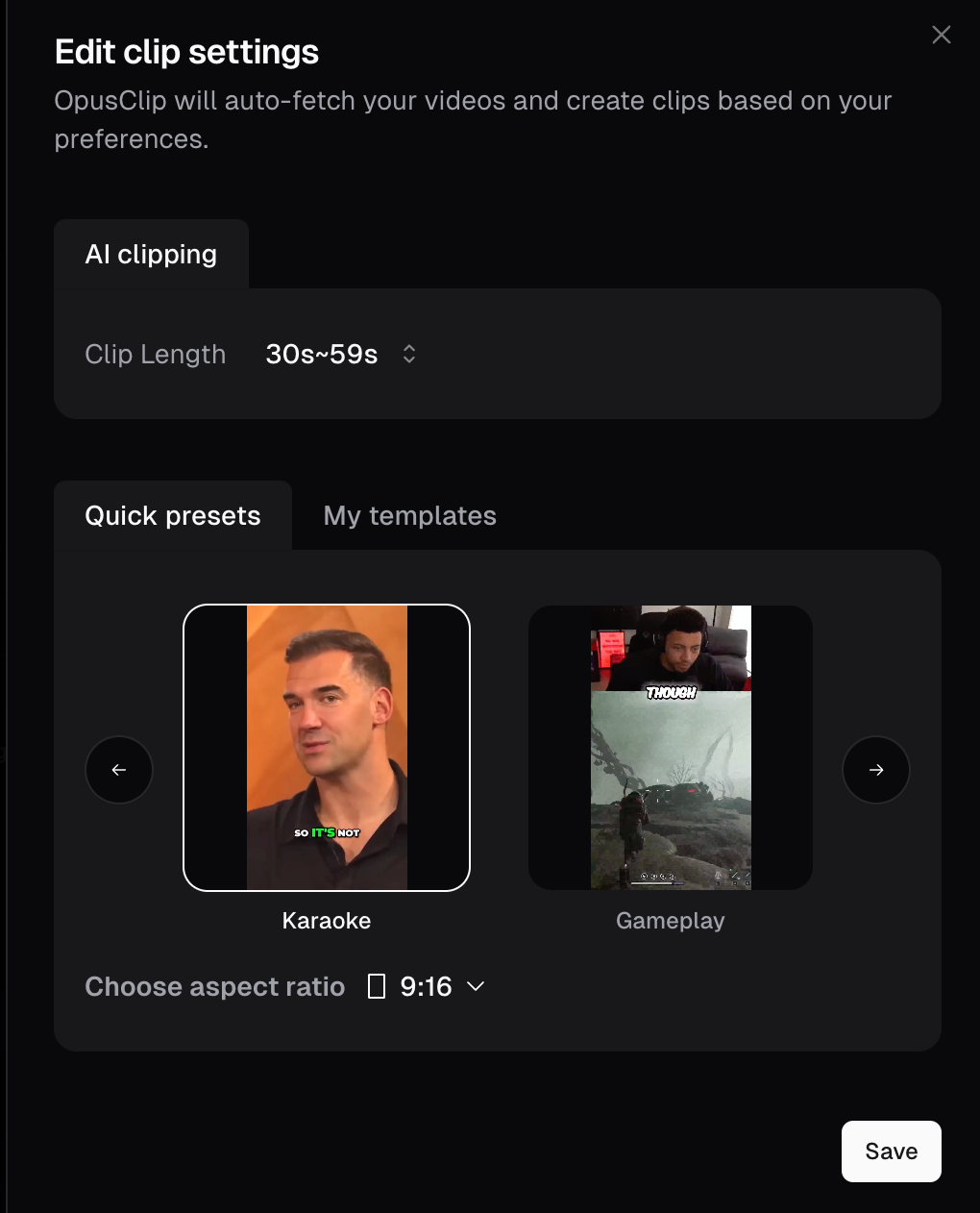
* You can pre-select your preferred clip length and presets/template for each video detected
* We will use your last-used model for clipping (ClipAnything or ClipBasic) to process your videos.
* **Auto Hook**: Enable Auto Hook in your Auto Import / playlist settings to automatically add the text overlay hook to clips created from imported videos. The hook uses the style set in your [Brand Template](/docs/article/how-to-add-a-brand-template). Learn more in [Auto Text Overlay Hook](/docs/article/auto-text-overlay-hook).
## When will my video be processed by OpusClip?
* We will check if new videos are available **every hour**. Please allow some time for YouTube to finish processing your video and bring your video to the highest resolution.
If you submit your video link to OpusClip before Auto Import detects it (e.g. between the regular checks), we will not auto create the same video again.
## What types of videos will Auto Import detect?
* Auto Import will only detect **your own public YouTube videos** that are **longer than 3 minutes, uploaded after your Auto Import set up**
* Private or unlisted videos will not be imported.
* Shorts and livestream videos will not be imported.
* If you have **specified playlist(s)** for OpusClip to pull from, only qualifying videos in the playlist(s) will be processed.
With **playlist selection**, you can control exactly **which videos** get imported, giving you more flexibility and better control over how your credits are spent.
## Will Auto Import work on older videos?
* Auto Import currently only detects newly uploaded videos after you link your channel.
* More custom Auto Import options will be coming soon!
## Why did my Auto Import fail?
* Your auto import may fail due to a few reasons:
* If you have downgraded to a Free plan
* If there isn't enough credits on your account to process the next video
* If we have lost access to your YouTube authorization due to inactivity