> ## Documentation Index
> Fetch the complete documentation index at: https://help.opus.pro/llms.txt
> Use this file to discover all available pages before exploring further.
# AI Video B-Roll (Powered by Agent Opus)
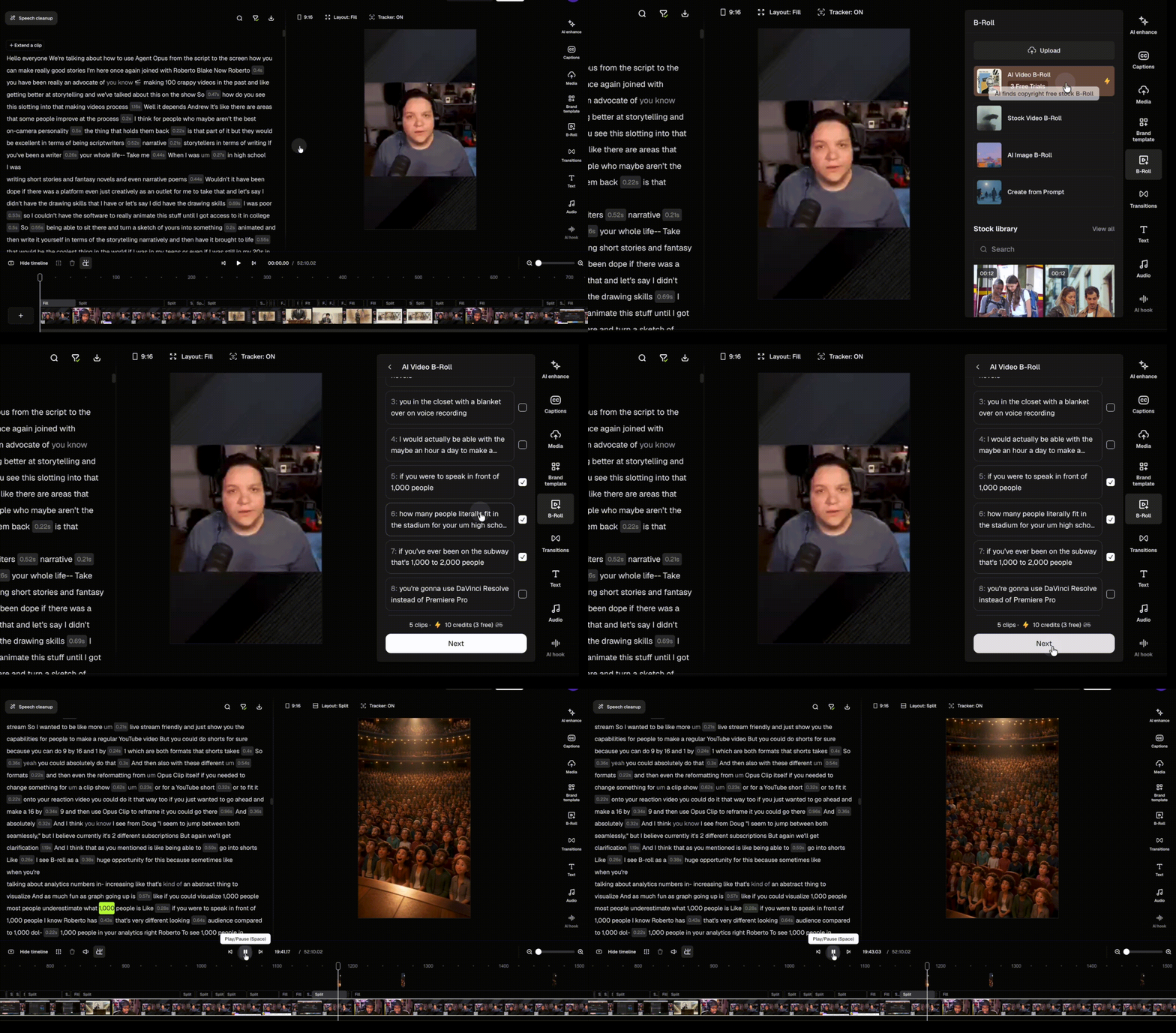
AI Video B-Roll lets you generate dynamic AI video clips powered by Agent Opus directly within the OpusClip editor.
## How to add AI Video B-Roll?
To add AI Video B-Roll:
1. Open your project in the OpusClip editor.
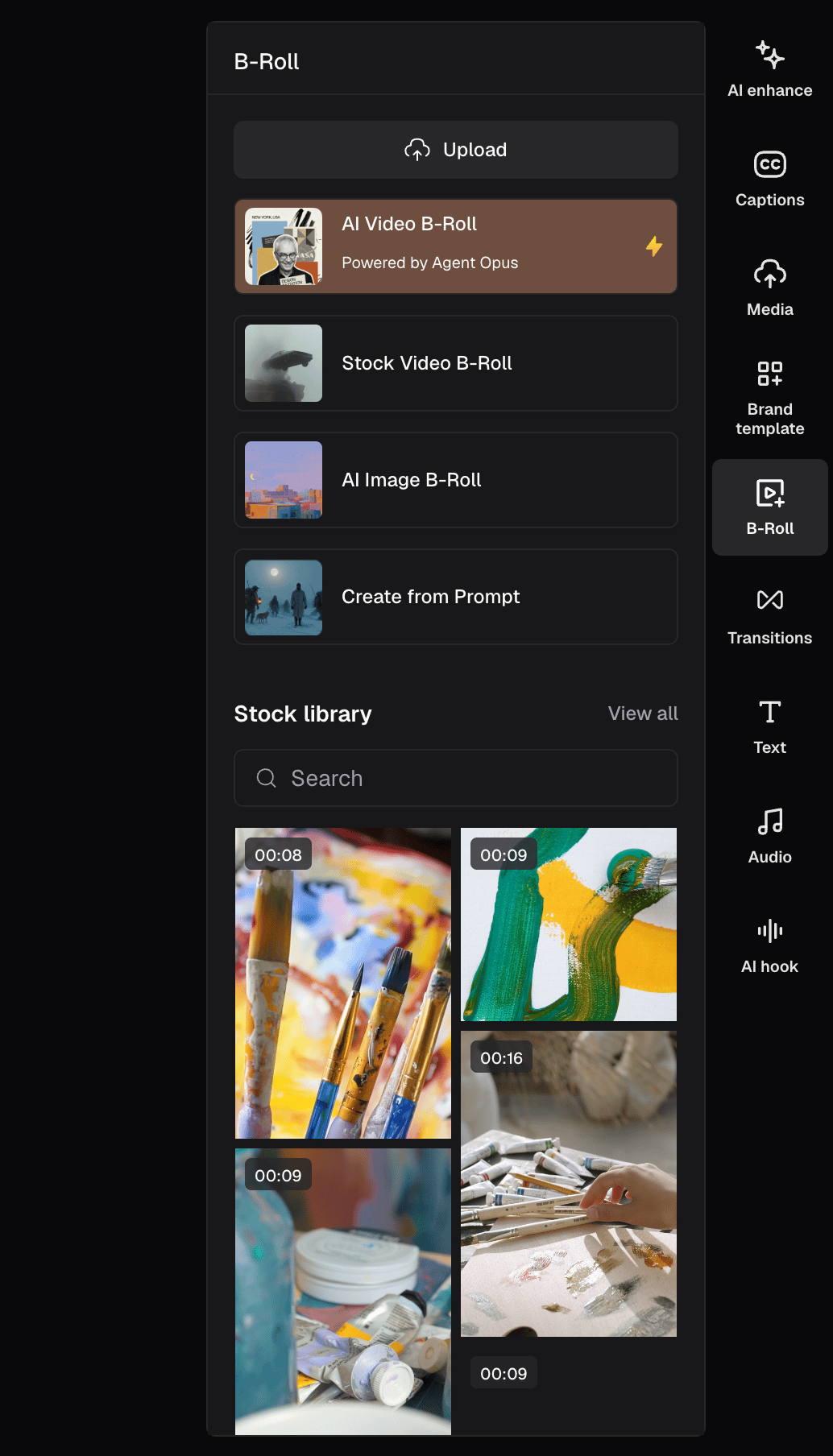
2. Click **B-Roll → AI Video B-Roll** from the right-side panel.
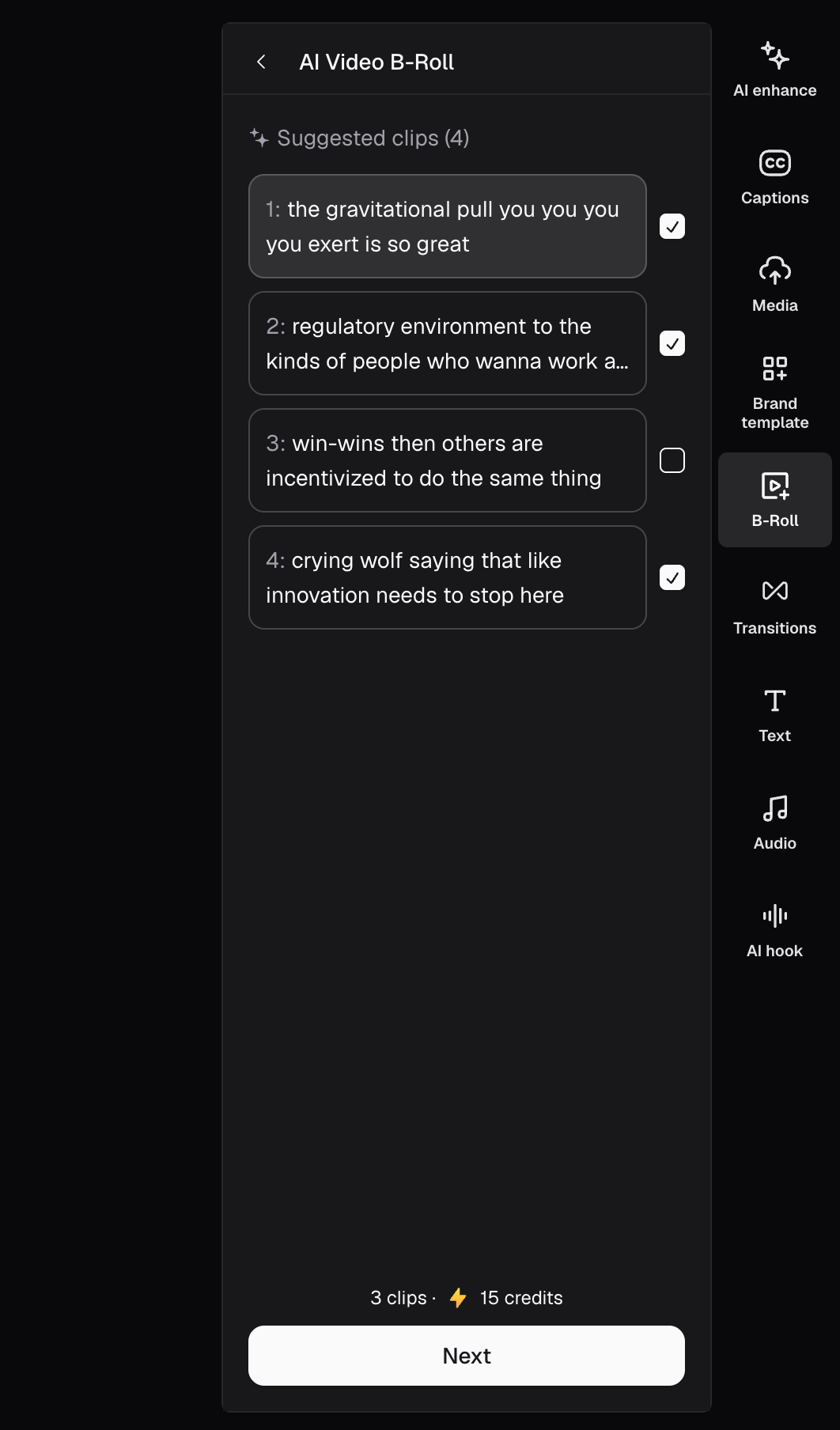
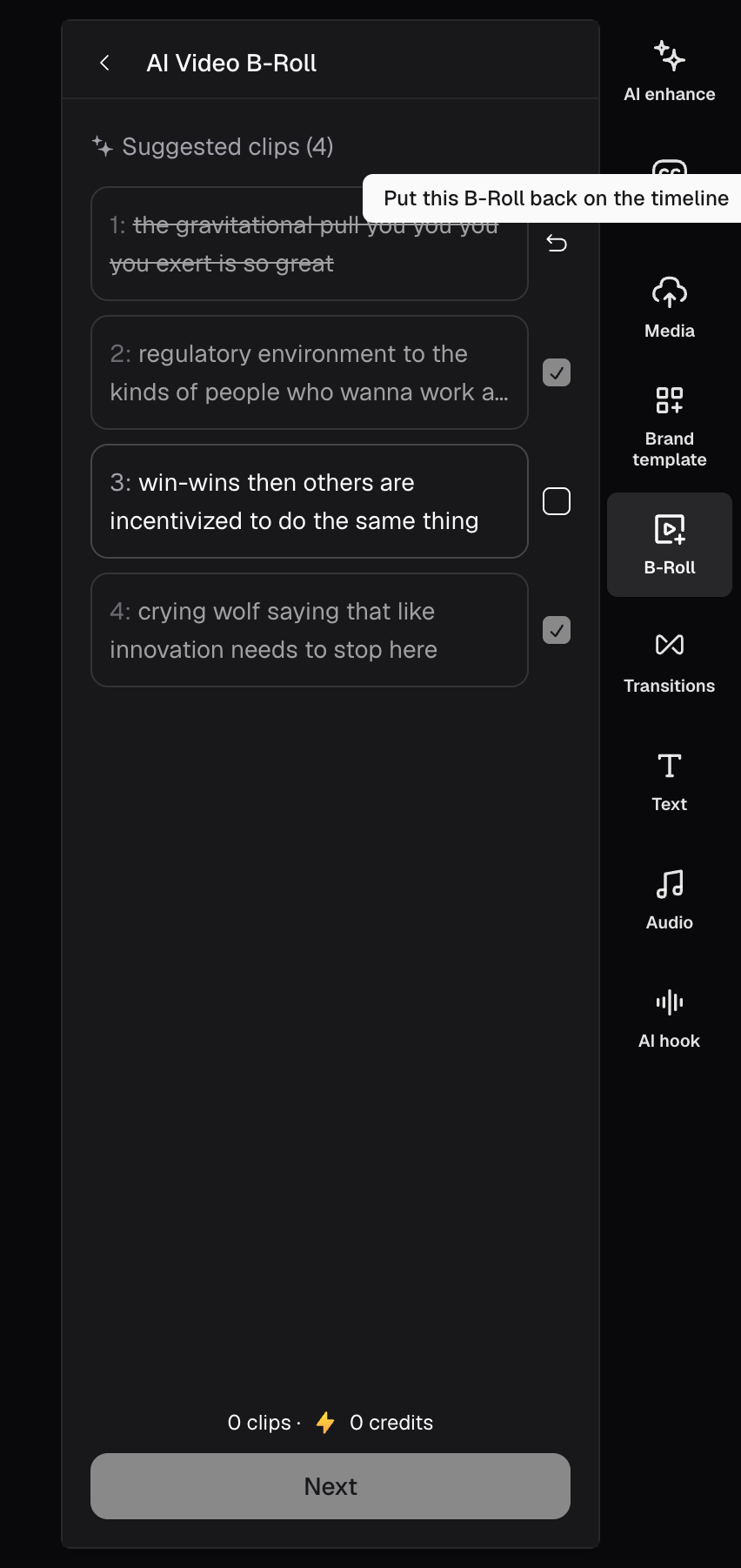
3. Review the auto-suggested B-roll moments.
4. Select the moments you'd like to generate.
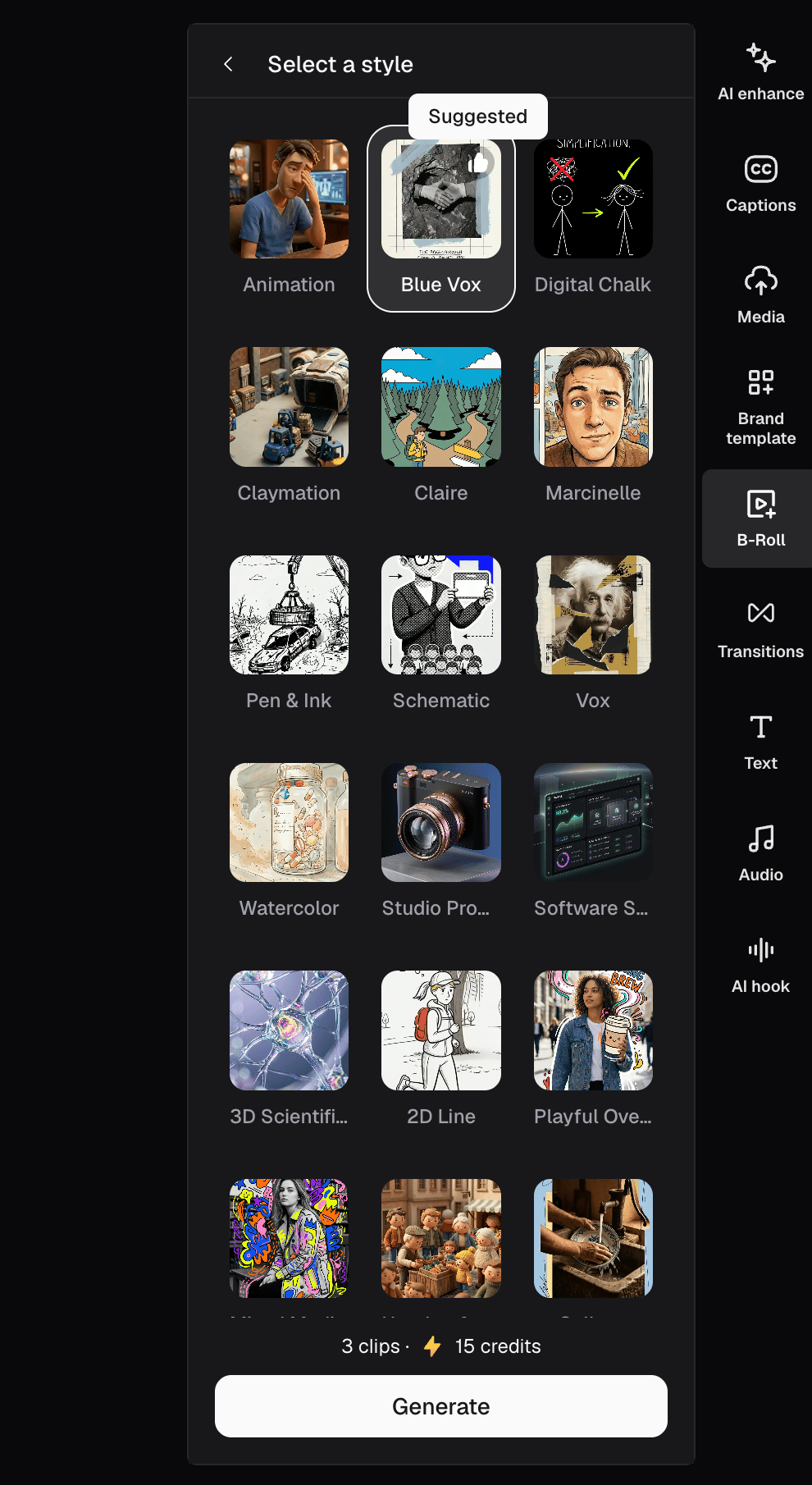
5. Choose a visual style (or use the recommended style).
6. Click **Generate**.
Your generated AI Video B-Roll clips will automatically be inserted into the timeline.
## Can I edit generated AI Video B-Roll?
Currently, you have the ability to drag and crop the AI Video B-Roll. You are also able to move B-Roll on the timeline by clicking-and-holding it and moving it wherever you please on the timeline. Furthermore, you can also trim the duration of each B-Roll clip.
## How do I regenerate AI Video B-Roll?
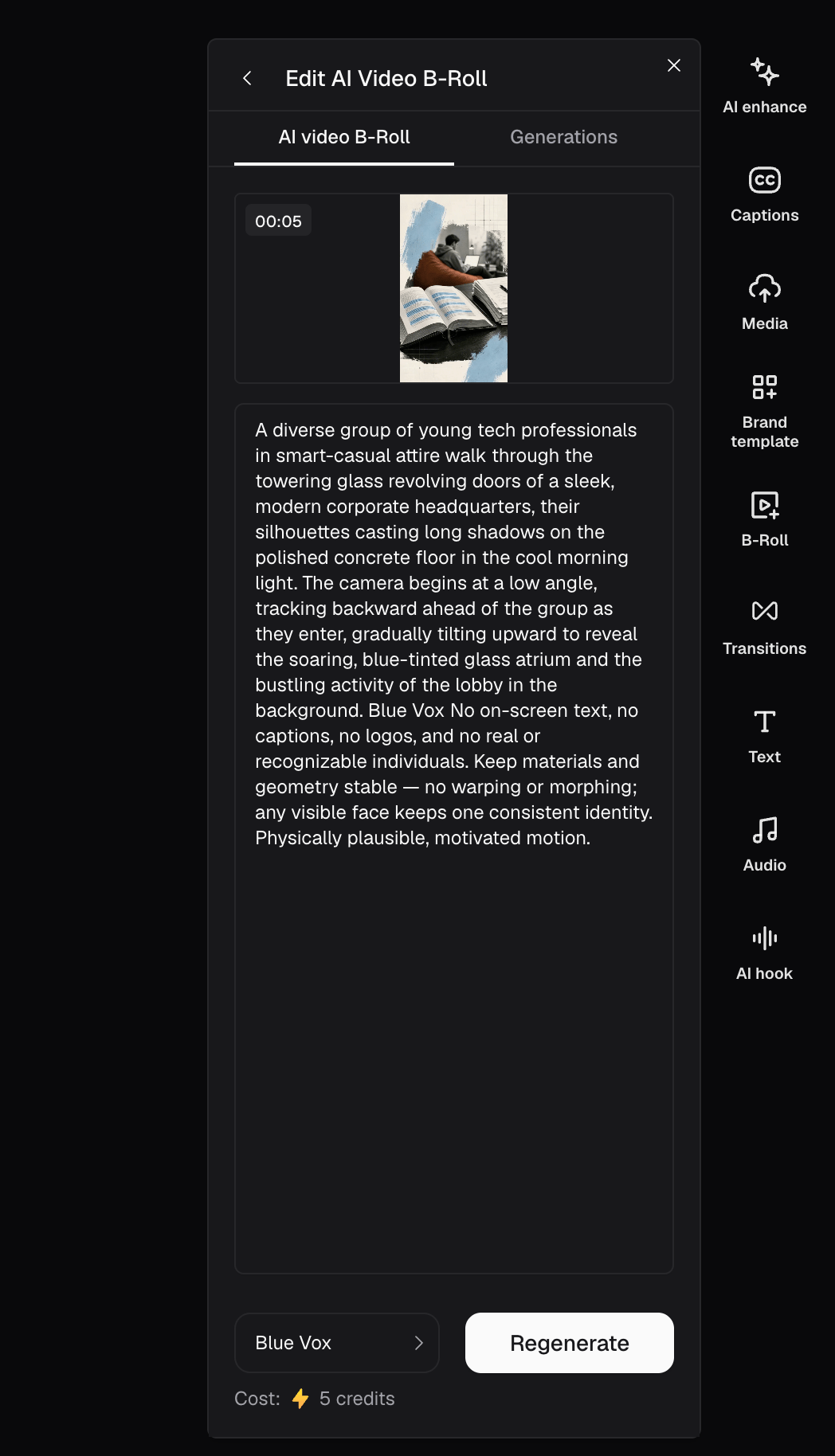
If you're not satisfied with a generated clip, click the B-roll clip to open the generation panel.
You can:
* Click **Generate** to create a completely different visual interpretation.
* Change the visual style and regenerate.
* Edit the prompt before regenerating.
Each user receives 5 free regenerations over their lifetime. Additional regenerations consume 5 credits each.
## Can I view my AI Video B-Roll generation history?
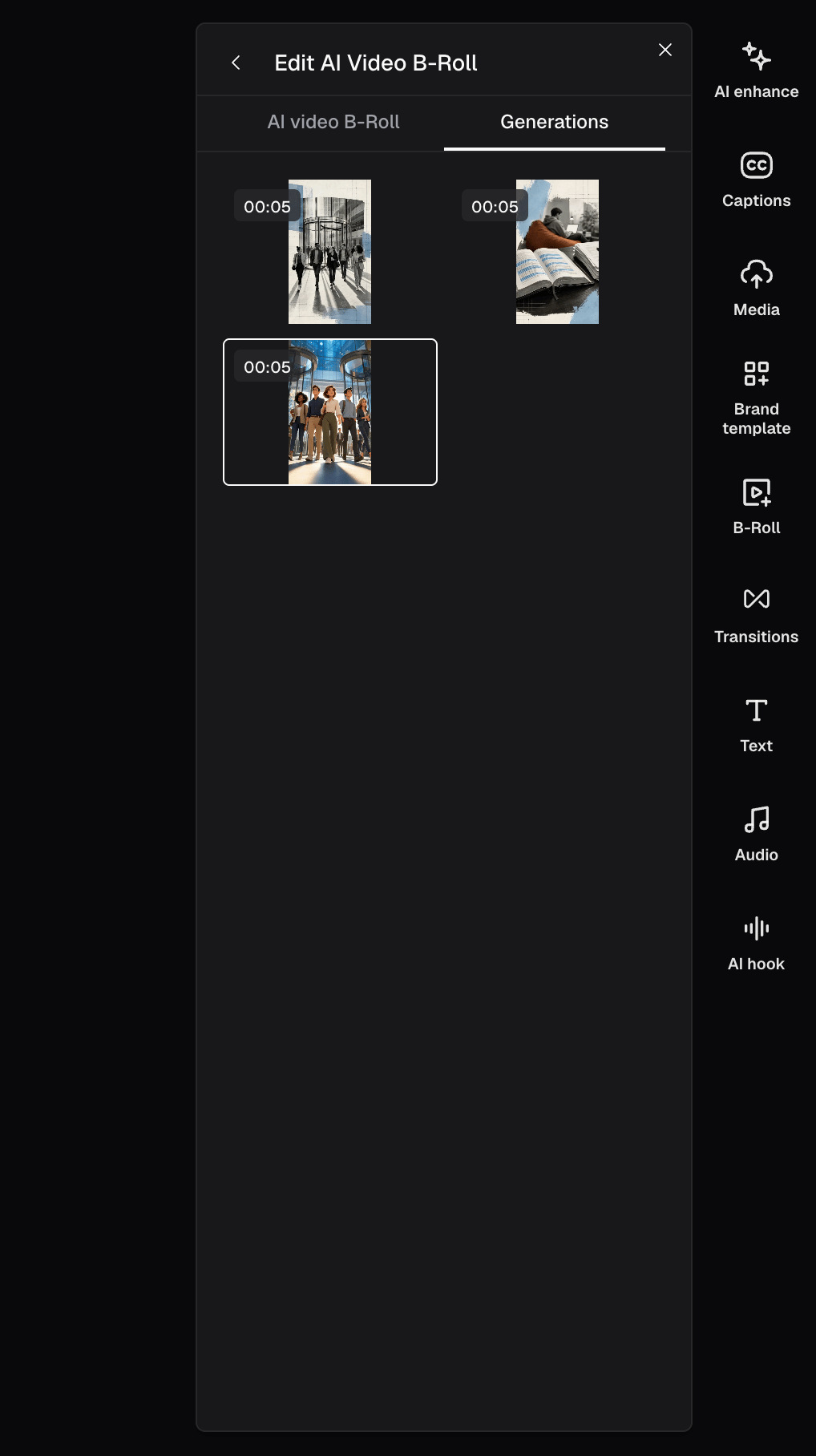
Yes, absolutely! Click on a generated AI Video B-Roll clip to open the **Generations** panel, where you can review all previously generated versions and switch between them.
## I accidentally deleted an AI Video B-Roll. Can I add it back?
Yes, of course! Open **B-Roll → AI Video B-Roll**, then click the **Restore** button to reinsert the deleted AI Video B-Roll clip into the timeline.
## Who can use AI Video B-Roll?
AI Video B-Roll is available for **Pro, Max, and Business** plans. Starter and Free plans do not include AI Video B-Roll.
## Can I manually select a sentence to generate AI Video B-Roll?
Not yet. Manual sentence selection is planned for a future release.
## Does AI Video B-Roll consume credits?
Yes. Each AI Video B-Roll generation costs 10 credits.
Every Pro, Max, and Business user also receives:
* 3 free AI Video B-Roll generations (lifetime)
* 5 free regenerations (lifetime)
After the free generations and regenerations are used, each new generation or regeneration consumes 10 credits.
## Want to learn more about Agent Opus?
Visit [agent.opus.pro](https://agent.opus.pro/) to explore how Agent Opus can help you create full AI-generated videos.