> ## Documentation Index
> Fetch the complete documentation index at: https://help.opus.pro/llms.txt
> Use this file to discover all available pages before exploring further.
# AI Sound Effect
Sound design can make the difference between a flat clip and one that stops the scroll. AI Sound Effects watches your video, detects key moments, and places production-quality sound effects on your timeline automatically — no editing experience needed.
## How to use AI Sound Effects
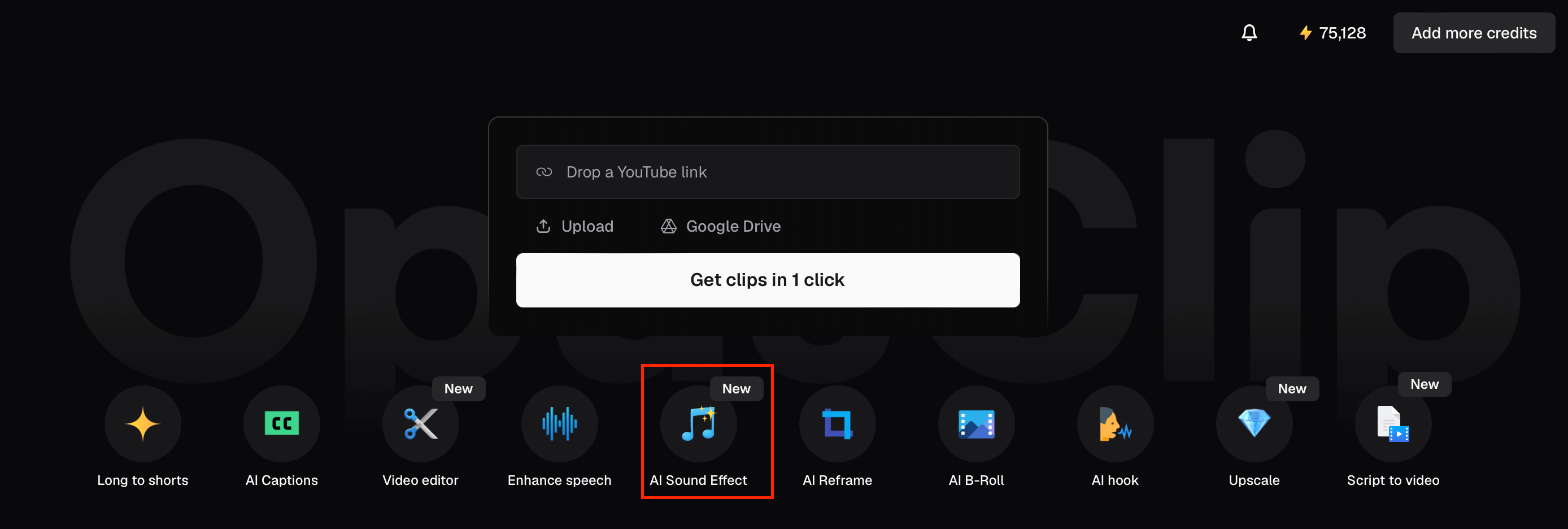
1. From the homepage, click **AI Sound Effect** in the Quick Start. You can also access it from the editor: open a clip and click **Audio** in the right sidebar.
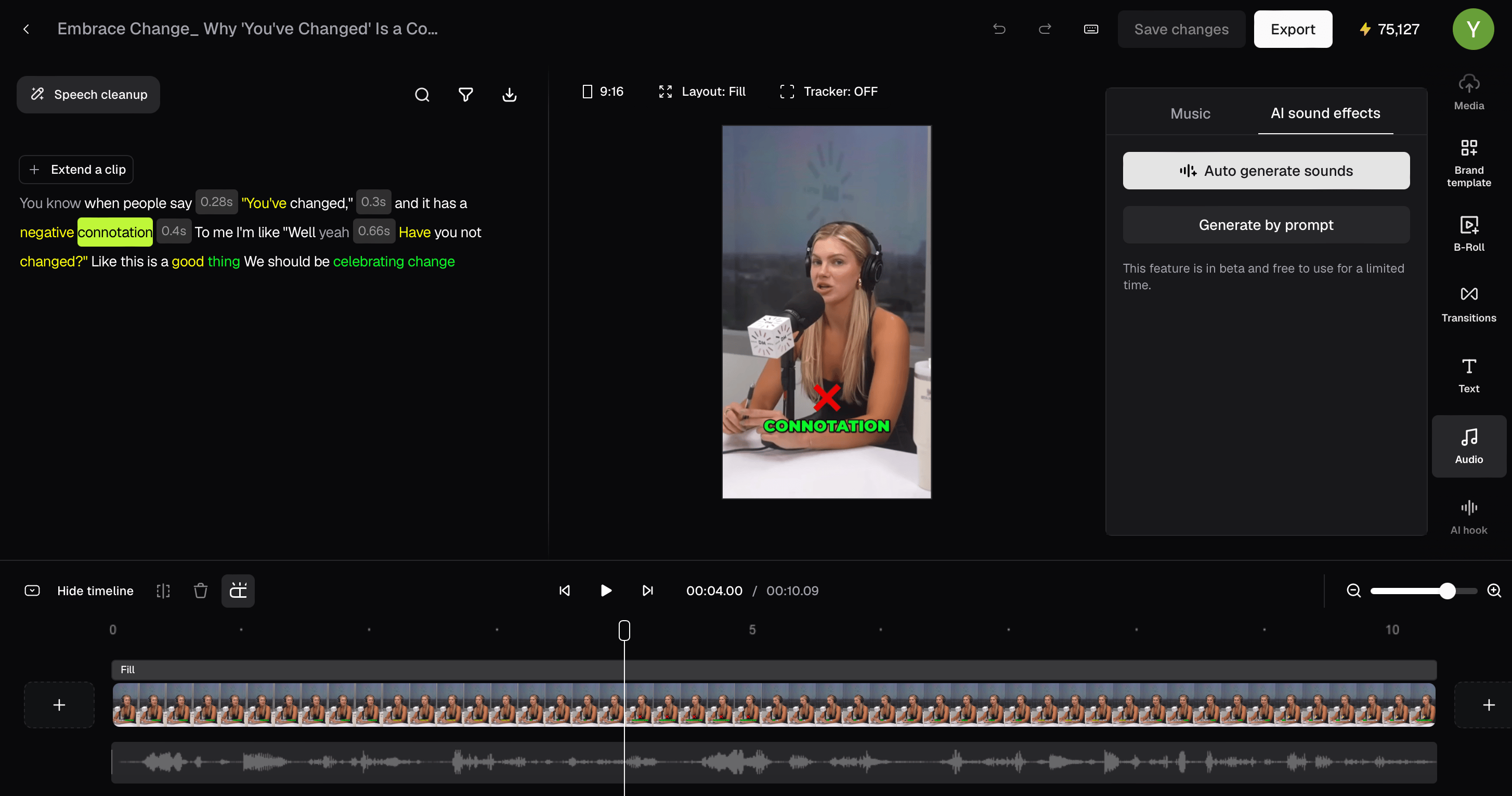
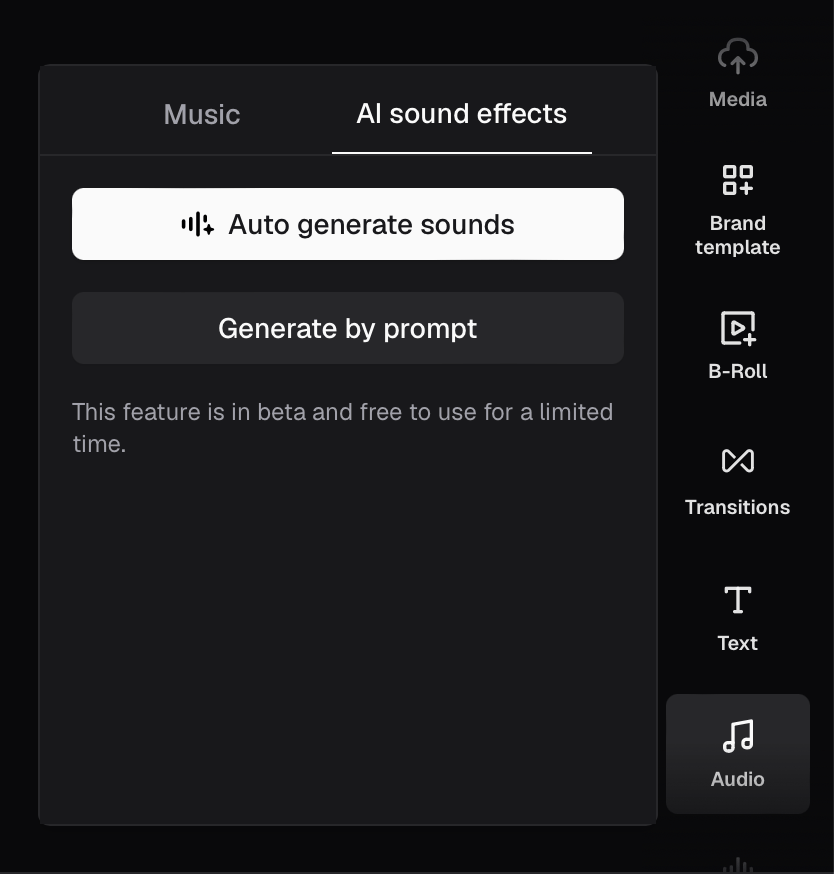
2. In the **Audio** panel, click the **AI sound effects** tab. Then click **Auto generate sounds** — OpusClip analyzes your video and adds SFX automatically. This takes under 2 minutes for a 60-second clip.
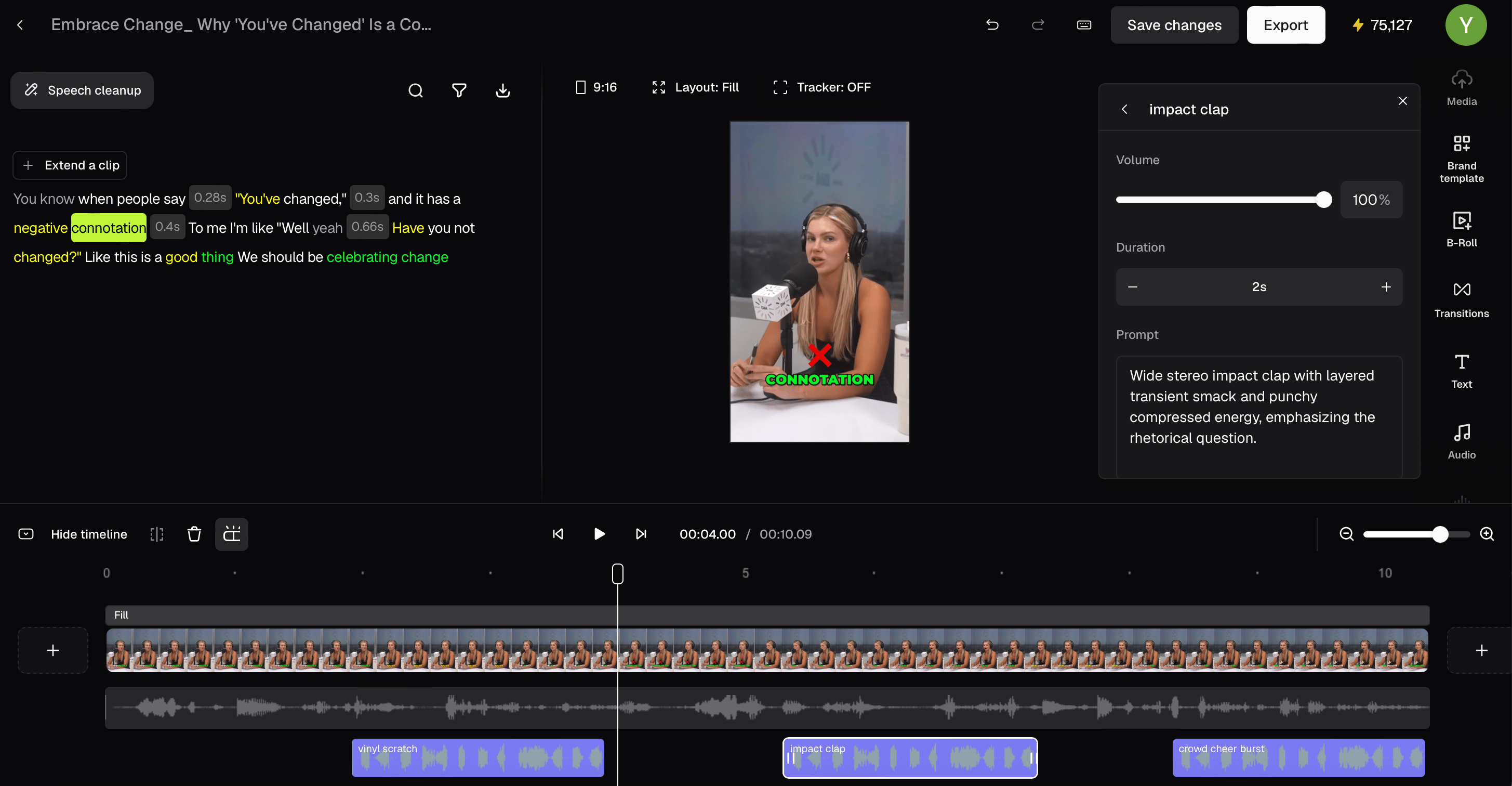
3. Your sound effects appear as colored blocks on the timeline. Click any block to adjust its **Volume**, **Duration**, or edit the **Prompt** and regenerate that specific sound.
## Generate a sound by prompt
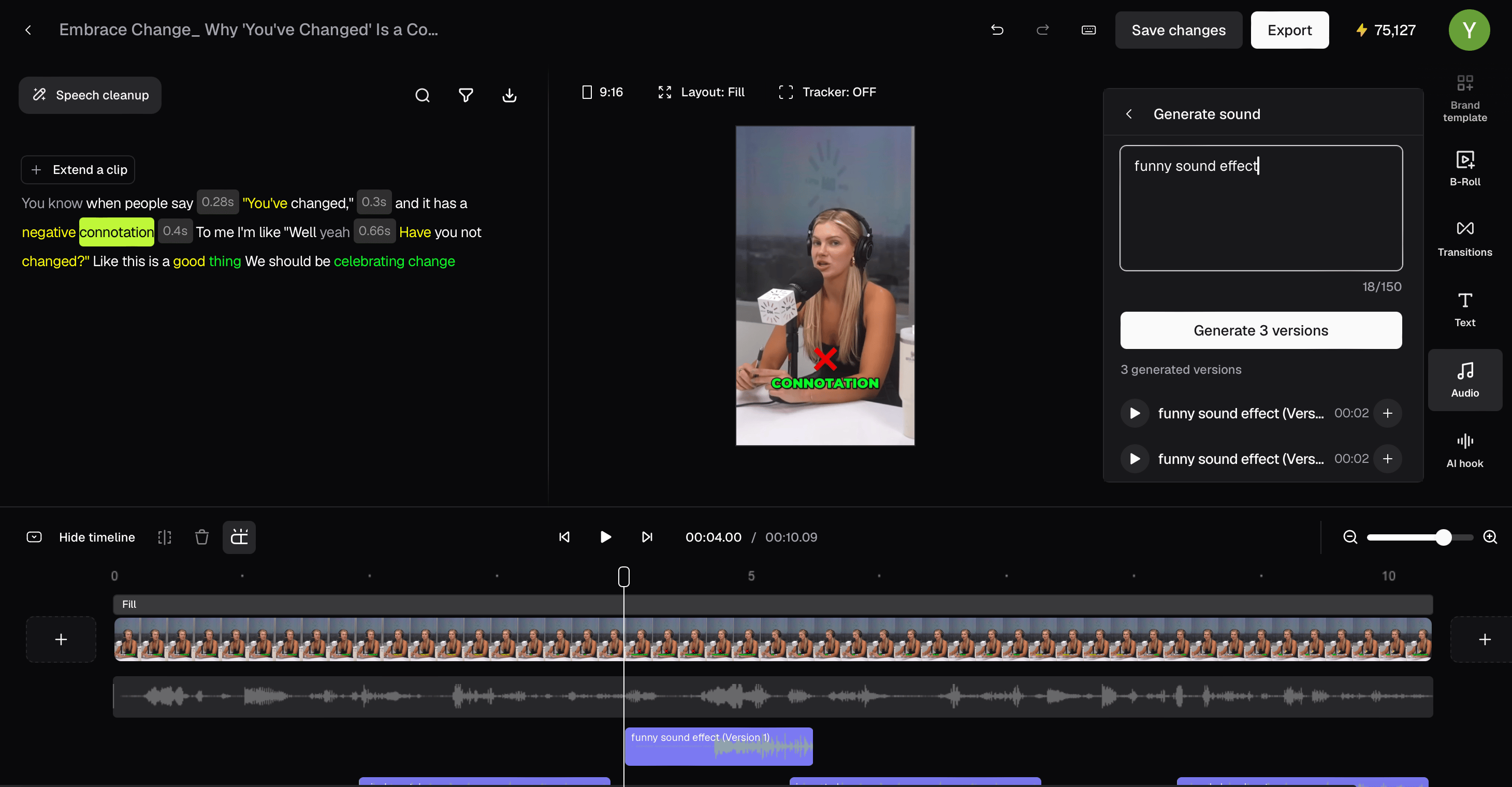
1. On the **AI sound effects** tab, click **Generate by prompt**.
2. Describe the sound effect you want in the **Prompt** field (e.g., "funny sound effect" or "deep cinematic boom"), set the **Duration**, then click **Generate 3 versions** and pick the one that fits best.
## Plan availability
| Plan | AI Sound Effects |
| -------- | ---------------- |
| Free | — |
| Starter | — |
| Pro | ✅ |
| Business | ✅ |
## FAQ
**How long does generation take?**
Under 2 minutes for a 60-second clip.
**Can I undo the generated sound effects?**
Yes, each SFX block lives on a separate track. Delete any block or regenerate it at any time without affecting the rest.
**What kinds of sounds does it add?**
OpusClip detects transitions, impacts, UI moments, ambient sounds, and more — matched to your video's content and tone.
**Will this change my original video?**
No, sound effects are placed on a separate track and can be removed at any time without touching your original footage.