> ## Documentation Index
> Fetch the complete documentation index at: https://help.opus.pro/llms.txt
> Use this file to discover all available pages before exploring further.
# General questions
## How to use the Social Media Calendar
Our newest social media calendar is a powerful tool that lets you **schedule your whole month's posts in 10 minutes**.
With the new calendar, you can:
1. Connect multiple accounts to each social platform
2. View everything you’ve published, drafted, and plan to publish in one calendar
3. Drag and drop posts from one day or time to another
To use our social media calendar effectively, we recommend:
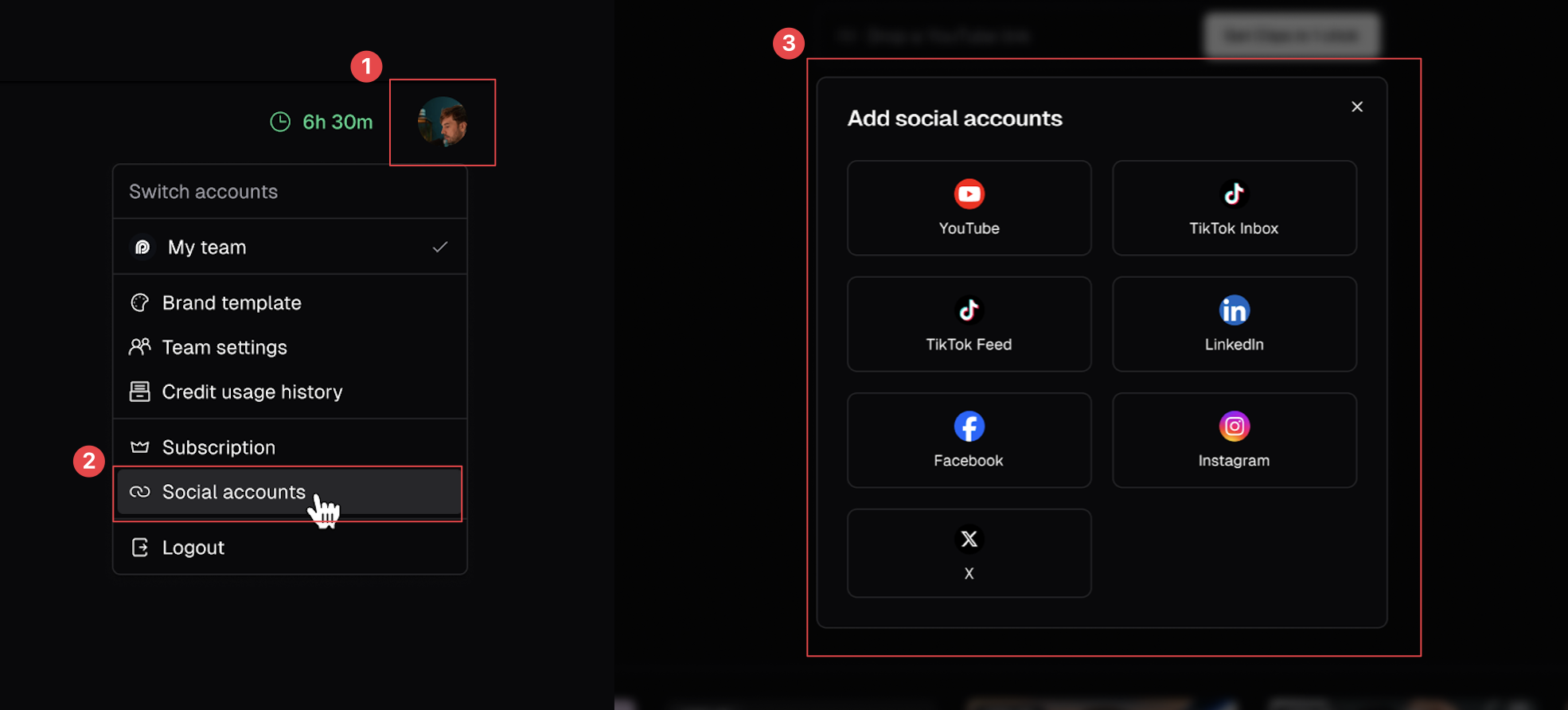
### 1. Link your account(s) to each social platform
To connect your accounts to your platforms, please:
1. Click the Social Accounts icon in the left sidebar
2. Click "Add Account"
3. Connect your accounts to various platforms
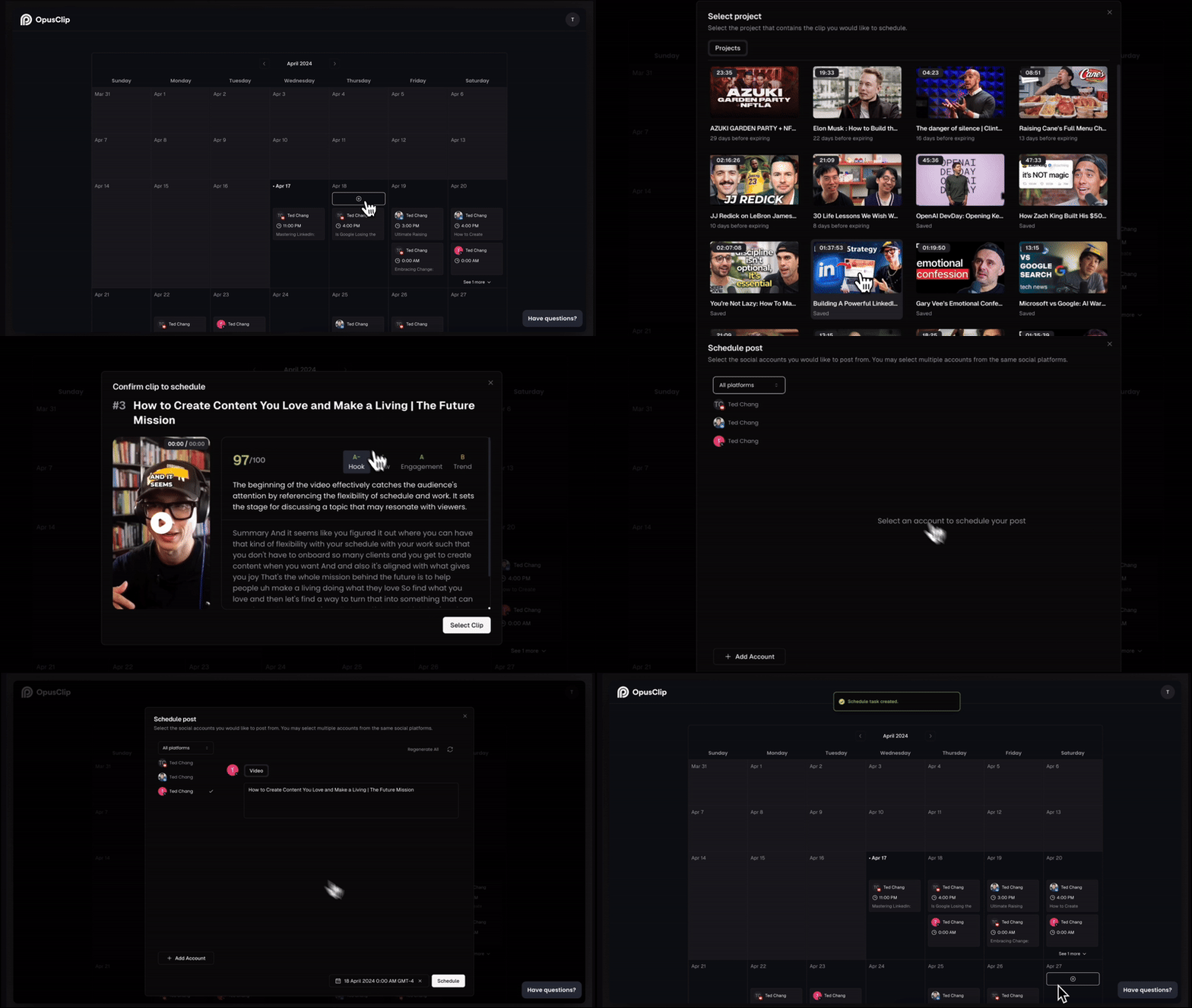
### 2. Schedule your posts using the social media calendar
To schedule your posts, please:
1. Click "Calendar" in the left sidebar
2. Choose your desired date on the calendar
3. From there, choose the clips and platforms for your posts. Our AI will *auto-generate descriptions and hashtags*
You can easily manage all your scheduled posts from the calendar. Give it a try and let us know your feedback!